Barber team Template


Edit Template Offline
2. Create new page and search for id 5252569
Edit Template Online
Create Awesome Websites


Free Nicepage Builder
Keywords
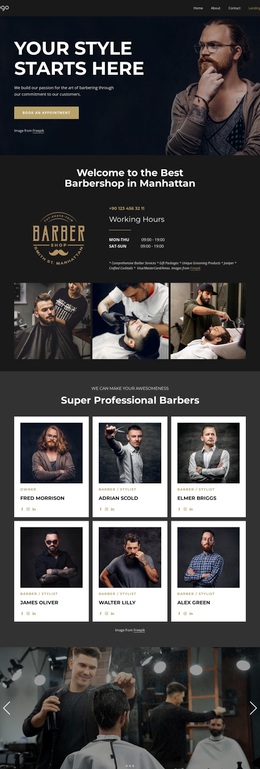
Eight Staff Cards Make the Barbershop Story Personal
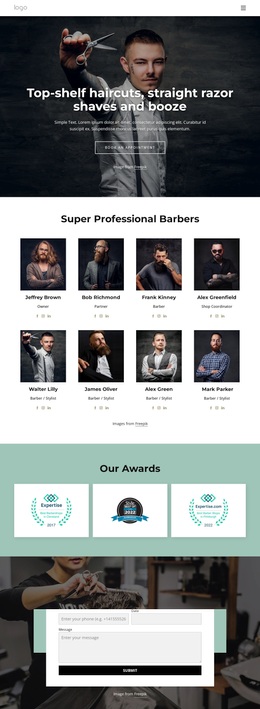
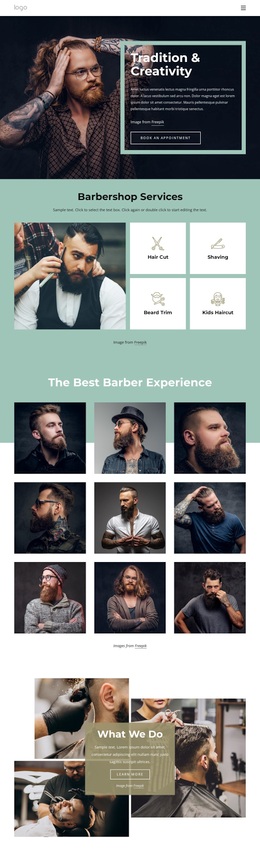
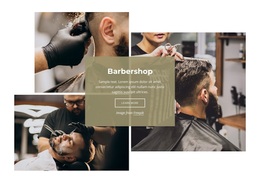
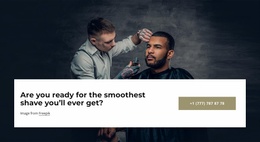
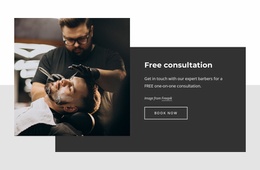
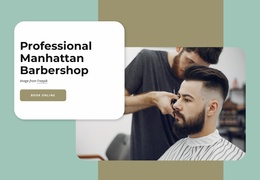
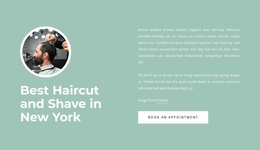
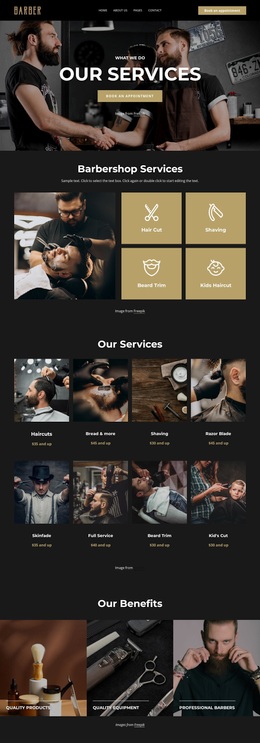
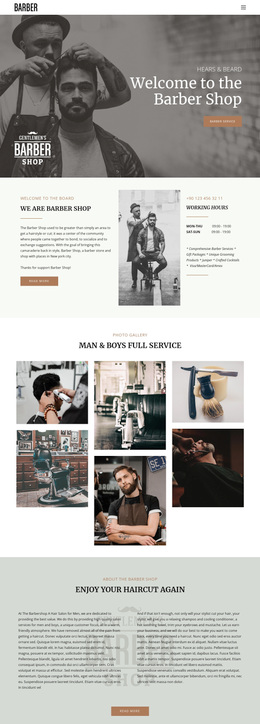
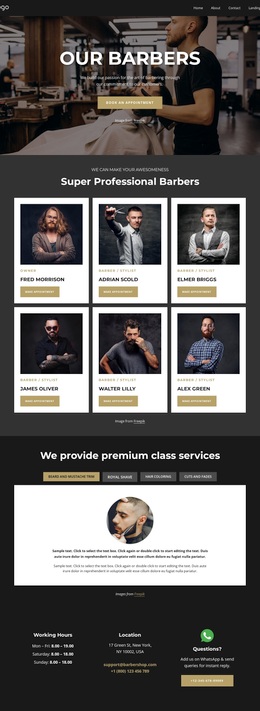
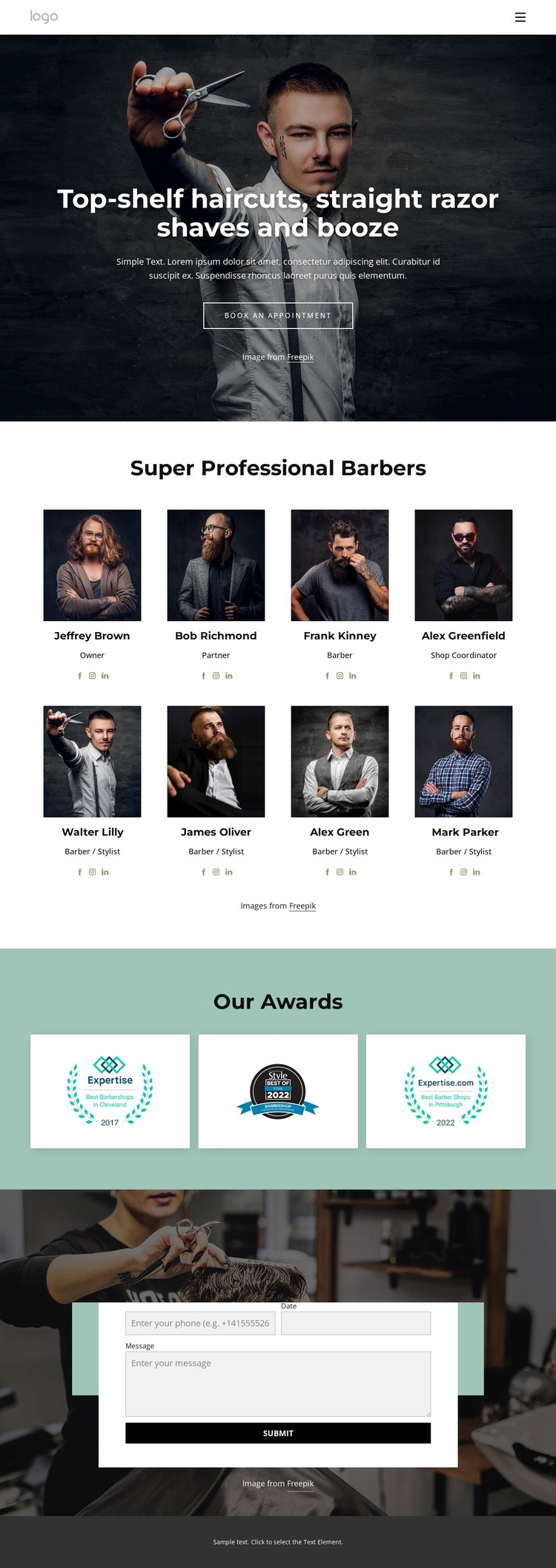
The strongest reason to choose this design is the way it combines a clear service message with a substantial team presentation. The hero does not rely on a generic business introduction: it names haircuts, straight razor shaves, and drinks, then places an outlined Book an Appointment button over a dark photographic background. That opening gives the page a recognizable barbershop direction before the visitor reaches the staff content.
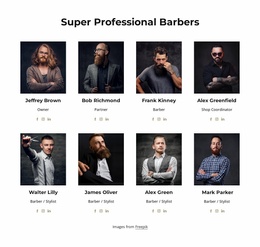
The eight portrait cards are the template’s most distinctive content feature. They present named people with roles such as Owner, Partner, Barber, Shop Coordinator, and Barber / Stylist, creating a more personal alternative to a layout centered only on service cards or pricing. Social profile links add another layer to the repeated team presentation without changing its compact visual format.
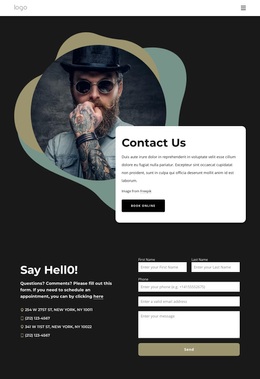
Three award tiles extend the story from people to recognition, using a muted teal section to create contrast with the mostly monochrome presentation. The closing contact form then connects that credibility to an appointment or inquiry request. This combination suits a barbershop that wants its craft, staff, and recognition visible before asking visitors to get in touch. It is a focused design option for projects where team identity should carry as much weight as the service list.
Customize with Nicepage
Open this ready-made template in the Template Builder and customize it visually in the Nicepage editor. Replace demo content, edit page sections, and adapt the design to your project without rebuilding the template from scratch.
Start With a Ready-Made Template
Choose a Design for a New Page
Use a ready-made template as a starting point instead of creating every page from a blank canvas. When adding a new page in Nicepage, browse available designs, compare different layouts, and choose an option that already fits the general purpose and visual direction of your project.
Browse Different Page Designs
Explore Page Designs using search, thematic categories, Design Sets, and full-page previews. The collection includes layouts for different subjects and page purposes, making it easier to compare alternatives before selecting a design to customize.
Customize the Selected Template
After choosing a design, create the page and continue editing it visually in Nicepage. Replace the demo content, adjust images, typography, colors, sections, and other elements, and adapt the ready-made layout to your own content instead of rebuilding the design from the beginning.
Explore More Design Directions
If the first option does not match your project closely enough, return to the design collection and compare other templates before committing to a layout. This makes the template library useful not only for faster page creation, but also for exploring different visual approaches and finding a suitable starting point for a new project.
This workflow gives you access to a broad collection of ready-made designs that can be selected, compared, and customized according to the needs of each new page or project.

Design Set (22)
-

-
-
-
-
-
-
-
-
-
-
-
-
-
-
Free Website Builder SoftwareDownload
-
-