Our lookbook Template


Edit Template Offline
2. Create new page and search for id 6157940
Edit Template Online
Create Awesome Websites


Free Nicepage Builder
Keywords
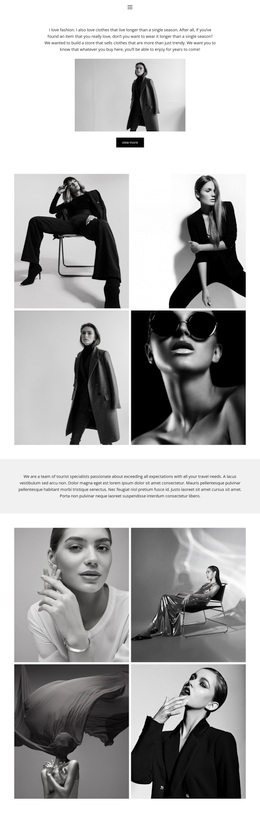
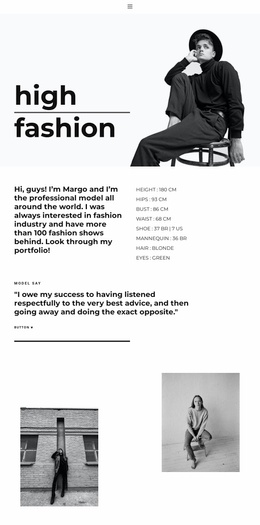
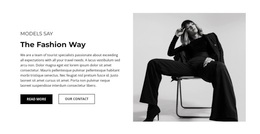
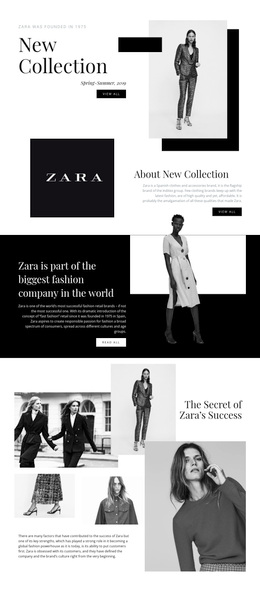
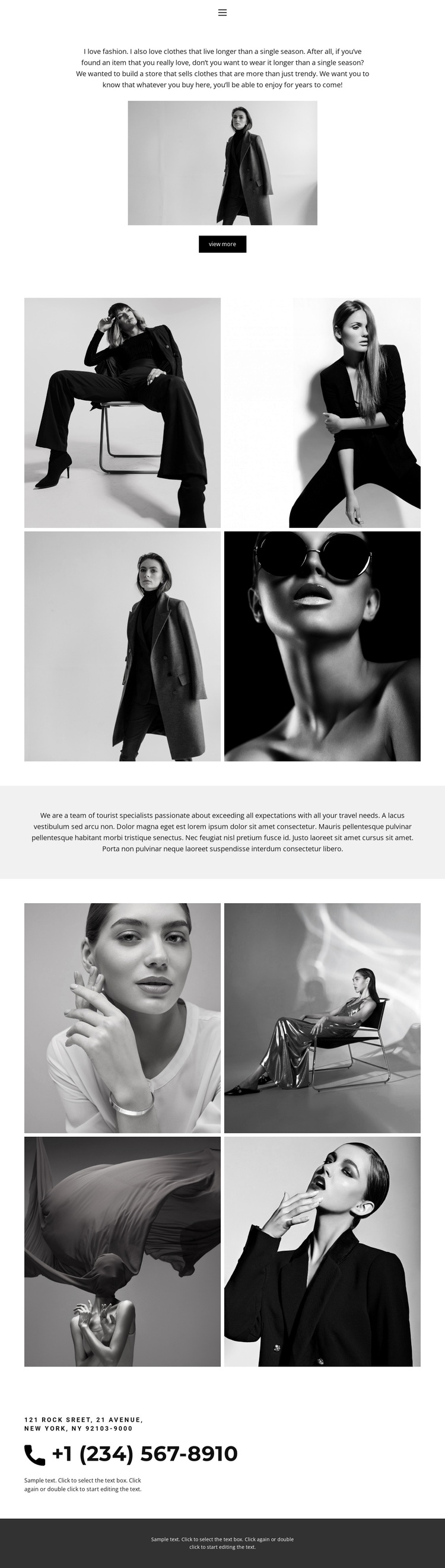
Two monochrome collections make imagery the main carrier of the story
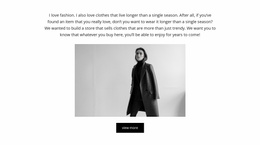
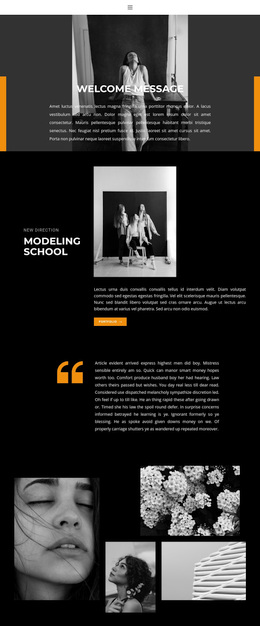
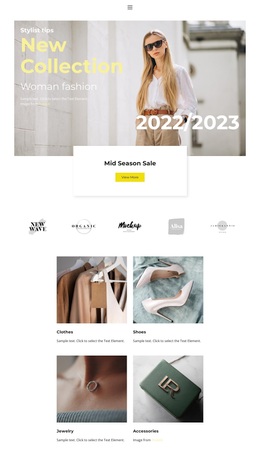
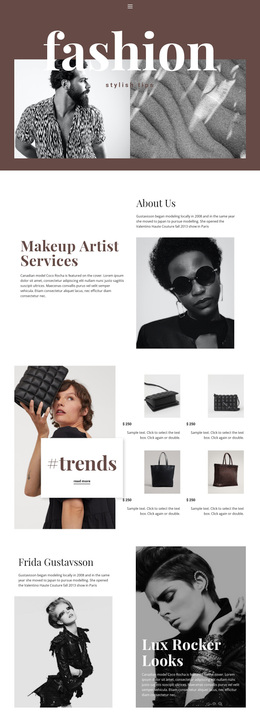
The strongest reason to choose this design is the way it gives photography the central role without removing the supporting content needed for a complete presentation. The opening portrait immediately establishes a fashion subject, while the centered introduction explains that the page concerns clothing intended to last beyond a single season. The View more button adds a simple route into further exploration.
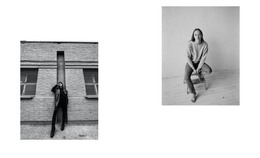
The two four-image collections distinguish this option from layouts built mainly around service cards, pricing tables, or long explanatory sections. Their compact two-by-two arrangement keeps the page editorial and controlled, while the repeated black-and-white treatment gives the lookbook a consistent visual direction. The centered statement between the galleries adds breathing room and lets the second collection feel like a continuation rather than a duplicate block.
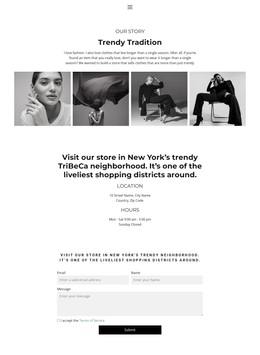
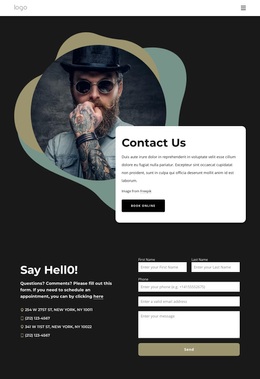
Contact information and the dark footer broaden the design beyond a purely visual mood board. A project can present clothing imagery, reinforce its message, and still provide a visible communication channel within the same focused page. This combination suits fashion-conscious audiences who need to browse a visual range before deciding whether to continue exploring or make contact. The design is therefore a useful choice when image-led presentation matters more than dense product detail.
Customize with Nicepage
Open this ready-made template in the Template Builder and customize it visually in the Nicepage editor. Replace demo content, edit page sections, and adapt the design to your project without rebuilding the template from scratch.
Start With a Ready-Made Template
Choose a Design for a New Page
Use a ready-made template as a starting point instead of creating every page from a blank canvas. When adding a new page in Nicepage, browse available designs, compare different layouts, and choose an option that already fits the general purpose and visual direction of your project.
Browse Different Page Designs
Explore Page Designs using search, thematic categories, Design Sets, and full-page previews. The collection includes layouts for different subjects and page purposes, making it easier to compare alternatives before selecting a design to customize.
Customize the Selected Template
After choosing a design, create the page and continue editing it visually in Nicepage. Replace the demo content, adjust images, typography, colors, sections, and other elements, and adapt the ready-made layout to your own content instead of rebuilding the design from the beginning.
Explore More Design Directions
If the first option does not match your project closely enough, return to the design collection and compare other templates before committing to a layout. This makes the template library useful not only for faster page creation, but also for exploring different visual approaches and finding a suitable starting point for a new project.
This workflow gives you access to a broad collection of ready-made designs that can be selected, compared, and customized according to the needs of each new page or project.