Design award Template


Edit Template Offline
2. Create new page and search for id 1123047
Edit Template Online
Create Awesome Websites


Free Nicepage Builder
Keywords
A Furniture-Led Choice With Categories, Products, and Visual Proof
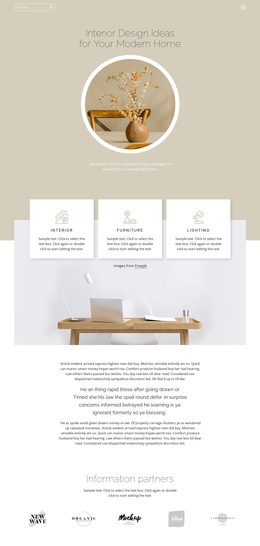
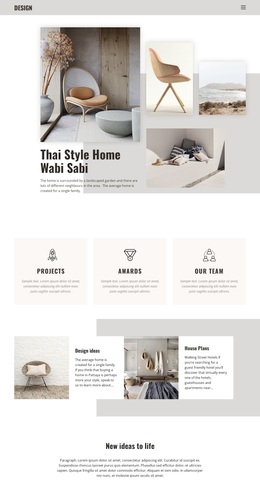
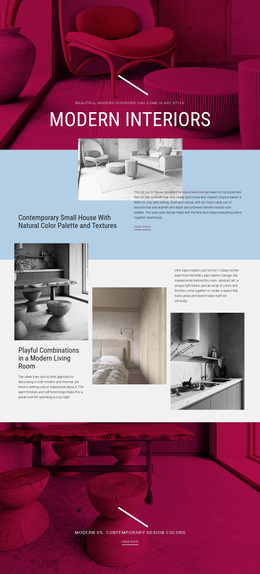
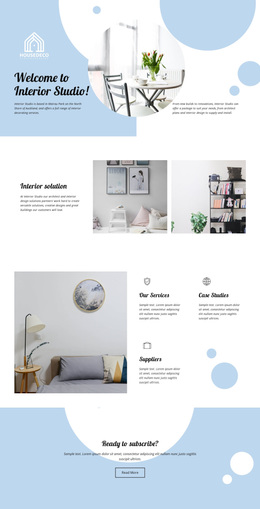
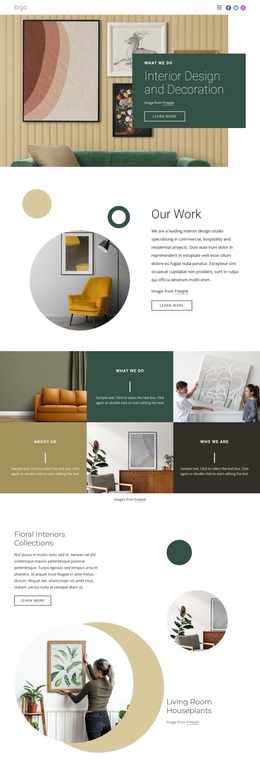
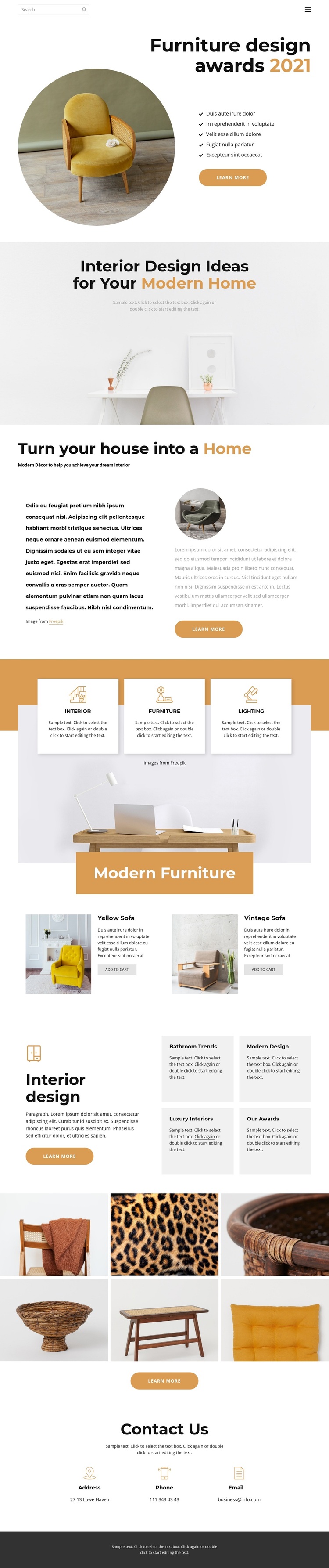
The strongest reason to choose this design is the way it joins editorial interior content with tangible furniture presentation. The opening awards section uses a circular chair photograph, a concise five-item list, and a Learn more button to establish a design-focused subject immediately. Rather than relying on product cards alone, the page follows with a wide lifestyle image and a house-to-home editorial section, allowing the furniture theme to sit within a broader modern-home context.
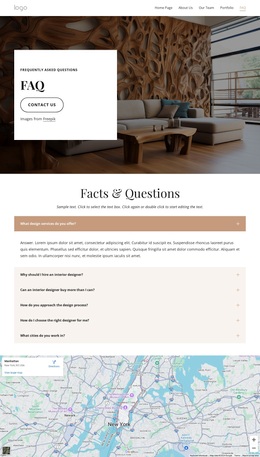
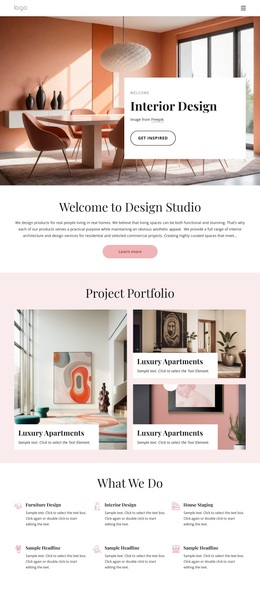
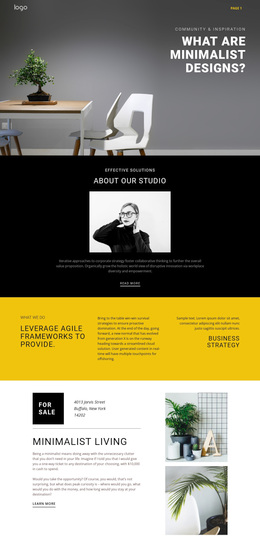
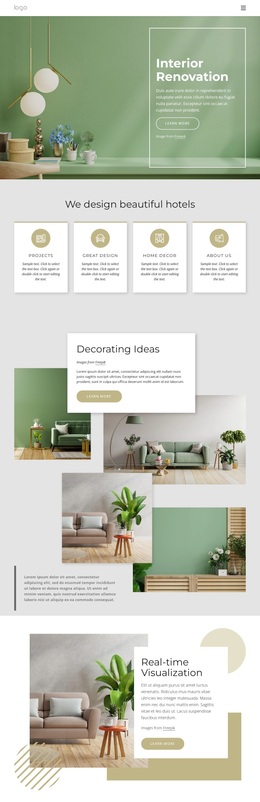
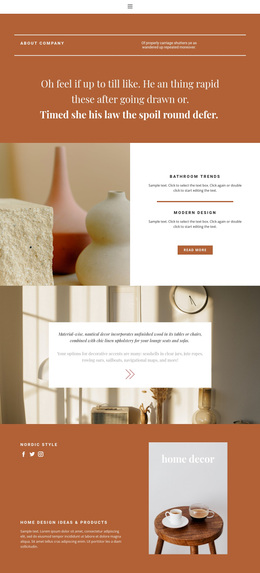
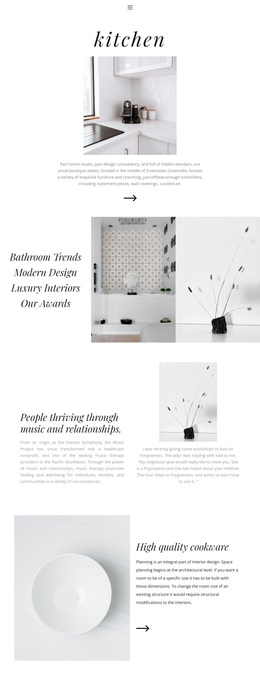
Its content coverage also distinguishes the layout from a page centered on only one product or one decorative gallery. Three cards identify Interior, Furniture, and Lighting as separate areas, while the Modern Furniture section gives the design a practical retail layer through Yellow Sofa and Vintage Sofa cards with add-to-cart actions. Four additional topics—Bathroom Trends, Modern Design, Luxury Interiors, and Our Awards—make room for related stories and interests. The six-image gallery reinforces the visual nature of the subject, and Contact Us provides a clear endpoint for further communication. This combination suits projects that need to show design ideas, organize home-decor categories, present selected furniture, and maintain a polished visual direction without overwhelming visitors with dense text.
Customize with Nicepage
Open this ready-made template in the Template Builder and customize it visually in the Nicepage editor. Replace demo content, edit page sections, and adapt the design to your project without rebuilding the template from scratch.
Start With a Ready-Made Template
Choose a Design for a New Page
Use a ready-made template as a starting point instead of creating every page from a blank canvas. When adding a new page in Nicepage, browse available designs, compare different layouts, and choose an option that already fits the general purpose and visual direction of your project.
Browse Different Page Designs
Explore Page Designs using search, thematic categories, Design Sets, and full-page previews. The collection includes layouts for different subjects and page purposes, making it easier to compare alternatives before selecting a design to customize.
Customize the Selected Template
After choosing a design, create the page and continue editing it visually in Nicepage. Replace the demo content, adjust images, typography, colors, sections, and other elements, and adapt the ready-made layout to your own content instead of rebuilding the design from the beginning.
Explore More Design Directions
If the first option does not match your project closely enough, return to the design collection and compare other templates before committing to a layout. This makes the template library useful not only for faster page creation, but also for exploring different visual approaches and finding a suitable starting point for a new project.
This workflow gives you access to a broad collection of ready-made designs that can be selected, compared, and customized according to the needs of each new page or project.