Design studio faq Template


Edit Template Offline
2. Create new page and search for id 6333468
Edit Template Online
Create Awesome Websites


Free Nicepage Builder
Keywords
Six Client Questions Give the Design a Clear Starting Point
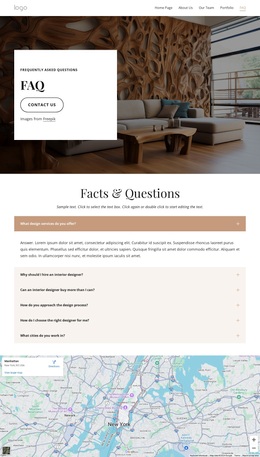
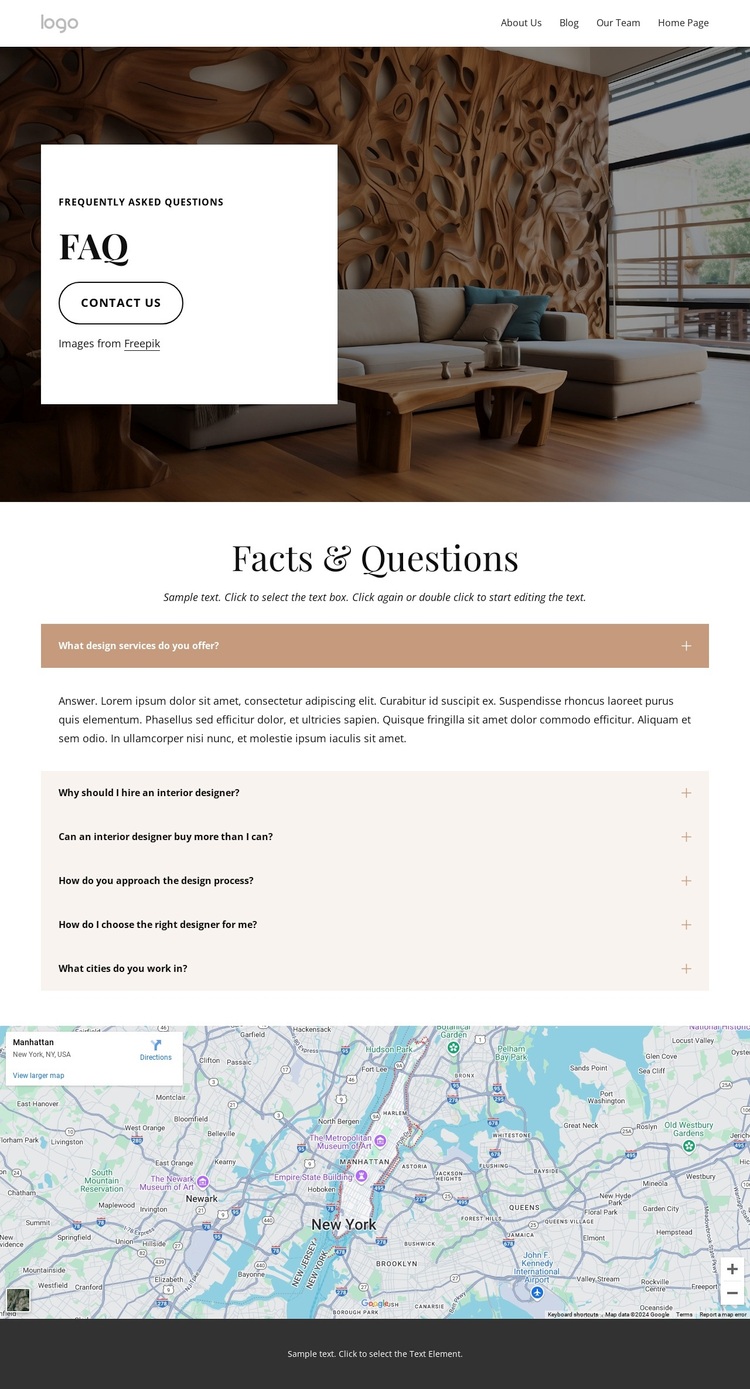
Six FAQ entries make this design distinctive as a choice for an interior design presentation because they address the concerns that often arise before a client makes contact. Questions about design services, the value of hiring an interior designer, the design process, selecting a designer, purchasing, and working locations give the page a practical information focus without requiring dense blocks of visible text.
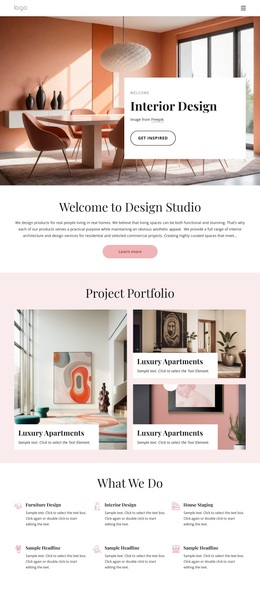
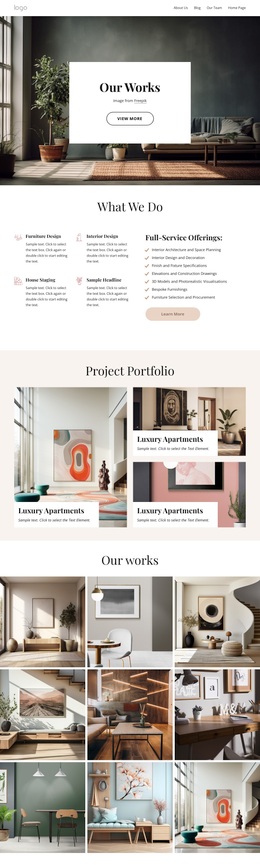
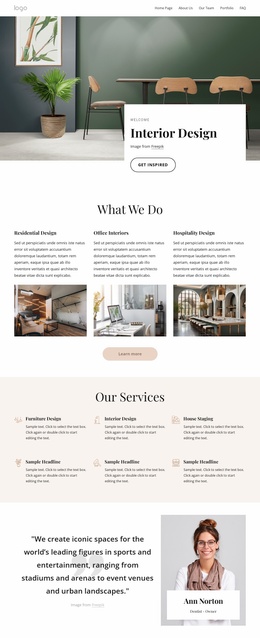
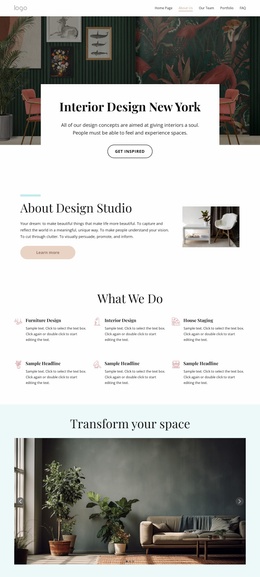
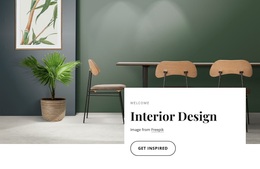
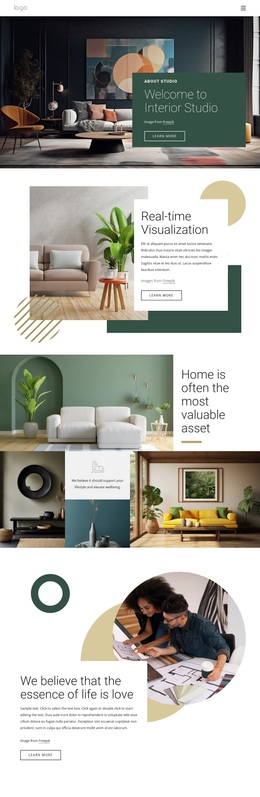
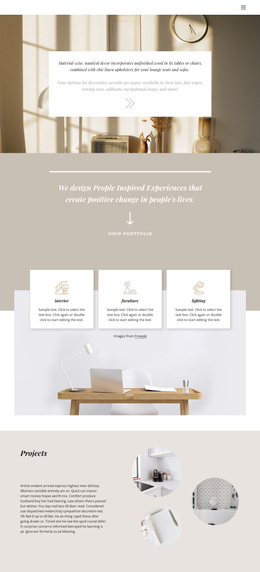
The warm interior photograph carries the visual subject immediately, while the neutral cream, white, and charcoal palette keeps attention on the questions and their answers. The navigation adds context by placing FAQ beside Home, About Us, Our Team, and Portfolio, so the layout can support a studio that wants to explain its approach as well as show its work. The Contact Us action gives the informational page a direct next step, and the map adds a concrete location reference below the main answers.
This combination suits a project that needs reassurance before inquiry rather than a purely portfolio-led presentation. The page can be selected when the design should balance atmosphere, structured explanations, service context, and contact direction. Its value lies in the relationship between a strong interior image and a compact question system: the image creates recognition, while the accordion helps prospective clients find relevant answers in a controlled, approachable format.
Customize with Nicepage
Open this ready-made template in the Template Builder and customize it visually in the Nicepage editor. Replace demo content, edit page sections, and adapt the design to your project without rebuilding the template from scratch.
Start With a Ready-Made Template
Choose a Design for a New Page
Use a ready-made template as a starting point instead of creating every page from a blank canvas. When adding a new page in Nicepage, browse available designs, compare different layouts, and choose an option that already fits the general purpose and visual direction of your project.
Browse Different Page Designs
Explore Page Designs using search, thematic categories, Design Sets, and full-page previews. The collection includes layouts for different subjects and page purposes, making it easier to compare alternatives before selecting a design to customize.
Customize the Selected Template
After choosing a design, create the page and continue editing it visually in Nicepage. Replace the demo content, adjust images, typography, colors, sections, and other elements, and adapt the ready-made layout to your own content instead of rebuilding the design from the beginning.
Explore More Design Directions
If the first option does not match your project closely enough, return to the design collection and compare other templates before committing to a layout. This makes the template library useful not only for faster page creation, but also for exploring different visual approaches and finding a suitable starting point for a new project.
This workflow gives you access to a broad collection of ready-made designs that can be selected, compared, and customized according to the needs of each new page or project.