Modern Interiors Template


Edit Template Offline
2. Create new page and search for id 31797
Edit Template Online
Create Awesome Websites


Free Nicepage Builder
Keywords
Colorful Editorial Contrast Gives This Design a Clear Point of View
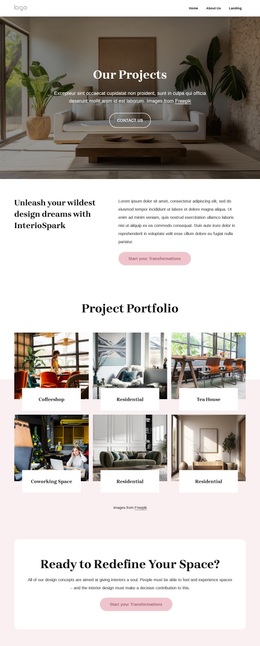
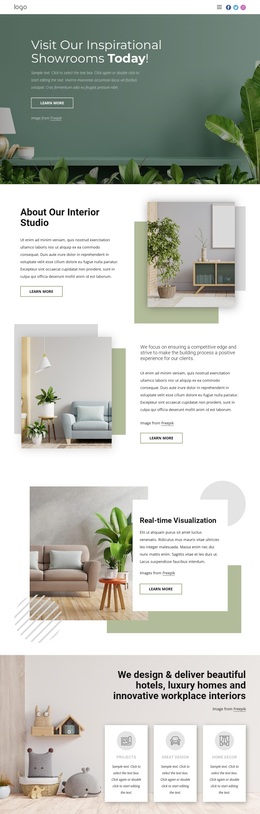
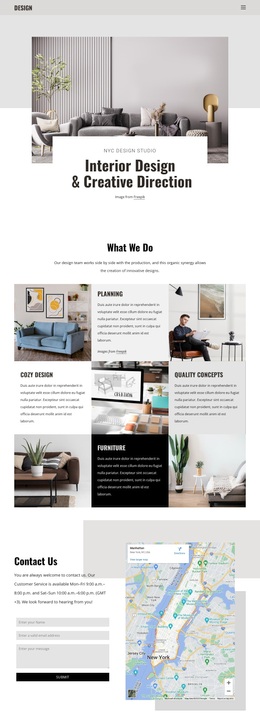
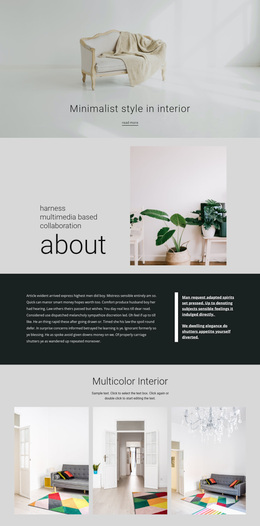
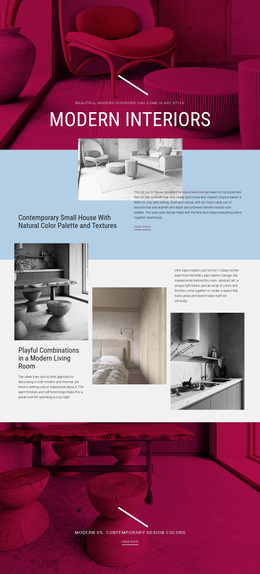
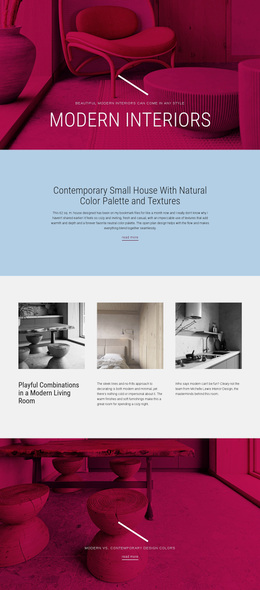
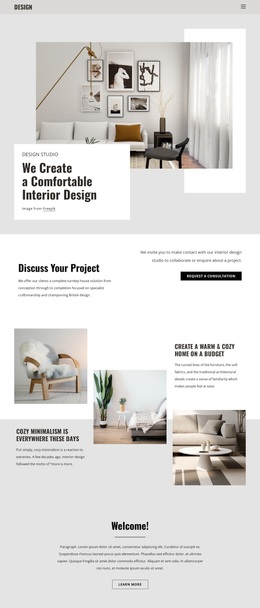
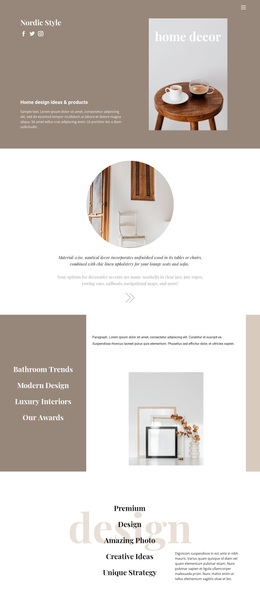
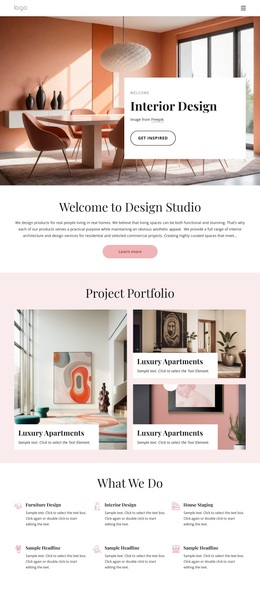
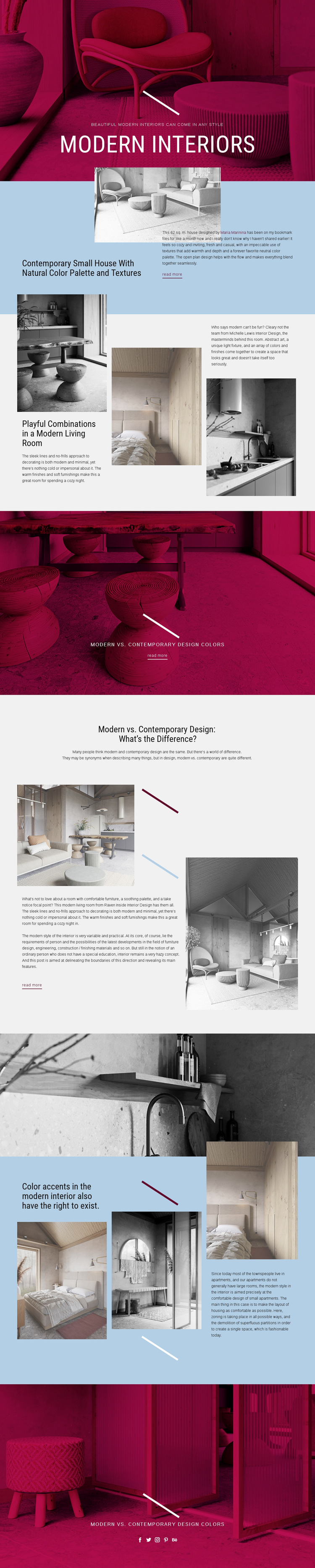
Large interior photographs carry much of the page’s meaning, but they are supported by a carefully varied set of editorial subjects. The hero establishes modern interiors as the broad theme, while the featured 62 sq. m. house introduces a specific example centered on natural colors and textures. That pairing makes the design suitable for projects that need to show a visual idea and explain the choices behind it rather than display images without context.
The three-item living-room area adds a more playful direction, and the later discussion of color accents, zoning, and small-apartment layouts extends the coverage into practical spatial concerns. The comparison between modern and contemporary design gives the page another reason to choose it: the layout can support educational distinctions as well as inspirational imagery. Repeated article links make those subjects feel like parts of an editorial collection, even though the supplied design is a single page.
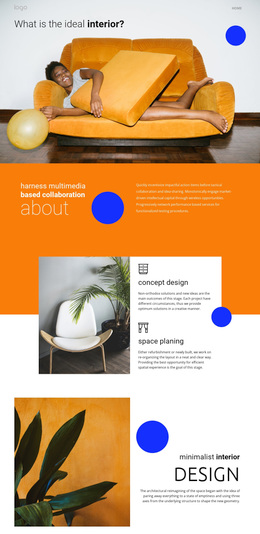
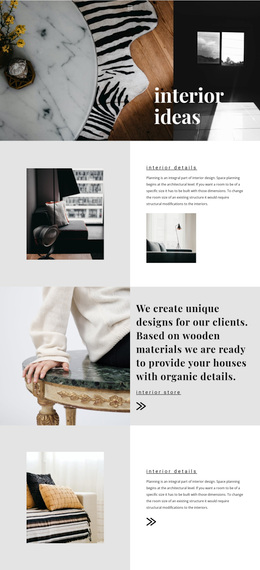
Its strongest distinguishing feature is the contrast between visual treatments. Magenta-toned banners create emphatic pauses, pale blue sections hold explanatory material, and a full-width monochrome photograph separates content groups. Large uppercase headings and compact paragraphs maintain a magazine-like hierarchy without making the page text-heavy. This is a useful design option when interior content should feel curated, image-led, and varied while still giving each topic enough space for a clear explanation.
Customize with Nicepage
Open this ready-made template in the Template Builder and customize it visually in the Nicepage editor. Replace demo content, edit page sections, and adapt the design to your project without rebuilding the template from scratch.
Start With a Ready-Made Template
Choose a Design for a New Page
Use a ready-made template as a starting point instead of creating every page from a blank canvas. When adding a new page in Nicepage, browse available designs, compare different layouts, and choose an option that already fits the general purpose and visual direction of your project.
Browse Different Page Designs
Explore Page Designs using search, thematic categories, Design Sets, and full-page previews. The collection includes layouts for different subjects and page purposes, making it easier to compare alternatives before selecting a design to customize.
Customize the Selected Template
After choosing a design, create the page and continue editing it visually in Nicepage. Replace the demo content, adjust images, typography, colors, sections, and other elements, and adapt the ready-made layout to your own content instead of rebuilding the design from the beginning.
Explore More Design Directions
If the first option does not match your project closely enough, return to the design collection and compare other templates before committing to a layout. This makes the template library useful not only for faster page creation, but also for exploring different visual approaches and finding a suitable starting point for a new project.
This workflow gives you access to a broad collection of ready-made designs that can be selected, compared, and customized according to the needs of each new page or project.