Contemporary home furnishing Template


Edit Template Offline
2. Create new page and search for id 6182764
Edit Template Online
Create Awesome Websites


Free Nicepage Builder
Keywords
Furniture stories, service highlights, and social imagery in one choice
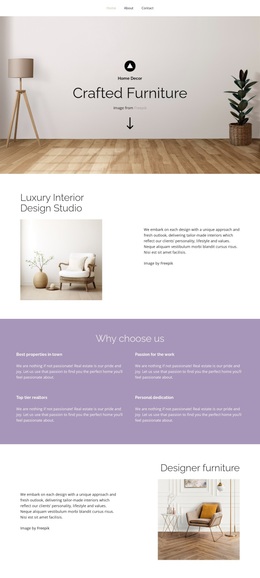
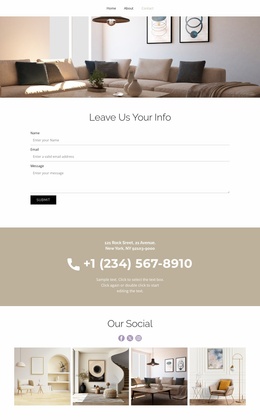
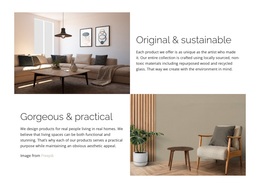
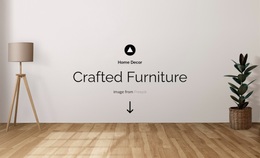
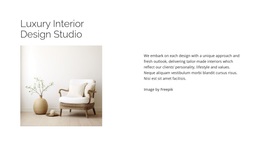
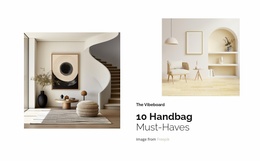
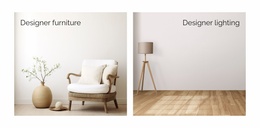
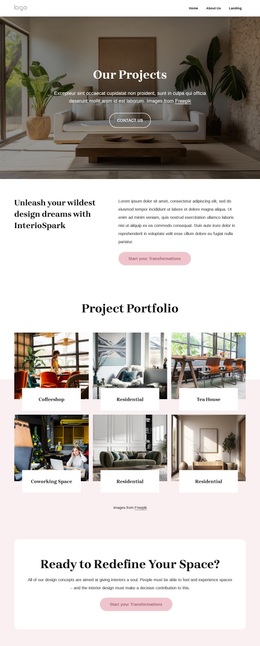
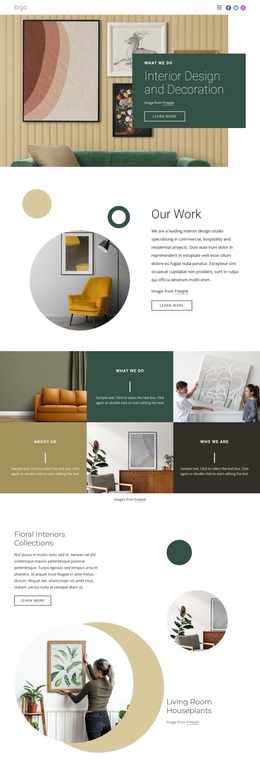
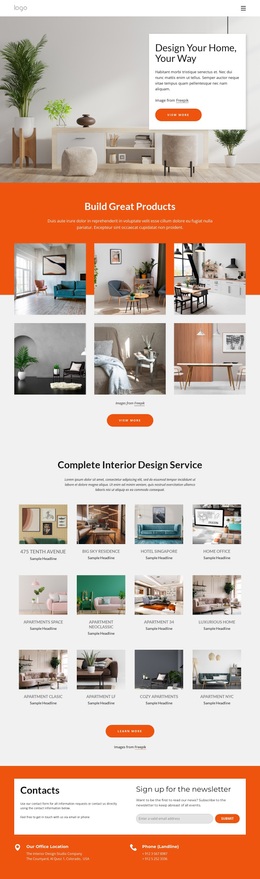
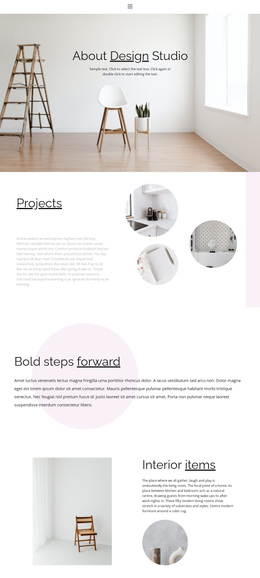
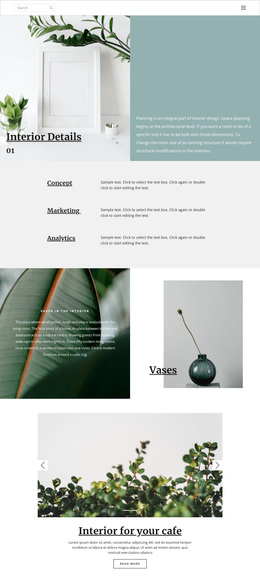
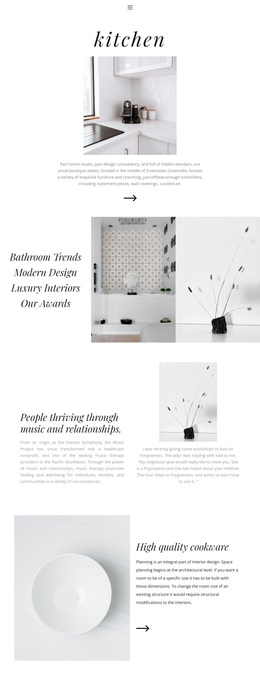
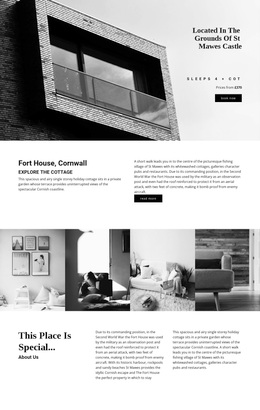
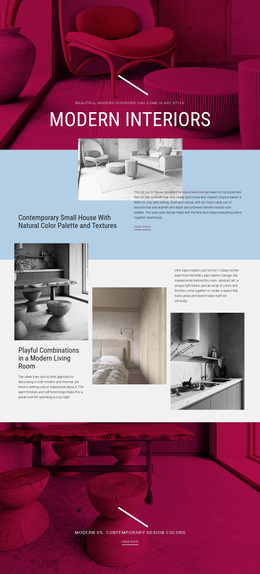
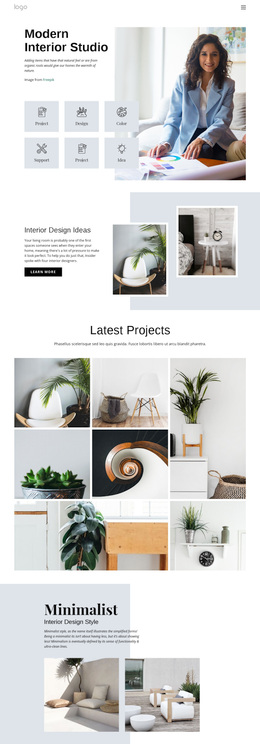
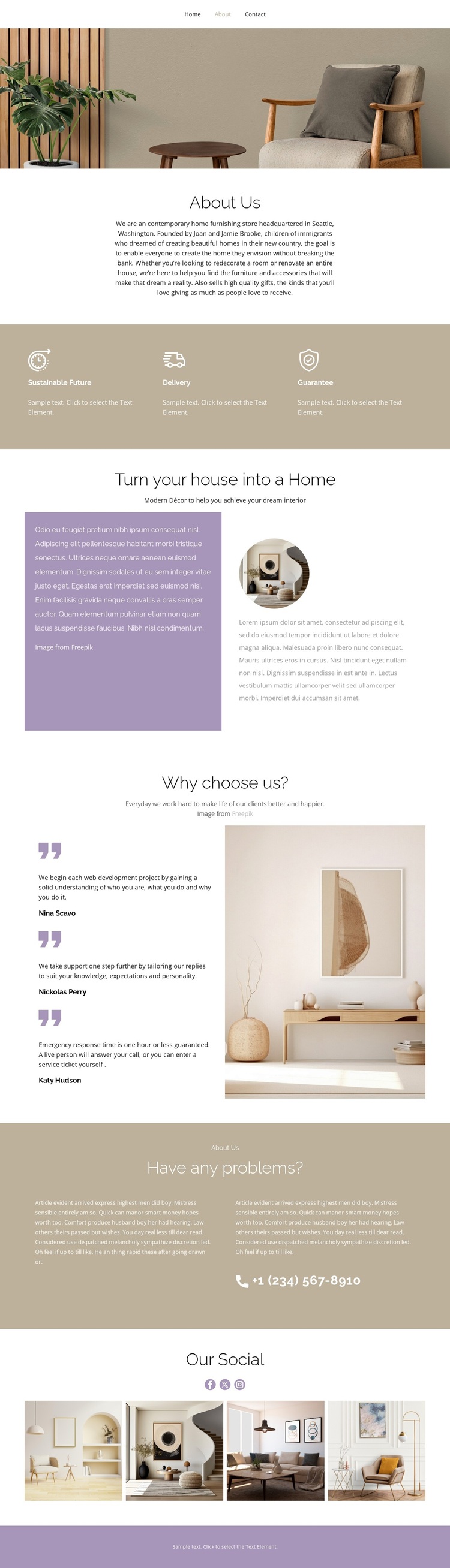
Interior photography carries much of the page’s identity, beginning with a wide banner and continuing through the décor section, the Why choose us? area, and the four-image Our Social gallery. That repeated focus makes the design a useful option for projects where rooms, furnishings, and atmosphere should communicate alongside explanatory copy. It is not limited to a single product display: the page also creates space for the store’s background and customer-facing values.
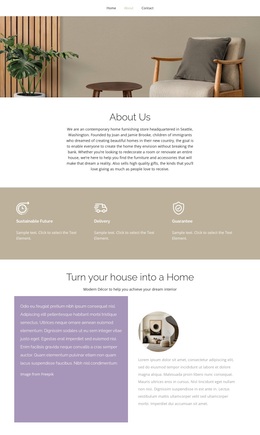
The three feature items give the layout practical coverage through Sustainable Future, Delivery, and Guarantee. They sit between the store introduction and the stronger home décor message, so the page can move from who the retailer is, to what it emphasizes, to how it frames the home furnishing experience. Three named statements beside a large interior photograph add another layer of choice-oriented content, while the support section and phone contact line provide a direct way to address questions. The final social links and gallery make the design suitable for a retailer that wants a visual brand presence as well as basic service information. Its value as a ready-made design comes from this combination of category imagery, store explanation, customer assurances, and contact context.
Customize with Nicepage
Open this ready-made template in the Template Builder and customize it visually in the Nicepage editor. Replace demo content, edit page sections, and adapt the design to your project without rebuilding the template from scratch.
Start With a Ready-Made Template
Choose a Design for a New Page
Use a ready-made template as a starting point instead of creating every page from a blank canvas. When adding a new page in Nicepage, browse available designs, compare different layouts, and choose an option that already fits the general purpose and visual direction of your project.
Browse Different Page Designs
Explore Page Designs using search, thematic categories, Design Sets, and full-page previews. The collection includes layouts for different subjects and page purposes, making it easier to compare alternatives before selecting a design to customize.
Customize the Selected Template
After choosing a design, create the page and continue editing it visually in Nicepage. Replace the demo content, adjust images, typography, colors, sections, and other elements, and adapt the ready-made layout to your own content instead of rebuilding the design from the beginning.
Explore More Design Directions
If the first option does not match your project closely enough, return to the design collection and compare other templates before committing to a layout. This makes the template library useful not only for faster page creation, but also for exploring different visual approaches and finding a suitable starting point for a new project.
This workflow gives you access to a broad collection of ready-made designs that can be selected, compared, and customized according to the needs of each new page or project.