Interior Design Studio Template


Edit Template Offline
2. Create new page and search for id 17295
Edit Template Online
Create Awesome Websites


Free Nicepage Builder
Keywords
Editorial plant guidance meets a product-ready visual story
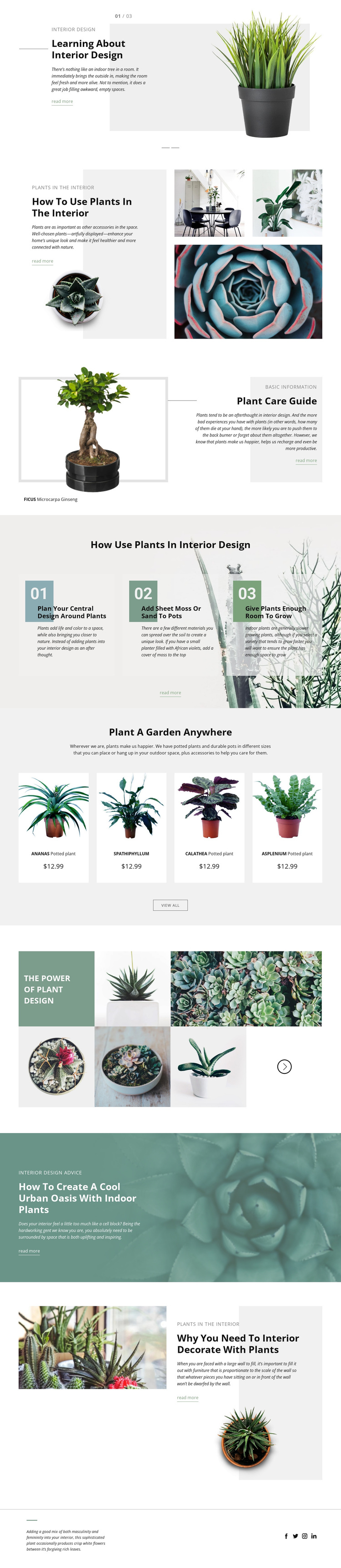
Large plant photography, editorial text panels, and practical advice give this design a clear identity among ready-made page options. The opening slider does more than display an image: it frames interior design as a subject to learn about, pairing a featured visual with a summary and read-more link. That approach continues in the split article about using plants in the interior and in the FICUS Microcarpa Ginseng care guide, so the page offers both inspiration and focused information.
The three numbered recommendations make the design especially suitable for projects that need actionable plant styling content. Advice about planning around plants, adding sheet moss or sand to pots, and leaving room for growth creates a useful bridge to the four potted plant cards. Those cards introduce ANANAS, SPATHIPHYLLUM, CALATHEA, and ASPLENIUM as a consistent product group, while the botanical gallery supplies a denser visual expression of the same subject. The later urban oasis and interior decoration articles keep the page from becoming only a catalog by returning to editorial storytelling. This balance is the main reason to choose the design: it can present guidance, specimen care, product discovery, and visual atmosphere in one coordinated direction. The light neutral backgrounds, muted green and teal accents, asymmetrical compositions, and generous whitespace support that subject without overpowering the content.
Customize with Nicepage
Open this ready-made template in the Template Builder and customize it visually in the Nicepage editor. Replace demo content, edit page sections, and adapt the design to your project without rebuilding the template from scratch.
Start With a Ready-Made Template
Choose a Design for a New Page
Use a ready-made template as a starting point instead of creating every page from a blank canvas. When adding a new page in Nicepage, browse available designs, compare different layouts, and choose an option that already fits the general purpose and visual direction of your project.
Browse Different Page Designs
Explore Page Designs using search, thematic categories, Design Sets, and full-page previews. The collection includes layouts for different subjects and page purposes, making it easier to compare alternatives before selecting a design to customize.
Customize the Selected Template
After choosing a design, create the page and continue editing it visually in Nicepage. Replace the demo content, adjust images, typography, colors, sections, and other elements, and adapt the ready-made layout to your own content instead of rebuilding the design from the beginning.
Explore More Design Directions
If the first option does not match your project closely enough, return to the design collection and compare other templates before committing to a layout. This makes the template library useful not only for faster page creation, but also for exploring different visual approaches and finding a suitable starting point for a new project.
This workflow gives you access to a broad collection of ready-made designs that can be selected, compared, and customized according to the needs of each new page or project.