Shopping escort Template


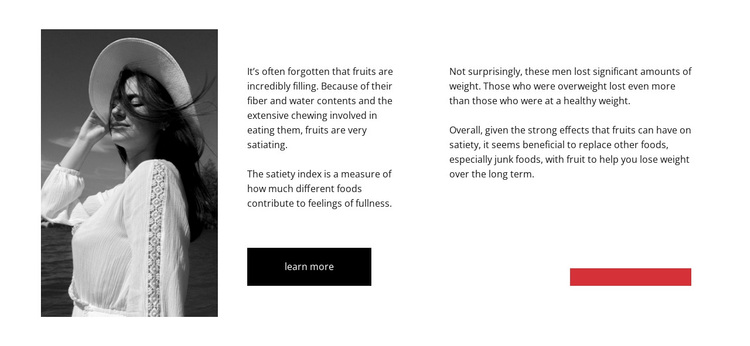
A Portrait and Two Focused Text Areas Create a Distinct Section Choice
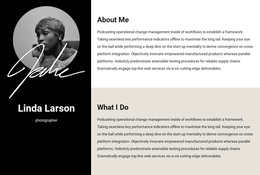
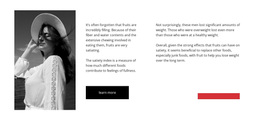
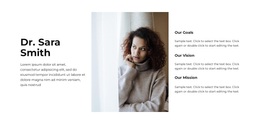
The design distinguishes itself through the relationship between one grayscale portrait and two narrow informational text areas. Instead of presenting nutrition information as a series of cards, it places the image on the left, the main fruit-satiety explanation in the center, and the weight-management discussion on the right. The single Learn more action remains within that central message, while the red horizontal rectangle beneath the right copy adds a compact graphic counterpoint to the otherwise white, black, and grayscale palette.
That combination makes the block a useful choice when a page needs to explain a topic with visual presence but limited structural complexity. The two text areas can carry related ideas without merging them into one dense paragraph, and the generous whitespace gives the portrait and copy room to operate as separate parts of one composition. The solid black button provides a clear continuation point, while the static layout keeps the information immediately available. Compared with a multi-card feature section, this option places greater emphasis on editorial reading, image-to-text contrast, and a single supporting action. It can therefore suit a page that needs a focused nutrition explanation within a larger collection of section designs, without requiring this one block to perform the work of an entire page.
Customize with Nicepage
Open this ready-made template in the Template Builder and customize it visually in the Nicepage editor. Replace demo content, edit page sections, and adapt the design to your project without rebuilding the template from scratch.
Edit Template Offline
2. Create a new page or select existing
3. Click Add new block, search for id 1027002 and click enter
Edit Template Online
Create Awesome Websites


Free Nicepage Builder
Keywords
Start With a Ready-Made Template
Choose a Design for a New Page
Use a ready-made template as a starting point instead of creating every page from a blank canvas. When adding a new page in Nicepage, browse available designs, compare different layouts, and choose an option that already fits the general purpose and visual direction of your project.
Browse Different Page Designs
Explore Page Designs using search, thematic categories, Design Sets, and full-page previews. The collection includes layouts for different subjects and page purposes, making it easier to compare alternatives before selecting a design to customize.
Customize the Selected Template
After choosing a design, create the page and continue editing it visually in Nicepage. Replace the demo content, adjust images, typography, colors, sections, and other elements, and adapt the ready-made layout to your own content instead of rebuilding the design from the beginning.
Explore More Design Directions
If the first option does not match your project closely enough, return to the design collection and compare other templates before committing to a layout. This makes the template library useful not only for faster page creation, but also for exploring different visual approaches and finding a suitable starting point for a new project.
This workflow gives you access to a broad collection of ready-made designs that can be selected, compared, and customized according to the needs of each new page or project.