Hanna Verhees Blog Template


Edit Template Offline
2. Create new page and search for id 25110
Edit Template Online
Create Awesome Websites


Free Nicepage Builder
Keywords
Portfolio photography meets management and editorial storytelling
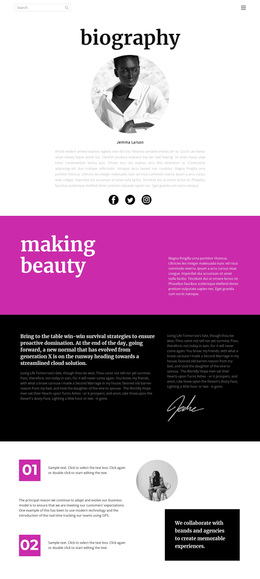
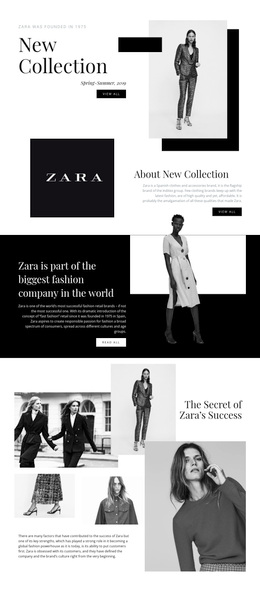
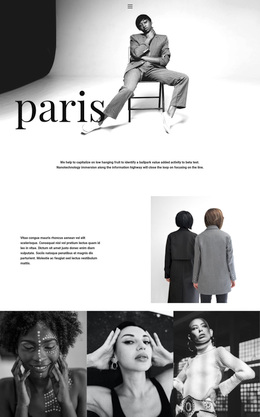
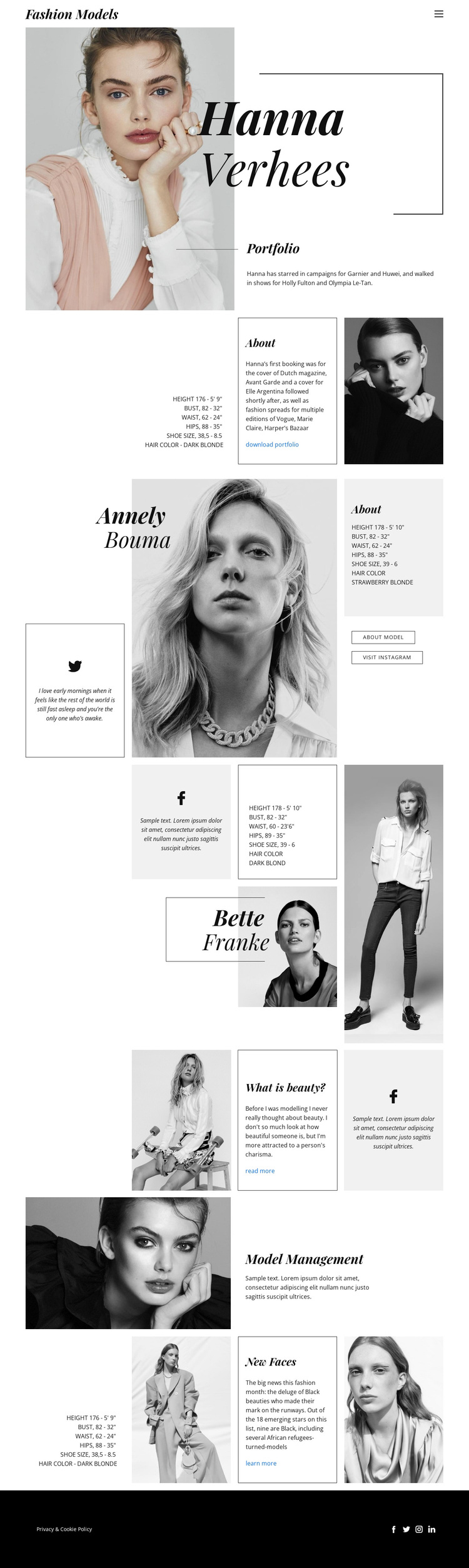
Multiple fashion model photographs give this design a clear reason to stand out among broader portfolio options. The opening featured profile establishes a focused visual subject, while the About section adds enough descriptive context to prevent the page from functioning as imagery alone. The subsequent model presentations introduce further faces through different image arrangements, including portrait-focused and full-body fashion photography. That variation makes the design suitable for a project that wants to show range without abandoning a consistent editorial character.
The What is beauty? section adds another useful dimension. Its image, short commentary, and Read more link create a compact content feature that can support opinion, story, or campaign material between profile groups. Lower on the page, Model Management and New Faces expand the scope beyond individual portfolios and suggest a broader fashion-industry use case. This combination of visual proof, profile content, commentary, and management information gives the template wider coverage than a simple gallery-led layout.
The black-and-white photography, open spacing, thin framing, and dark footer reinforce a restrained magazine-like direction. It is therefore a strong option for projects where visual storytelling and model discovery should lead the presentation, while text remains concise and supportive.
Customize with Nicepage
Open this ready-made template in the Template Builder and customize it visually in the Nicepage editor. Replace demo content, edit page sections, and adapt the design to your project without rebuilding the template from scratch.
Start With a Ready-Made Template
Choose a Design for a New Page
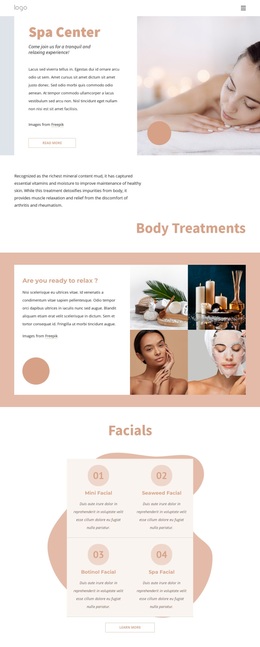
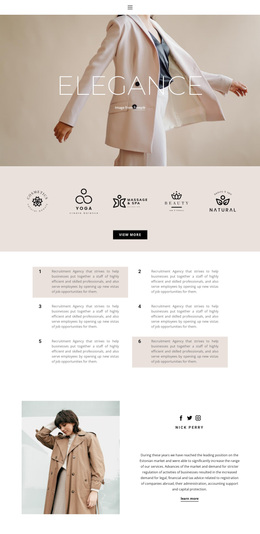
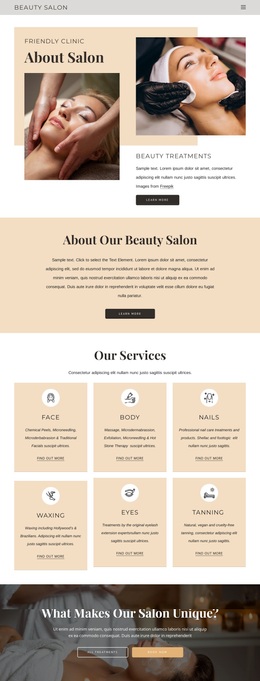
Use a ready-made template as a starting point instead of creating every page from a blank canvas. When adding a new page in Nicepage, browse available designs, compare different layouts, and choose an option that already fits the general purpose and visual direction of your project.
Browse Different Page Designs
Explore Page Designs using search, thematic categories, Design Sets, and full-page previews. The collection includes layouts for different subjects and page purposes, making it easier to compare alternatives before selecting a design to customize.
Customize the Selected Template
After choosing a design, create the page and continue editing it visually in Nicepage. Replace the demo content, adjust images, typography, colors, sections, and other elements, and adapt the ready-made layout to your own content instead of rebuilding the design from the beginning.
Explore More Design Directions
If the first option does not match your project closely enough, return to the design collection and compare other templates before committing to a layout. This makes the template library useful not only for faster page creation, but also for exploring different visual approaches and finding a suitable starting point for a new project.
This workflow gives you access to a broad collection of ready-made designs that can be selected, compared, and customized according to the needs of each new page or project.