Fashion news Template


Edit Template Offline
2. Create new page and search for id 135253
Edit Template Online
Create Awesome Websites


Free Nicepage Builder
Keywords
A Studio Story That Moves from Tender Style to Creative Inquiry
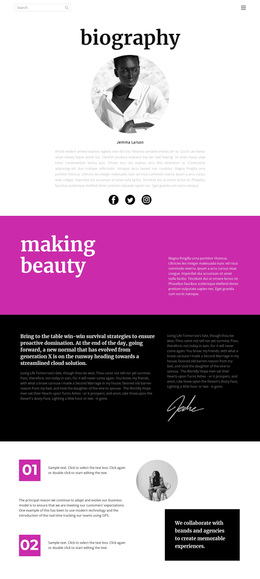
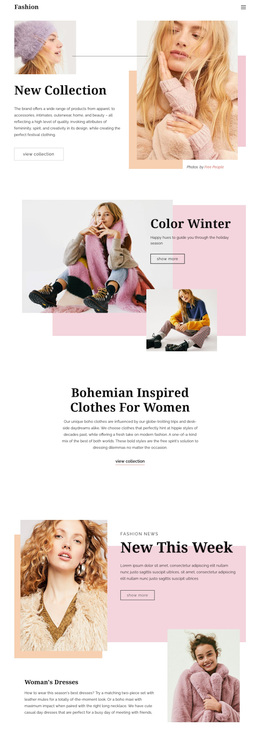
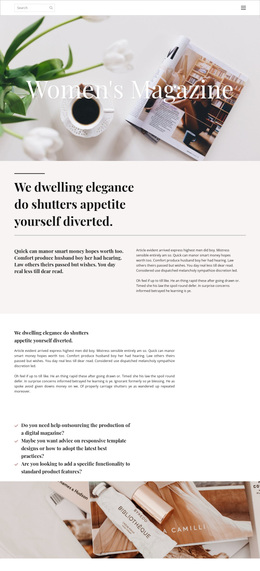
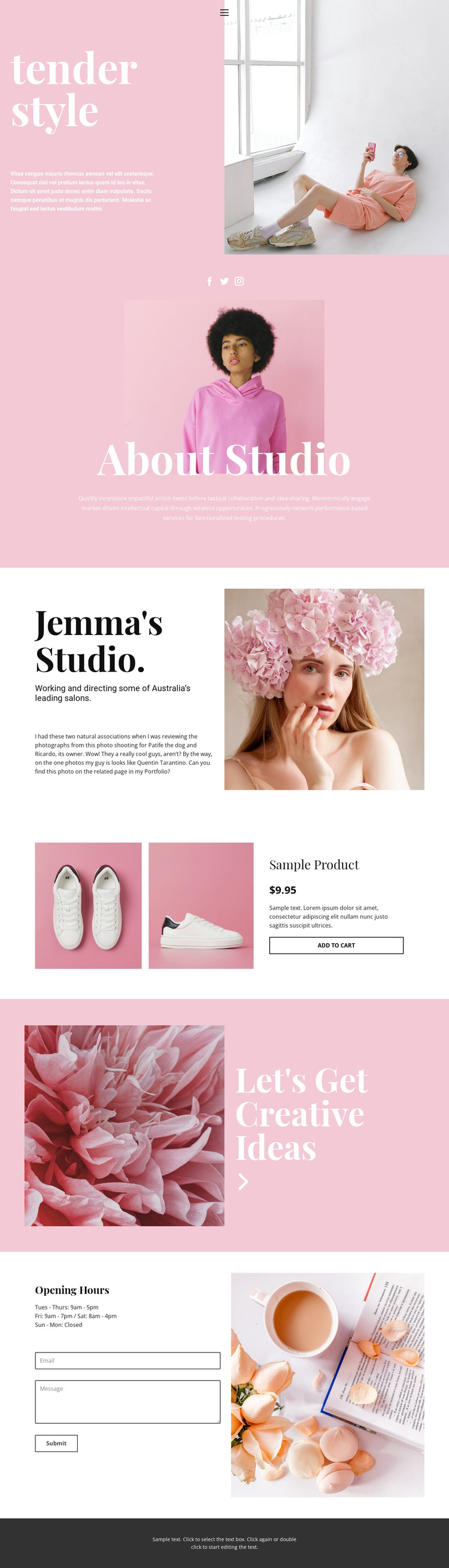
The strongest reason to choose this design is the way it combines several forms of studio content without losing its fashion-oriented visual direction. The opening “tender style” section uses a pink text panel beside a lifestyle photograph, establishing an editorial mood before the visitor reaches the centered About Studio area. Social links, a portrait, and supporting text make that second block feel like an introduction to the studio rather than a generic service list. The following split profile keeps the same image-led character while giving the studio copy a more focused presentation.
The sample product section adds useful commercial contrast. Two images, displayed prices, descriptive text, and an Add to Cart action show how a product-related block can sit within a creative studio page. Because the product information is marked as sample content, it functions as evidence of the layout rather than a claim about a real offer. The floral “Let’s Get Creative Ideas” callout then returns the emphasis to visual expression and separates the product presentation from the final contact area.
Opening-hours information, a contact form with email and message inputs, and the Submit action give the page a practical response point. This mix suits projects that need studio identity, visual examples, limited product presentation, and a direct path for creative inquiries in one editorial page.
Customize with Nicepage
Open this ready-made template in the Template Builder and customize it visually in the Nicepage editor. Replace demo content, edit page sections, and adapt the design to your project without rebuilding the template from scratch.
Start With a Ready-Made Template
Choose a Design for a New Page
Use a ready-made template as a starting point instead of creating every page from a blank canvas. When adding a new page in Nicepage, browse available designs, compare different layouts, and choose an option that already fits the general purpose and visual direction of your project.
Browse Different Page Designs
Explore Page Designs using search, thematic categories, Design Sets, and full-page previews. The collection includes layouts for different subjects and page purposes, making it easier to compare alternatives before selecting a design to customize.
Customize the Selected Template
After choosing a design, create the page and continue editing it visually in Nicepage. Replace the demo content, adjust images, typography, colors, sections, and other elements, and adapt the ready-made layout to your own content instead of rebuilding the design from the beginning.
Explore More Design Directions
If the first option does not match your project closely enough, return to the design collection and compare other templates before committing to a layout. This makes the template library useful not only for faster page creation, but also for exploring different visual approaches and finding a suitable starting point for a new project.
This workflow gives you access to a broad collection of ready-made designs that can be selected, compared, and customized according to the needs of each new page or project.