Style around us Joomla Template


Two visual areas create a structured Joomla content region
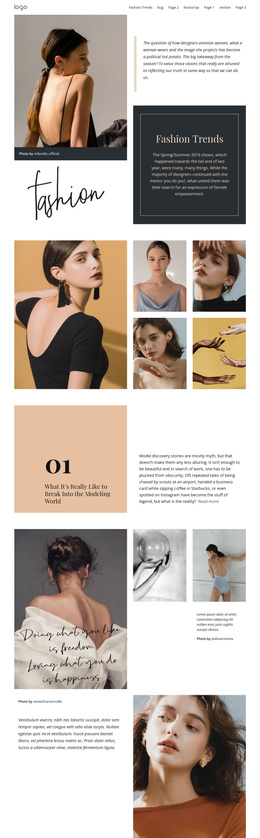
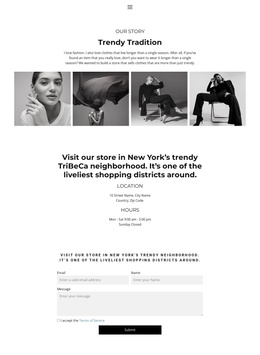
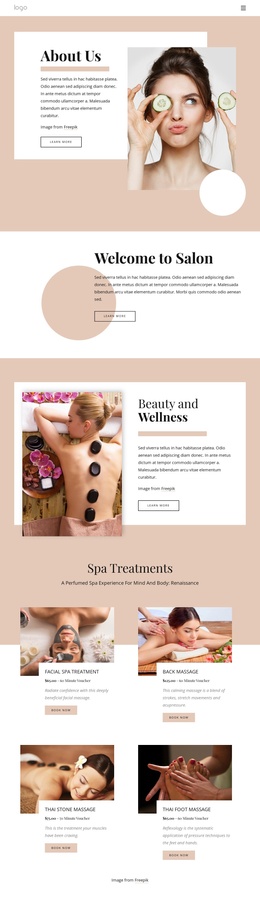
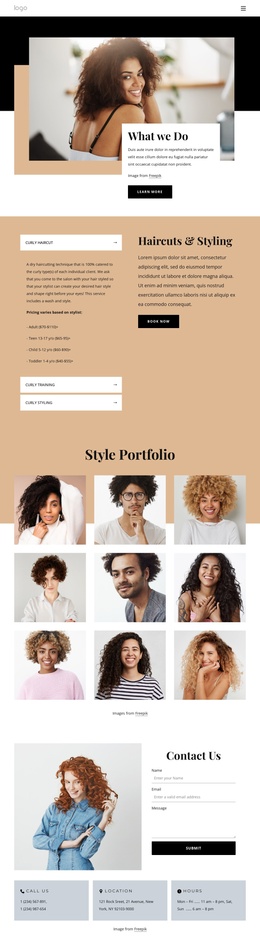
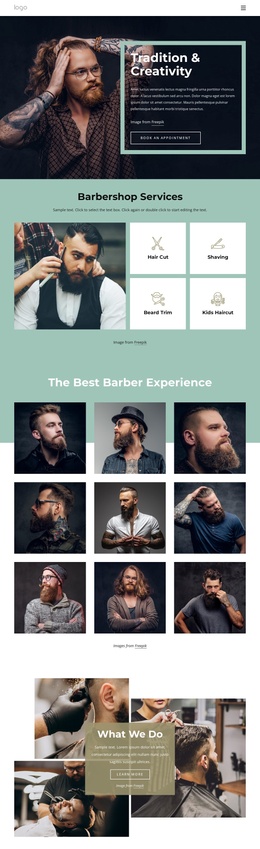
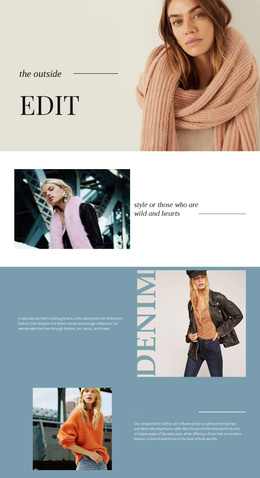
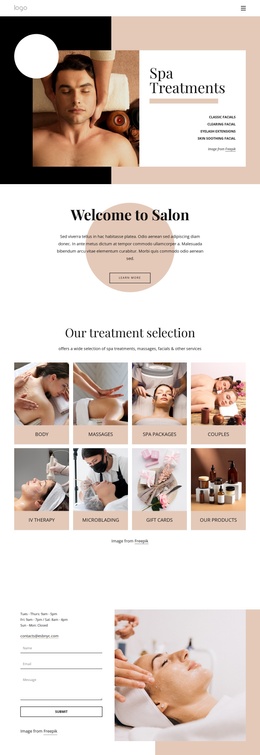
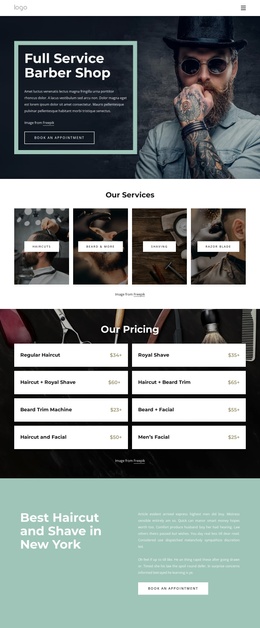
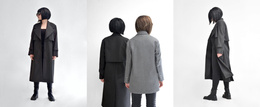
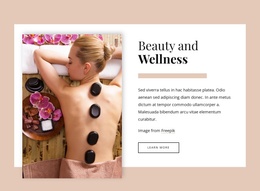
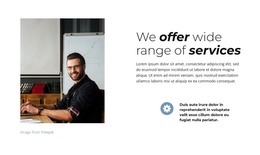
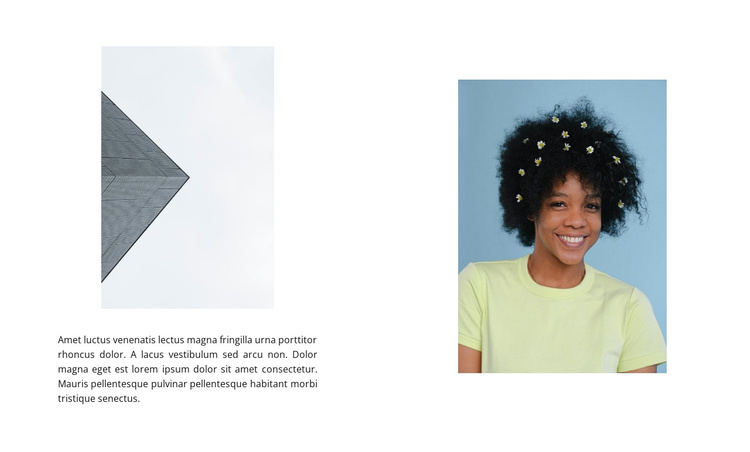
The narrow image and paragraph on the left form one compact informational area, while the portrait image on the right creates a separate visual focus. Because the paragraph sits directly beneath the left image, the block establishes a simple reading relationship: supporting text belongs to the first visual area rather than competing with the portrait. The absence of a heading keeps the arrangement editorial and image-led, with the two portrait-oriented images providing the strongest cues for how the section should be understood.
In a Joomla-managed page, this split arrangement can serve as a reusable content region for visual storytelling, introductory information, or an article-like section. The block does not need to carry the broader site's navigation or content structure; it can remain one clearly bounded area alongside other Joomla-managed material. Its white background and generous spacing also leave room for neighboring sections to introduce different content without making this block feel crowded.
The strong asymmetry is useful when a page needs supporting copy without reducing the prominence of a portrait image. The left paragraph can explain or frame the imagery, while the blue-backed portrait retains independent visual weight. This makes the section suitable for a structured CMS page where text and imagery need to remain connected but not arranged as a uniform grid.
Customize with Nicepage
Open this ready-made template in the Joomla Page Builder and customize it visually in the Nicepage editor. Replace demo content, edit page sections, and adapt the design to your project without rebuilding the template from scratch.
Edit Template Offline
2. Create a new page or select existing
3. Click Add new block, search for id 514430 and click enter
Edit Template Online
Create Awesome Websites


Free Nicepage Builder
Keywords
Work With This Template in Joomla
Customize and Install the Joomla Template
Start with this ready-made template instead of building the Joomla design from scratch. Customize its layout, content, typography, images, sections, and other design elements visually in the Nicepage application, then export and install the Joomla Template, Nicepage Extension, and supported content on your Joomla website.
Edit the Template Directly in Joomla
After installation, you can edit the Joomla Template directly in Joomla with the Nicepage Joomla Extension. Customize the Header, Footer, Colors, Fonts, typography, and Page Templates from the Joomla workflow while keeping the site design connected with your CMS content.
Edit Joomla Articles Visually
Use the Nicepage Joomla Extension to open and edit Joomla Articles visually from the Joomla Administrator. Change text, images, sections, layouts, and other page content in the Nicepage editor while continuing to manage the Articles through Joomla.
Joomla Content and Template Integration
Use the customized template together with Joomla Articles, module Positions, menus, forms, Blog Pages, and other supported CMS elements. With the Nicepage Extension used as the Site Style Source, shared design settings can be applied across Joomla Articles while Joomla continues to provide the CMS environment for managing site content.
This workflow combines a ready-made Joomla Template with visual customization, direct template editing in Joomla, and continued content management through the Nicepage Joomla Extension.