Find babysitters WordPress Theme


Stable Booking Content for a WordPress-Managed Page
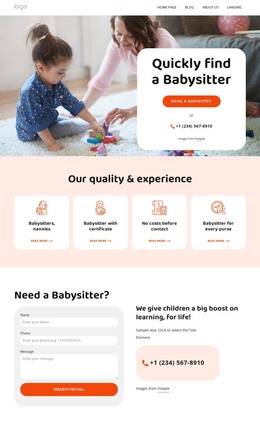
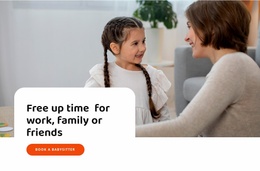
The heading and response controls read as durable page content rather than a stream of time-sensitive updates. “Quickly find a Babysitter” gives the section a clear subject, the orange “Book a Babysitter” button identifies the main visitor action, and the phone link offers direct contact beneath it. A rounded white card groups these elements against the childcare photograph, so the content remains readable while the image continues to communicate an adult-and-child service context.
In a WordPress-oriented project, this block can occupy a stable section on a childcare or babysitting page while the surrounding site manages other publishable content. It could sit alongside service descriptions, trust information, or contact details without being treated as a complete theme. The displayed phone number is sample content and should be replaced with the intended destination, but the content relationship remains useful: a short heading introduces the service, one button invites booking, and one phone route supports personal contact. The compact structure also makes the section easy to preserve when the broader page receives additional CMS-managed content. Because the card is visually separated from the image, its booking message can remain recognizable even when other page sections are added around it.
Customize with Nicepage
Open this ready-made template in the WordPress Website Builder and customize it visually in the Nicepage editor. Replace demo content, edit page sections, and adapt the design to your project without rebuilding the template from scratch.
Edit Template Offline
2. Create a new page or select existing
3. Click Add new block, search for id 6331066 and click enter
Edit Template Online
Create Awesome Websites


Free Nicepage Builder
Keywords
Manage and Edit This Theme in WordPress
Customize and Install the WordPress Theme
Start with this ready-made theme instead of building the WordPress design from scratch. Customize its layout, content, typography, images, sections, and other design elements visually in Nicepage editor, then export and install the WordPress Theme, Plugin, and Pages on your WordPress site. The Nicepage WordPress Plugin lets you continue working with the site after installation.
Edit the Theme Directly in WordPress
After installation, you can edit the WordPress Theme directly in WordPress with the Nicepage WordPress Plugin. Use Site Style to customize site Colors, Fonts, Header, Footer, Blog, and Post Page Templates while working within your WordPress website.
Edit WordPress Pages Visually
Use the Nicepage WordPress Plugin to edit page content directly from the WordPress admin area. Open a WordPress Page with Nicepage and visually change its text, images, sections, and other page elements while continuing to manage the Page through WordPress.
WordPress Content and Theme Integration
Use the customized theme with WordPress Pages, Posts, Blog and Post Templates, menus, widgets, and other CMS-managed content. Shared theme elements such as Colors, Fonts, Header, Footer, Blog, and Post Page Templates can be managed as part of the overall site design, while WordPress provides the CMS environment for managing site content.
This workflow combines a ready-made WordPress Theme with visual customization, direct theme editing in WordPress, and continued content management through the Nicepage WordPress Plugin.