Current trends in architecture WordPress Theme


Editorial Architecture Content for WordPress-Managed Pages
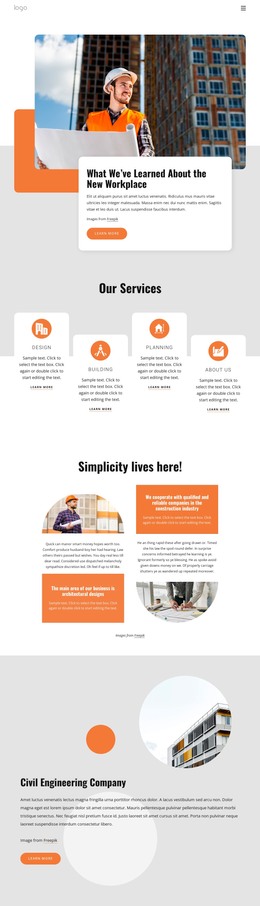
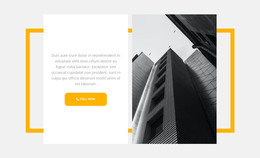
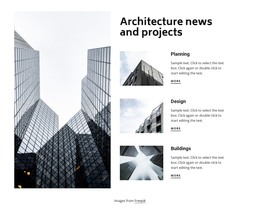
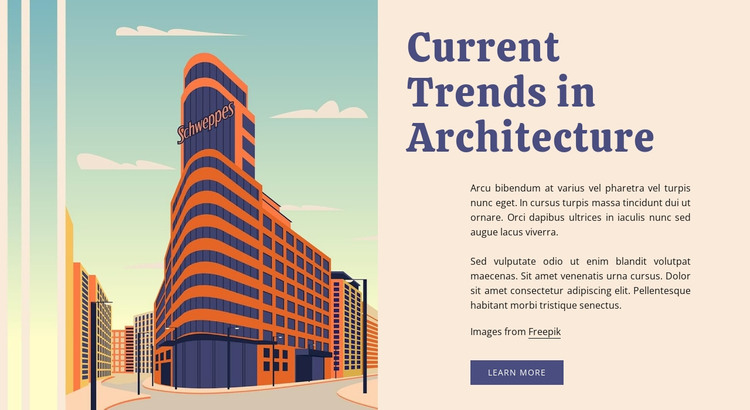
The right-hand text area makes the block read as stable page content: the heading names the subject, the two paragraphs provide space for an editorial explanation, and the Learn more button offers a route to additional information. Opposite that copy, the single architectural building illustration gives the subject a visual anchor. The image credit remains part of this relationship, keeping attribution close to the featured artwork rather than separating it from the section.
For a WordPress-managed page, this block can function as a permanent architecture or building content area within a wider theme context. Its value comes from the way it packages a topic, supporting explanation, visual reference, and follow-on action in one contained region. The button can connect to related material maintained elsewhere in the project, while the block continues to serve its editorial role without becoming a complete WordPress Theme.
The visual details also help the section retain a consistent page presence. A warm cream background creates space around the two columns, the dark blue serif heading gives the text a clear starting point, and the colorful orange, blue, and teal illustration balances the quieter background. In a WordPress-oriented project, this combination can provide a recognizable architecture section alongside other page content while preserving the same internal hierarchy.
Customize with Nicepage
Open this ready-made template in the WordPress Website Builder and customize it visually in the Nicepage editor. Replace demo content, edit page sections, and adapt the design to your project without rebuilding the template from scratch.
Edit Template Offline
2. Create a new page or select existing
3. Click Add new block, search for id 544323 and click enter
Edit Template Online
Create Awesome Websites


Free Nicepage Builder
Keywords
Manage and Edit This Theme in WordPress
Customize and Install the WordPress Theme
Start with this ready-made theme instead of building the WordPress design from scratch. Customize its layout, content, typography, images, sections, and other design elements visually in Nicepage editor, then export and install the WordPress Theme, Plugin, and Pages on your WordPress site. The Nicepage WordPress Plugin lets you continue working with the site after installation.
Edit the Theme Directly in WordPress
After installation, you can edit the WordPress Theme directly in WordPress with the Nicepage WordPress Plugin. Use Site Style to customize site Colors, Fonts, Header, Footer, Blog, and Post Page Templates while working within your WordPress website.
Edit WordPress Pages Visually
Use the Nicepage WordPress Plugin to edit page content directly from the WordPress admin area. Open a WordPress Page with Nicepage and visually change its text, images, sections, and other page elements while continuing to manage the Page through WordPress.
WordPress Content and Theme Integration
Use the customized theme with WordPress Pages, Posts, Blog and Post Templates, menus, widgets, and other CMS-managed content. Shared theme elements such as Colors, Fonts, Header, Footer, Blog, and Post Page Templates can be managed as part of the overall site design, while WordPress provides the CMS environment for managing site content.
This workflow combines a ready-made WordPress Theme with visual customization, direct theme editing in WordPress, and continued content management through the Nicepage WordPress Plugin.