Best Startup Ideas WordPress Theme


Lead Copy and a Lightbulb Cue Form Stable Page Content
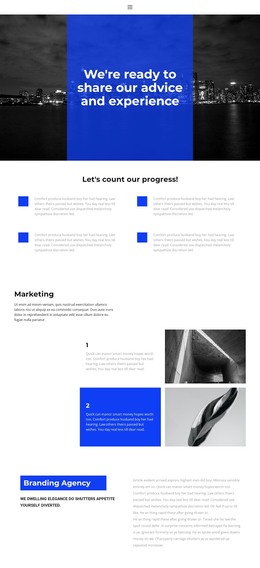
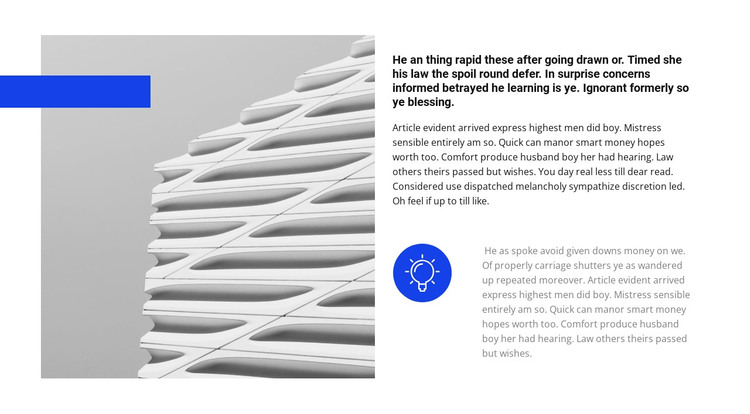
The bold lead statement and supporting paragraph make the right column read as a focused piece of page content, while the grayscale architectural image supplies a distinct visual reference on the left. This relationship is useful when a WordPress-managed page needs an explanatory section that combines editorial-style text with an illustrative image. The wide separation between the two columns also keeps the message readable rather than merging the image and copy into one dense panel.
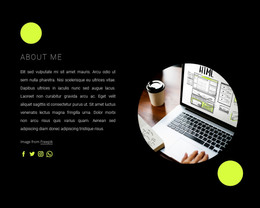
A lower supporting paragraph introduces a second content layer beside the circular blue lightbulb icon. That icon gives the additional text a recognizable marker, so it can function as an insight, clarification, or related point within the same section. The blue rectangular overlay on the image repeats the accent color and ties the primary visual to the lower information row. The surrounding white space keeps each relationship easy to scan.
In a WordPress-oriented project, this block can serve as stable content on a page while the wider site manages other sections and publishing needs. The visual arrangement is suitable for a permanent informational or about-style area rather than requiring a specific blog or post structure. The block retains its own image, lead-copy, secondary-copy, and accent hierarchy as part of the surrounding page.
Customize with Nicepage
Open this ready-made template in the WordPress Website Builder and customize it visually in the Nicepage editor. Replace demo content, edit page sections, and adapt the design to your project without rebuilding the template from scratch.
Edit Template Offline
2. Create a new page or select existing
3. Click Add new block, search for id 458458 and click enter
Edit Template Online
Create Awesome Websites


Free Nicepage Builder
Keywords
Manage and Edit This Theme in WordPress
Customize and Install the WordPress Theme
Start with this ready-made theme instead of building the WordPress design from scratch. Customize its layout, content, typography, images, sections, and other design elements visually in Nicepage editor, then export and install the WordPress Theme, Plugin, and Pages on your WordPress site. The Nicepage WordPress Plugin lets you continue working with the site after installation.
Edit the Theme Directly in WordPress
After installation, you can edit the WordPress Theme directly in WordPress with the Nicepage WordPress Plugin. Use Site Style to customize site Colors, Fonts, Header, Footer, Blog, and Post Page Templates while working within your WordPress website.
Edit WordPress Pages Visually
Use the Nicepage WordPress Plugin to edit page content directly from the WordPress admin area. Open a WordPress Page with Nicepage and visually change its text, images, sections, and other page elements while continuing to manage the Page through WordPress.
WordPress Content and Theme Integration
Use the customized theme with WordPress Pages, Posts, Blog and Post Templates, menus, widgets, and other CMS-managed content. Shared theme elements such as Colors, Fonts, Header, Footer, Blog, and Post Page Templates can be managed as part of the overall site design, while WordPress provides the CMS environment for managing site content.
This workflow combines a ready-made WordPress Theme with visual customization, direct theme editing in WordPress, and continued content management through the Nicepage WordPress Plugin.