Calendar on dark background WordPress Theme


Stable Appointment Content for a WordPress-Managed Page
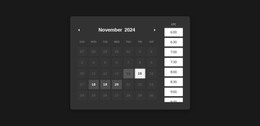
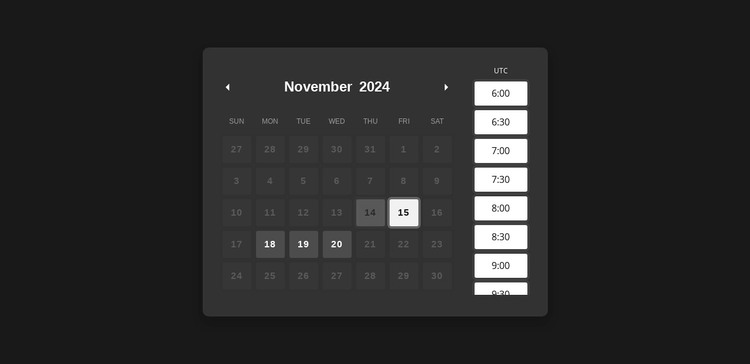
The November 2024 heading and calendar grid give this block a clear page-content role, while the adjacent list of ten times from 6:00 through 9:30 adds a second structured information group. Selected date cells and two navigation arrows belong to the calendar side; the vertically stacked light options belong to the time side. One rounded charcoal panel holds both groups together, making the section easy to identify as appointment-oriented content.
In a WordPress-managed page, this block can remain a stable visual section while the wider project maintains its surrounding service information, contact content, or other publishable material. The CMS context concerns the page that contains the section, not a claim that the panel itself is a complete WordPress Theme or that particular post structures already exist. The block’s own contribution is the compact presentation of date and time choices.
The visual hierarchy also supports consistent page content. Date information is concentrated in the left grid, time information follows in the right column, and the contrasting fills help distinguish selected dates from the rest of the month. If the surrounding project later develops additional appointment information, this section can retain its recognizable structure while related content is managed elsewhere. That makes it a focused page component rather than a full CMS architecture.
Customize with Nicepage
Open this ready-made template in the WordPress Website Builder and customize it visually in the Nicepage editor. Replace demo content, edit page sections, and adapt the design to your project without rebuilding the template from scratch.
Edit Template Offline
2. Create a new page or select existing
3. Click Add new block, search for id 6387305 and click enter
Edit Template Online
Create Awesome Websites


Free Nicepage Builder
Keywords
Manage and Edit This Theme in WordPress
Customize and Install the WordPress Theme
Start with this ready-made theme instead of building the WordPress design from scratch. Customize its layout, content, typography, images, sections, and other design elements visually in Nicepage editor, then export and install the WordPress Theme, Plugin, and Pages on your WordPress site. The Nicepage WordPress Plugin lets you continue working with the site after installation.
Edit the Theme Directly in WordPress
After installation, you can edit the WordPress Theme directly in WordPress with the Nicepage WordPress Plugin. Use Site Style to customize site Colors, Fonts, Header, Footer, Blog, and Post Page Templates while working within your WordPress website.
Edit WordPress Pages Visually
Use the Nicepage WordPress Plugin to edit page content directly from the WordPress admin area. Open a WordPress Page with Nicepage and visually change its text, images, sections, and other page elements while continuing to manage the Page through WordPress.
WordPress Content and Theme Integration
Use the customized theme with WordPress Pages, Posts, Blog and Post Templates, menus, widgets, and other CMS-managed content. Shared theme elements such as Colors, Fonts, Header, Footer, Blog, and Post Page Templates can be managed as part of the overall site design, while WordPress provides the CMS environment for managing site content.
This workflow combines a ready-made WordPress Theme with visual customization, direct theme editing in WordPress, and continued content management through the Nicepage WordPress Plugin.