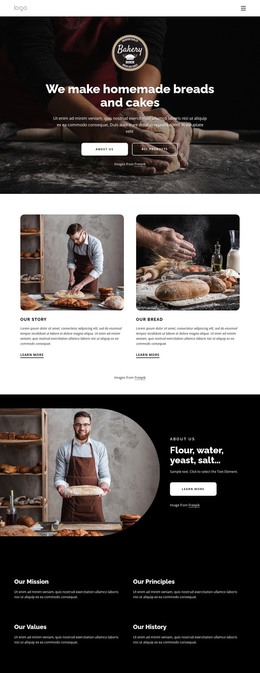
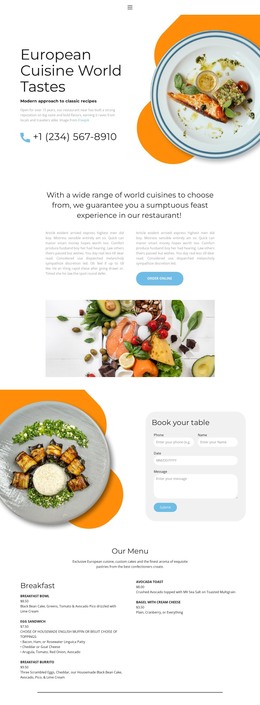
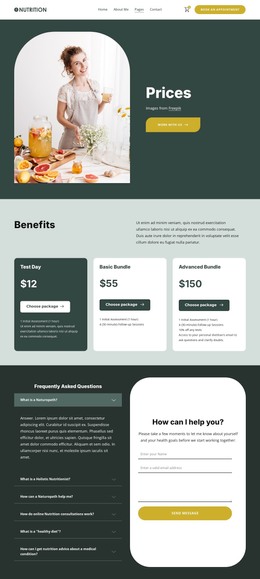
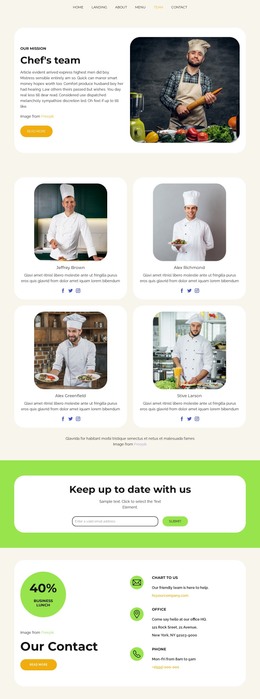
Visit the bakery WordPress Theme


Stable Contact Content Around a WordPress Page
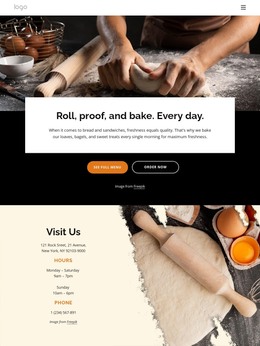
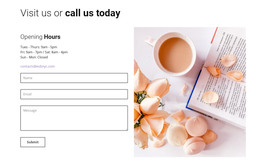
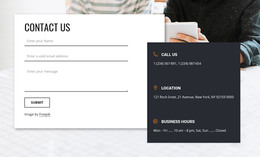
The left column presents the block as a durable page-content region rather than a transient announcement. “Visit Us” names the purpose, the address supplies location information, “Hours” introduces the weekly schedule, and “Phone” identifies the telephone link. Keeping these details together gives a WordPress-managed page a stable contact section that can be maintained alongside other permanent content. The confirmed telephone interaction provides a direct route for visitors who need more information than the schedule supplies.
The right-side food-preparation photograph gives the contact content a visual setting without changing its practical role. Its torn-paper edge creates separation from the centered text column, while the warm cream background, black heading, and orange labels make the information groups easy to recognize. The image credit remains part of the block’s content and can be handled with the final image asset when the section is adapted.
Inside a WordPress-oriented site, the block can remain a reusable visual section on a contact or location-focused page while other CMS-managed content grows around it. The section does not depend on a particular blog or post structure; its strength is the clear organization of permanent visiting details. Updating the address, schedule, or telephone destination can preserve the same hierarchy, allowing the design to remain consistent even as the page content is maintained over time.
Customize with Nicepage
Open this ready-made template in the WordPress Website Builder and customize it visually in the Nicepage editor. Replace demo content, edit page sections, and adapt the design to your project without rebuilding the template from scratch.
Edit Template Offline
2. Create a new page or select existing
3. Click Add new block, search for id 3267249 and click enter
Edit Template Online
Create Awesome Websites


Free Nicepage Builder
Keywords
Manage and Edit This Theme in WordPress
Customize and Install the WordPress Theme
Start with this ready-made theme instead of building the WordPress design from scratch. Customize its layout, content, typography, images, sections, and other design elements visually in Nicepage editor, then export and install the WordPress Theme, Plugin, and Pages on your WordPress site. The Nicepage WordPress Plugin lets you continue working with the site after installation.
Edit the Theme Directly in WordPress
After installation, you can edit the WordPress Theme directly in WordPress with the Nicepage WordPress Plugin. Use Site Style to customize site Colors, Fonts, Header, Footer, Blog, and Post Page Templates while working within your WordPress website.
Edit WordPress Pages Visually
Use the Nicepage WordPress Plugin to edit page content directly from the WordPress admin area. Open a WordPress Page with Nicepage and visually change its text, images, sections, and other page elements while continuing to manage the Page through WordPress.
WordPress Content and Theme Integration
Use the customized theme with WordPress Pages, Posts, Blog and Post Templates, menus, widgets, and other CMS-managed content. Shared theme elements such as Colors, Fonts, Header, Footer, Blog, and Post Page Templates can be managed as part of the overall site design, while WordPress provides the CMS environment for managing site content.
This workflow combines a ready-made WordPress Theme with visual customization, direct theme editing in WordPress, and continued content management through the Nicepage WordPress Plugin.