Bumble Space WordPress Theme


Edit Template Offline
2. Create new page and search for id 12818
Edit Template Online
Create Awesome Websites


Free Nicepage Builder
Keywords
Founder Features and Related Stories Fit Page-Oriented Content
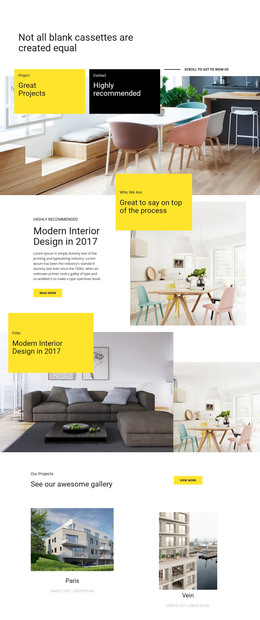
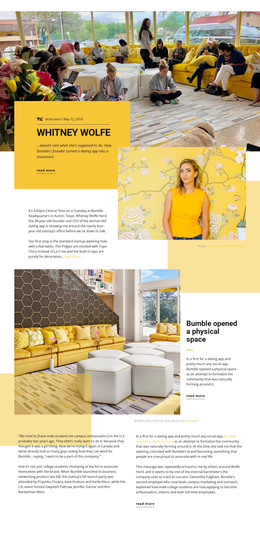
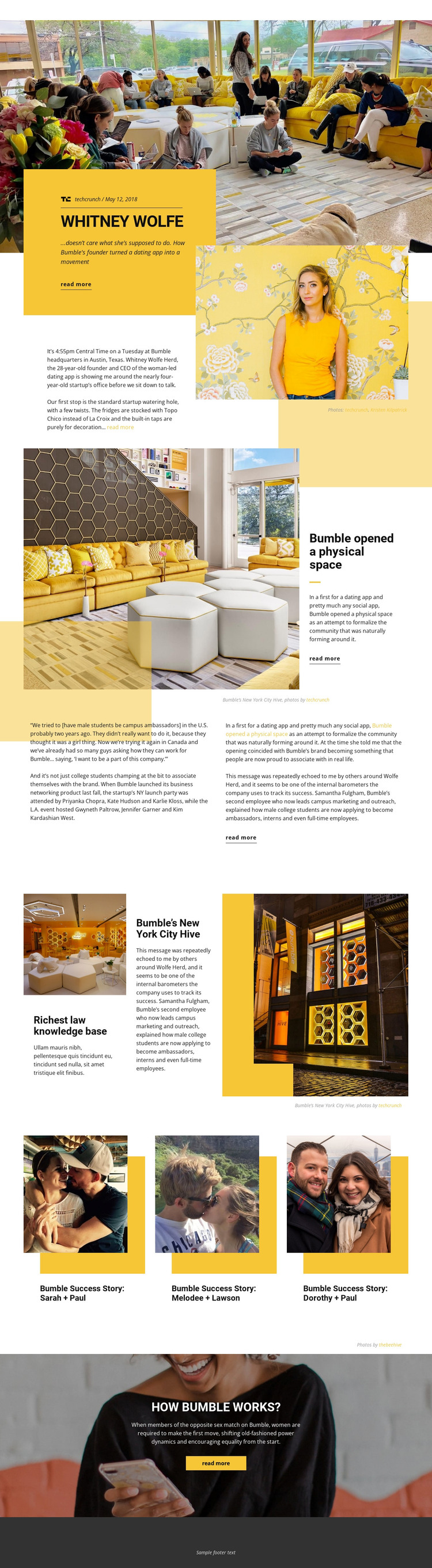
The Whitney Wolfe profile is the clearest permanent content area in this design. It combines a named subject, article date, source reference, summary, supporting photography, and a read-more link, making the visual arrangement suitable for a WordPress-managed page about a founder or company story. The physical-space feature provides a different page-oriented subject, pairing New York City interior photography with concise explanatory content.
The supporting grid and three success-story cards suggest a second content relationship. Excerpts, captions, and quotations can accompany a main feature, while the repeated cards can point toward related personal stories or case-style articles. These sections should be understood as adaptable content regions, not as evidence that WordPress Posts, categories, or a blog already exist in the template. The final “HOW BUMBLE WORKS?” area can remain a focused explanatory page section that connects the editorial narrative with Bumble’s matching concept.
For a WordPress-oriented project, the value is the ability to keep permanent profile and feature content within one recognizable visual system while adding regularly updated material around it when needed. Navigation, shared footer treatment, yellow panels, and image-led layouts provide continuity across related pages. The design therefore works as a theme direction for editorial and company storytelling, with CMS content interpreted through the page’s existing hierarchy rather than through generic WordPress terminology.
Customize with Nicepage
Open this ready-made template in the WordPress Website Builder and customize it visually in the Nicepage editor. Replace demo content, edit page sections, and adapt the design to your project without rebuilding the template from scratch.
Manage and Edit This Theme in WordPress
Customize and Install the WordPress Theme
Start with this ready-made theme instead of building the WordPress design from scratch. Customize its layout, content, typography, images, sections, and other design elements visually in Nicepage editor, then export and install the WordPress Theme, Plugin, and Pages on your WordPress site. The Nicepage WordPress Plugin lets you continue working with the site after installation.
Edit the Theme Directly in WordPress
After installation, you can edit the WordPress Theme directly in WordPress with the Nicepage WordPress Plugin. Use Site Style to customize site Colors, Fonts, Header, Footer, Blog, and Post Page Templates while working within your WordPress website.
Edit WordPress Pages Visually
Use the Nicepage WordPress Plugin to edit page content directly from the WordPress admin area. Open a WordPress Page with Nicepage and visually change its text, images, sections, and other page elements while continuing to manage the Page through WordPress.
WordPress Content and Theme Integration
Use the customized theme with WordPress Pages, Posts, Blog and Post Templates, menus, widgets, and other CMS-managed content. Shared theme elements such as Colors, Fonts, Header, Footer, Blog, and Post Page Templates can be managed as part of the overall site design, while WordPress provides the CMS environment for managing site content.
This workflow combines a ready-made WordPress Theme with visual customization, direct theme editing in WordPress, and continued content management through the Nicepage WordPress Plugin.