Commercial industrial roofing Template


Edit Template Offline
2. Create new page and search for id 6440852
Edit Template Online
Create Awesome Websites


Free Nicepage Builder
Keywords
A Rooftop Introduction Paired With Five Practical Questions
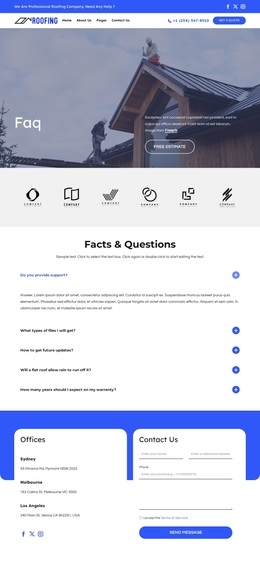
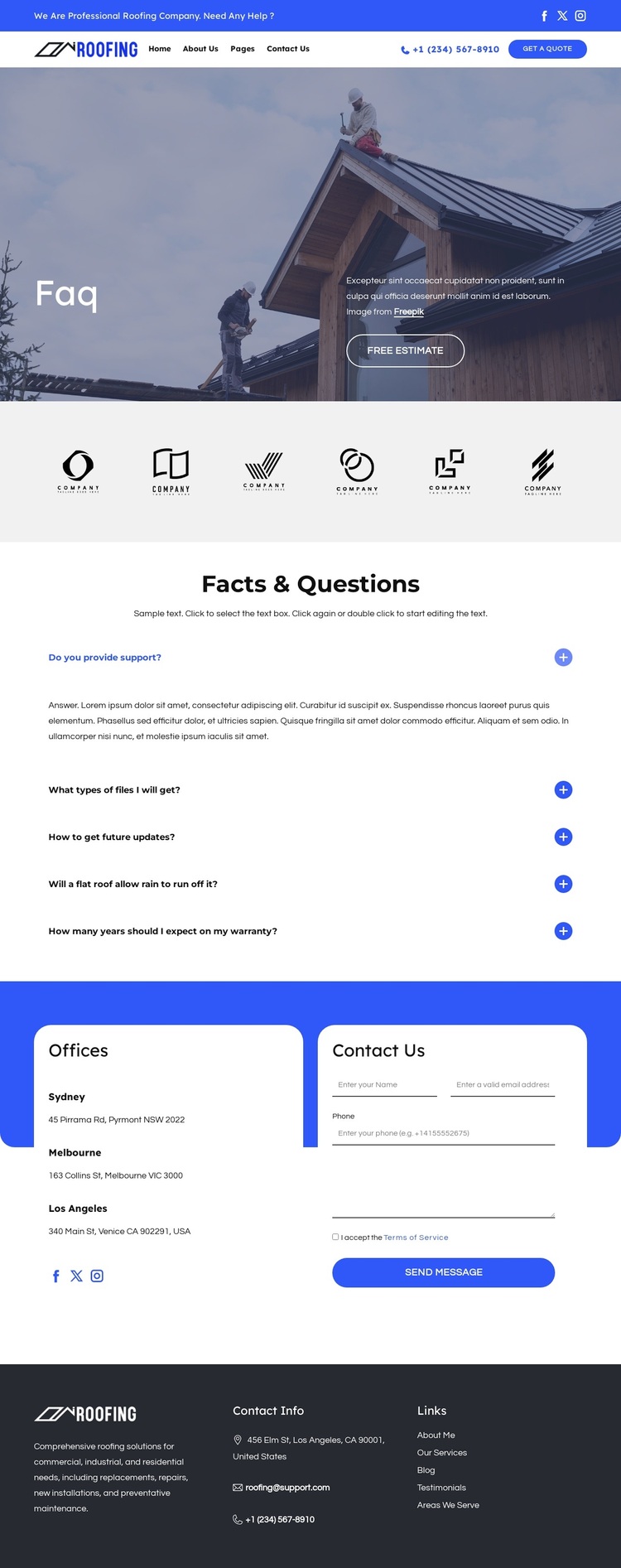
The design is worth considering when a roofing project needs answers to remain central rather than secondary. A darkened rooftop image gives the opening section an immediate connection to the subject, while the white FAQ heading and bordered Free Estimate button establish a clear starting message. The blue utility bar, main navigation, phone contact, and Get a quote action add service access without overwhelming the hero.
Its most distinctive content choice is the centered Facts & Questions section. Five expandable questions create a compact way to address different concerns, including flat-roof drainage and warranty expectations, while keeping the page visually calm. The accordion is supported by six monochrome logo marks in a light band, which introduces a repeated visual element between the opening message and the detailed answers. This combination suits a project that needs both reassurance and practical explanation.
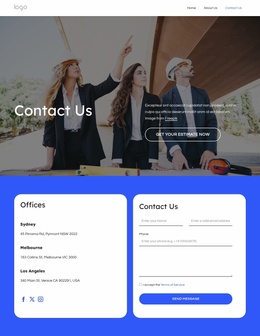
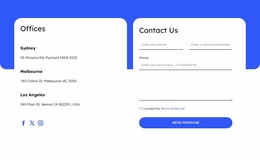
The page also covers the next step without becoming a full service catalogue. Three office locations are shown beside a contact form, Send Message button, and social links, so visitors can move from reading to inquiry within the same design. Rounded white cards over a blue accent shape distinguish this closing interaction from the FAQ area. A dark three-column footer then provides room for branding, contact details, and secondary links. The result is a focused option for roofing organizations that need a question-led presentation with a visible estimate and contact path.
Customize with Nicepage
Open this ready-made template in the Template Builder and customize it visually in the Nicepage editor. Replace demo content, edit page sections, and adapt the design to your project without rebuilding the template from scratch.
Start With a Ready-Made Template
Choose a Design for a New Page
Use a ready-made template as a starting point instead of creating every page from a blank canvas. When adding a new page in Nicepage, browse available designs, compare different layouts, and choose an option that already fits the general purpose and visual direction of your project.
Browse Different Page Designs
Explore Page Designs using search, thematic categories, Design Sets, and full-page previews. The collection includes layouts for different subjects and page purposes, making it easier to compare alternatives before selecting a design to customize.
Customize the Selected Template
After choosing a design, create the page and continue editing it visually in Nicepage. Replace the demo content, adjust images, typography, colors, sections, and other elements, and adapt the ready-made layout to your own content instead of rebuilding the design from the beginning.
Explore More Design Directions
If the first option does not match your project closely enough, return to the design collection and compare other templates before committing to a layout. This makes the template library useful not only for faster page creation, but also for exploring different visual approaches and finding a suitable starting point for a new project.
This workflow gives you access to a broad collection of ready-made designs that can be selected, compared, and customized according to the needs of each new page or project.

Design Set (26)
-

-
-
-
-
-
-
-
-
-
-
Free Website Builder SoftwareDownload
-
-
-
-
-
-