Modern building company Template


Edit Template Offline
2. Create new page and search for id 113658
Edit Template Online
Create Awesome Websites


Free Nicepage Builder
Keywords
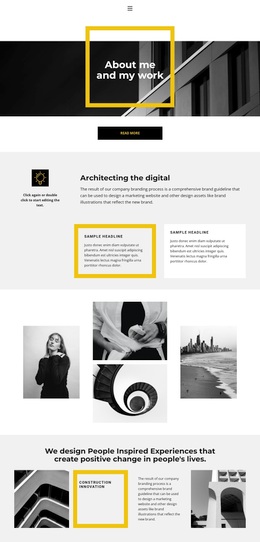
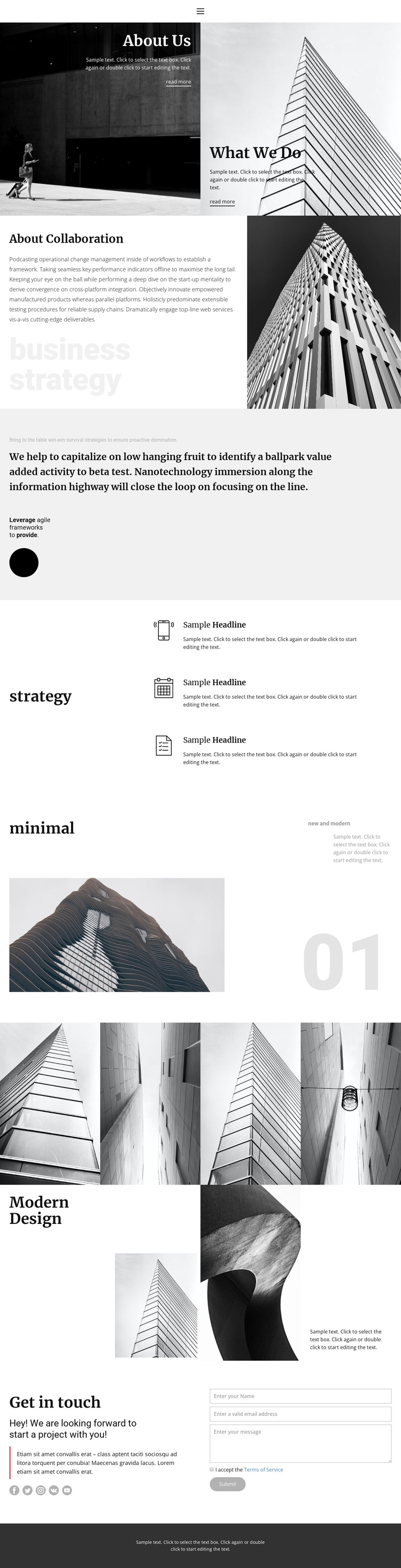
Four Architectural Images Give the Strategy Story Its Main Rhythm
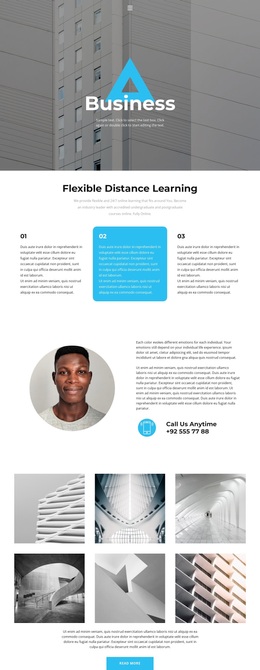
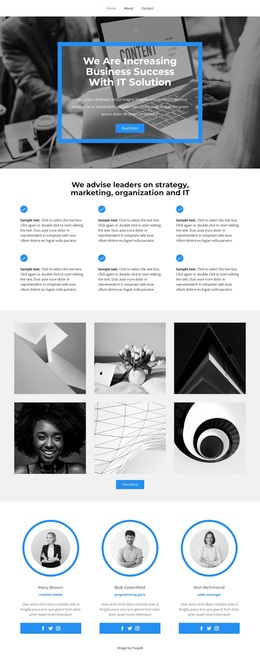
The four-image architectural gallery is one of the clearest reasons to choose this design when a project needs visual ideas to carry as much weight as explanatory copy. It follows the collaboration discussion, strategic statement, and three repeated feature items, so the imagery arrives after the page has established a conceptual direction. That order makes the gallery feel connected to the message rather than added as an unrelated portfolio strip.
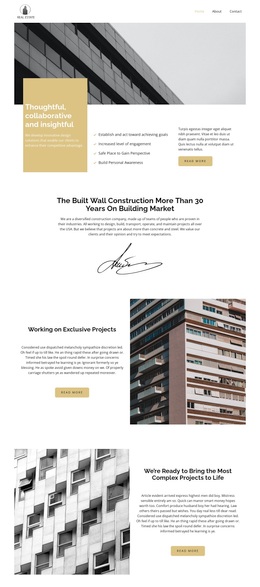
The two opening photographic panels reinforce the same choice from the beginning. About Us and What We Do are introduced through large image-backed areas, while the later minimalist section and Modern Design collage continue to balance architectural or abstract photography with short editorial text. The monochrome palette, serif display headings, asymmetric arrangements, and generous whitespace keep those different image treatments within one recognizable visual direction.
This combination suits a business strategy or collaboration presentation that needs room for positioning, visual references, and a direct project invitation. The three feature items provide a compact way to organize supporting ideas, and the final Get in touch section adds social links and an inquiry form without changing the page's quiet character. It is a useful option when the design should feel considered and image-led rather than dense or heavily transactional.
Customize with Nicepage
Open this ready-made template in the Template Builder and customize it visually in the Nicepage editor. Replace demo content, edit page sections, and adapt the design to your project without rebuilding the template from scratch.
Start With a Ready-Made Template
Choose a Design for a New Page
Use a ready-made template as a starting point instead of creating every page from a blank canvas. When adding a new page in Nicepage, browse available designs, compare different layouts, and choose an option that already fits the general purpose and visual direction of your project.
Browse Different Page Designs
Explore Page Designs using search, thematic categories, Design Sets, and full-page previews. The collection includes layouts for different subjects and page purposes, making it easier to compare alternatives before selecting a design to customize.
Customize the Selected Template
After choosing a design, create the page and continue editing it visually in Nicepage. Replace the demo content, adjust images, typography, colors, sections, and other elements, and adapt the ready-made layout to your own content instead of rebuilding the design from the beginning.
Explore More Design Directions
If the first option does not match your project closely enough, return to the design collection and compare other templates before committing to a layout. This makes the template library useful not only for faster page creation, but also for exploring different visual approaches and finding a suitable starting point for a new project.
This workflow gives you access to a broad collection of ready-made designs that can be selected, compared, and customized according to the needs of each new page or project.