Our commitment to your privacy Template


Edit Template Offline
2. Create new page and search for id 6543093
Edit Template Online
Create Awesome Websites


Free Nicepage Builder
Keywords
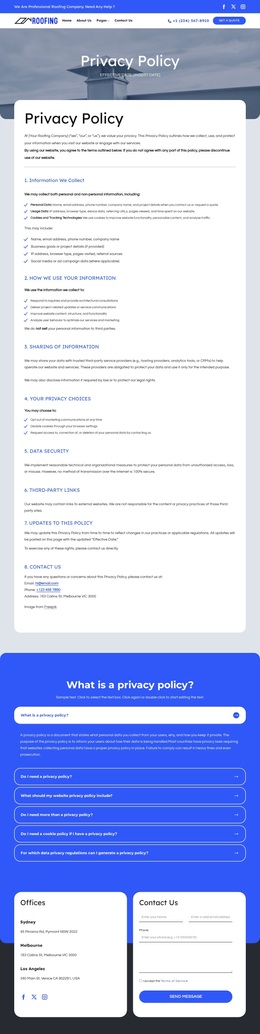
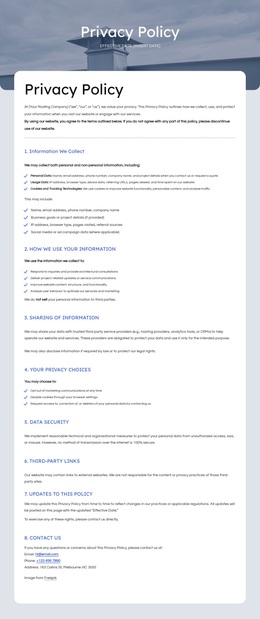
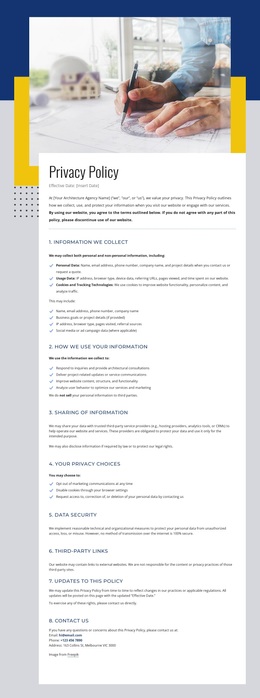
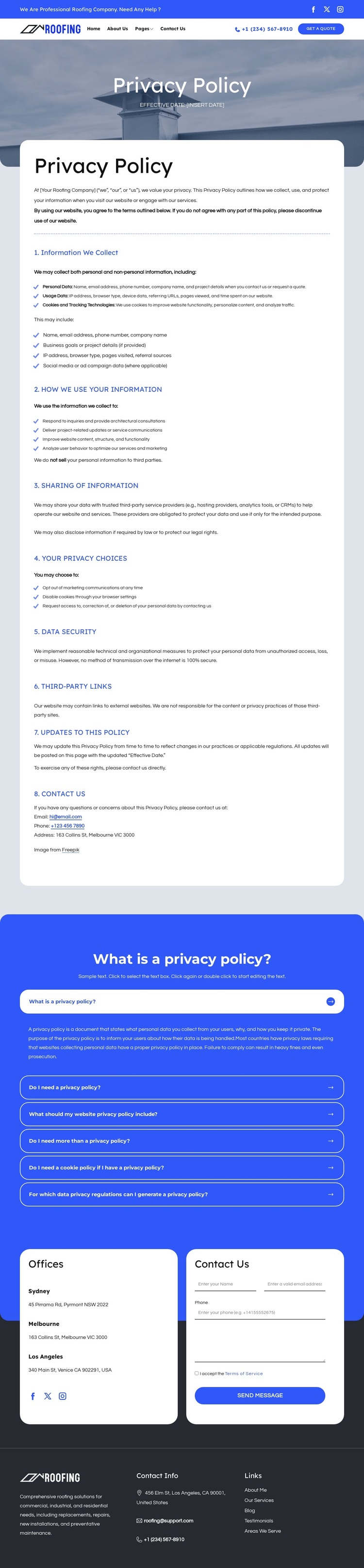
Eight policy sections distinguish this design from a standard service page
The strongest reason to choose this design is its specific coverage of privacy communication. Instead of centering the page on service cards, pricing, or a project gallery, it gives the main content area to eight numbered sections covering information collection, use, sharing, privacy choices, security, third-party links, updates, and contact. That makes the layout a practical option when a roofing or construction website needs a formal policy page that still belongs to the same visual environment as the rest of the site.
The six-item privacy FAQ adds a second level of explanation. Visitors can move from the detailed policy card to expandable questions without losing the page’s subject. This combination is more distinctive than a simple text document because it supports both comprehensive reading and shorter question-led review. The blue and dark charcoal palette, white cards, rounded corners, and restrained imagery also give the content a clear visual frame without overwhelming the legal subject.
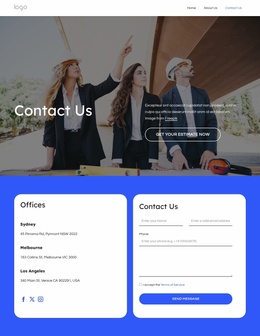
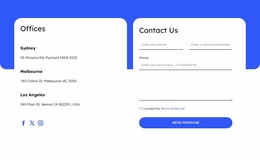
The lower section keeps the page connected to the broader business context. Sydney, Melbourne, and Los Angeles office listings appear beside a form with name, email, phone, and message inputs, while the header retains a Get a quote action and the footer supplies company and contact information. The result suits projects that need privacy content to remain accessible, visibly organized, and connected to real visitor communication areas.
Customize with Nicepage
Open this ready-made template in the Template Builder and customize it visually in the Nicepage editor. Replace demo content, edit page sections, and adapt the design to your project without rebuilding the template from scratch.
Start With a Ready-Made Template
Choose a Design for a New Page
Use a ready-made template as a starting point instead of creating every page from a blank canvas. When adding a new page in Nicepage, browse available designs, compare different layouts, and choose an option that already fits the general purpose and visual direction of your project.
Browse Different Page Designs
Explore Page Designs using search, thematic categories, Design Sets, and full-page previews. The collection includes layouts for different subjects and page purposes, making it easier to compare alternatives before selecting a design to customize.
Customize the Selected Template
After choosing a design, create the page and continue editing it visually in Nicepage. Replace the demo content, adjust images, typography, colors, sections, and other elements, and adapt the ready-made layout to your own content instead of rebuilding the design from the beginning.
Explore More Design Directions
If the first option does not match your project closely enough, return to the design collection and compare other templates before committing to a layout. This makes the template library useful not only for faster page creation, but also for exploring different visual approaches and finding a suitable starting point for a new project.
This workflow gives you access to a broad collection of ready-made designs that can be selected, compared, and customized according to the needs of each new page or project.

Design Set (26)
-

-
-
-
-
-
-
-
-
-
-
Free Website Builder SoftwareDownload
-
-
-
-
-
-