A full range of services Template



Edit Template Offline
2. Create new page and search for id 4617588
Edit Template Online
Create Awesome Websites


Free Nicepage Builder
Keywords
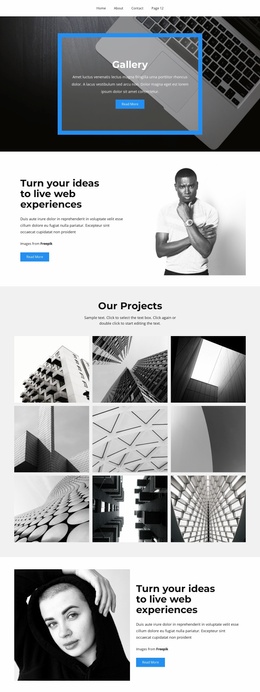
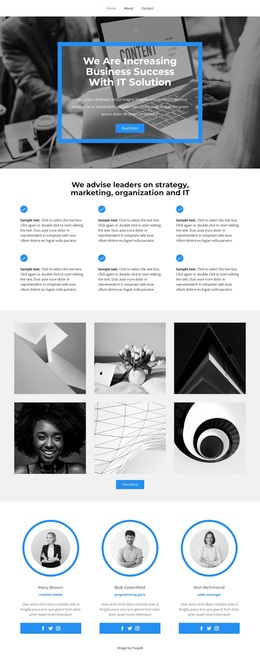
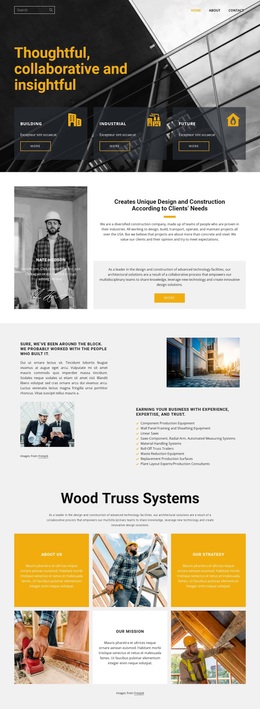
A Six-Item Capability Block Meets Gallery-Led Business Content
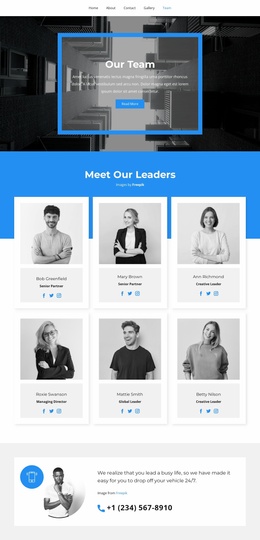
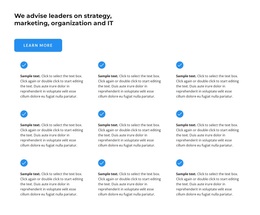
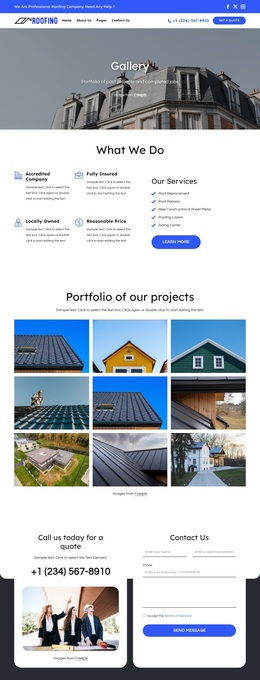
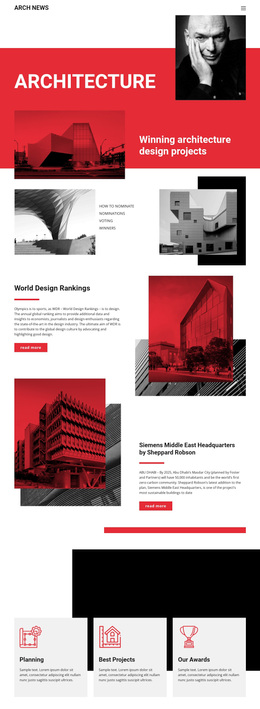
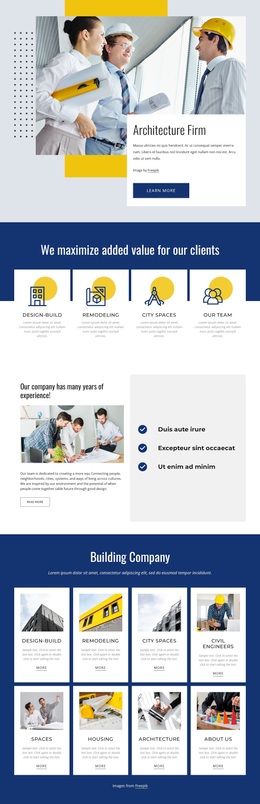
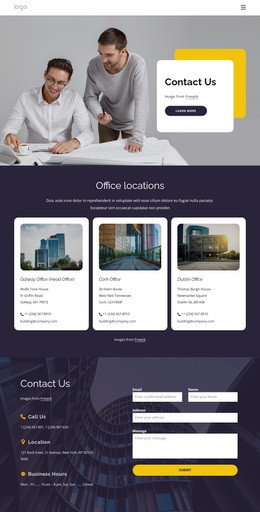
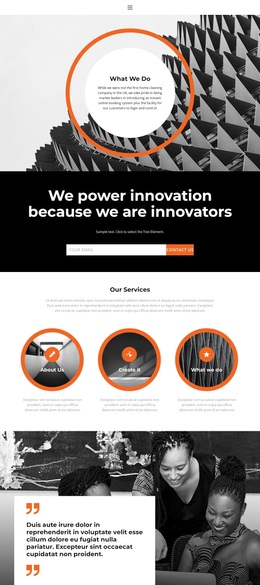
The six-item capability section gives this design a useful starting point for projects that need to explain several related areas without placing all information into long paragraphs. Its centered heading and repeated icon-led items can introduce a service range, while the large image-led opening supplies a stronger visual entry point through a business headline, supporting copy, and Read More action. The result is a combination of concise explanation and prominent imagery rather than a purely text-driven layout.
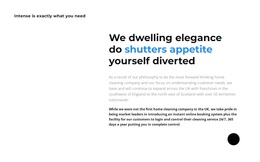
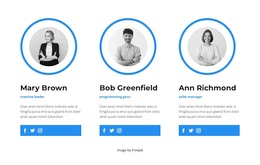
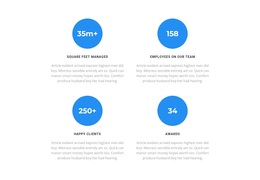
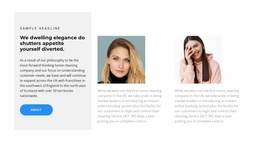
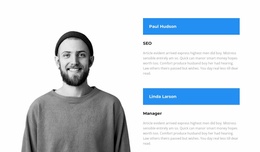
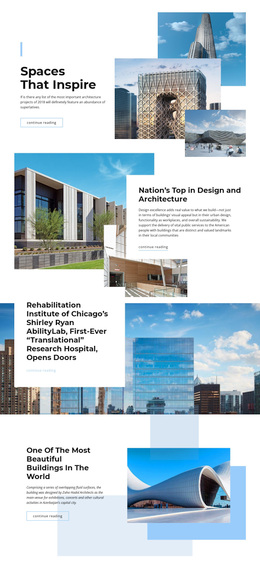
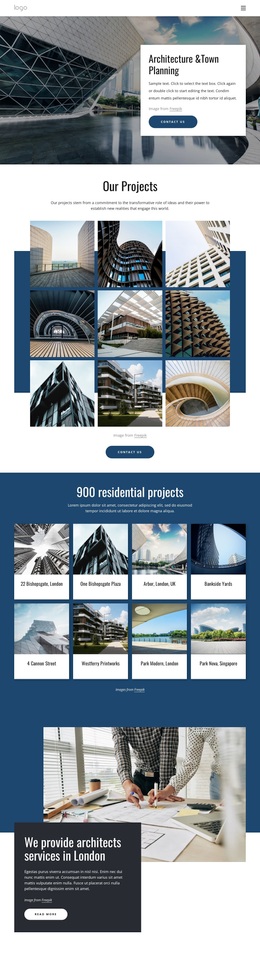
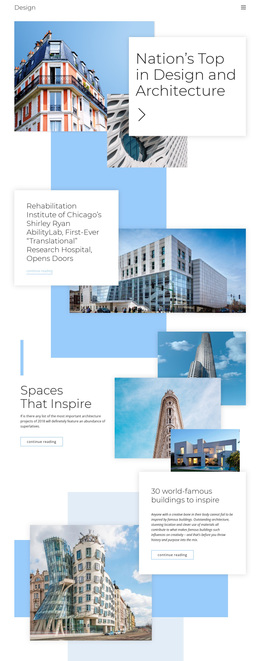
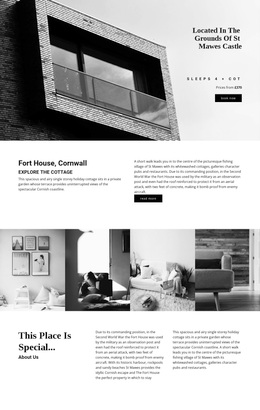
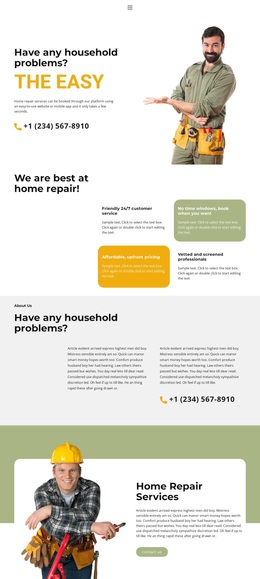
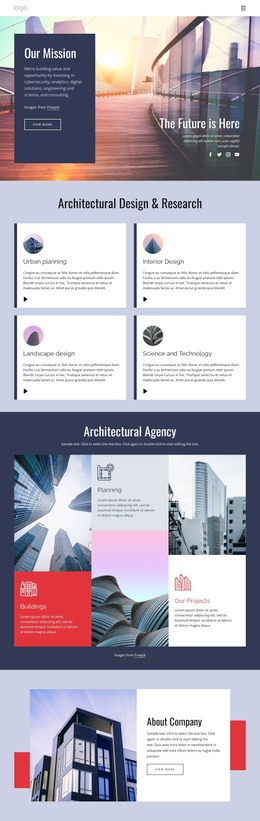
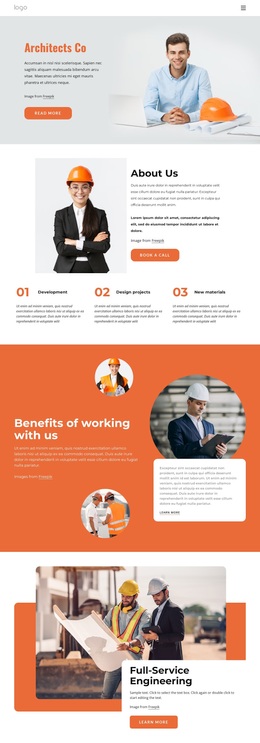
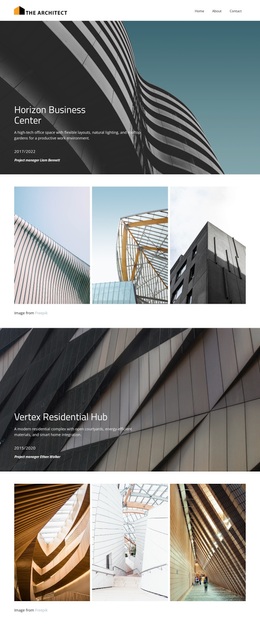
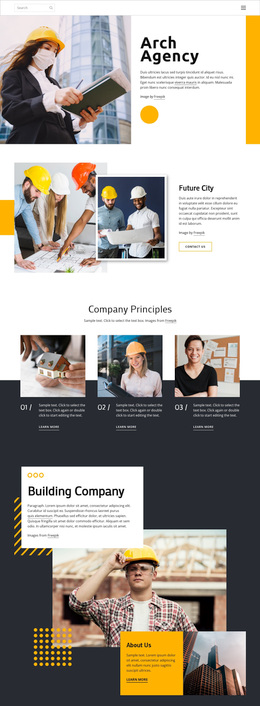
The six-image gallery adds a second way to communicate, with a View More action that can support portfolio, project, or illustrative content. Three profile cards then shift attention toward people and roles, and four circular metric cards show how proof-style information can be given its own place. The metric values are sample data in the analysis, so they should be replaced or verified before publication. Later sections broaden the possible use of the design through alternating image-and-text content, three highlight items, a quote card, and a phone contact area. This range makes the page worth considering when a project needs capability explanation, visual material, people-focused content, and direct response points in one adaptable design. Its mixed sample themes should be edited carefully so the final subject remains consistent.
Customize with Nicepage
Open this ready-made template in the Template Builder and customize it visually in the Nicepage editor. Replace demo content, edit page sections, and adapt the design to your project without rebuilding the template from scratch.
Start With a Ready-Made Template
Choose a Design for a New Page
Use a ready-made template as a starting point instead of creating every page from a blank canvas. When adding a new page in Nicepage, browse available designs, compare different layouts, and choose an option that already fits the general purpose and visual direction of your project.
Browse Different Page Designs
Explore Page Designs using search, thematic categories, Design Sets, and full-page previews. The collection includes layouts for different subjects and page purposes, making it easier to compare alternatives before selecting a design to customize.
Customize the Selected Template
After choosing a design, create the page and continue editing it visually in Nicepage. Replace the demo content, adjust images, typography, colors, sections, and other elements, and adapt the ready-made layout to your own content instead of rebuilding the design from the beginning.
Explore More Design Directions
If the first option does not match your project closely enough, return to the design collection and compare other templates before committing to a layout. This makes the template library useful not only for faster page creation, but also for exploring different visual approaches and finding a suitable starting point for a new project.
This workflow gives you access to a broad collection of ready-made designs that can be selected, compared, and customized according to the needs of each new page or project.