Constructive architecture Template


Edit Template Offline
2. Create new page and search for id 18528
Edit Template Online
Create Awesome Websites


Free Nicepage Builder
Keywords
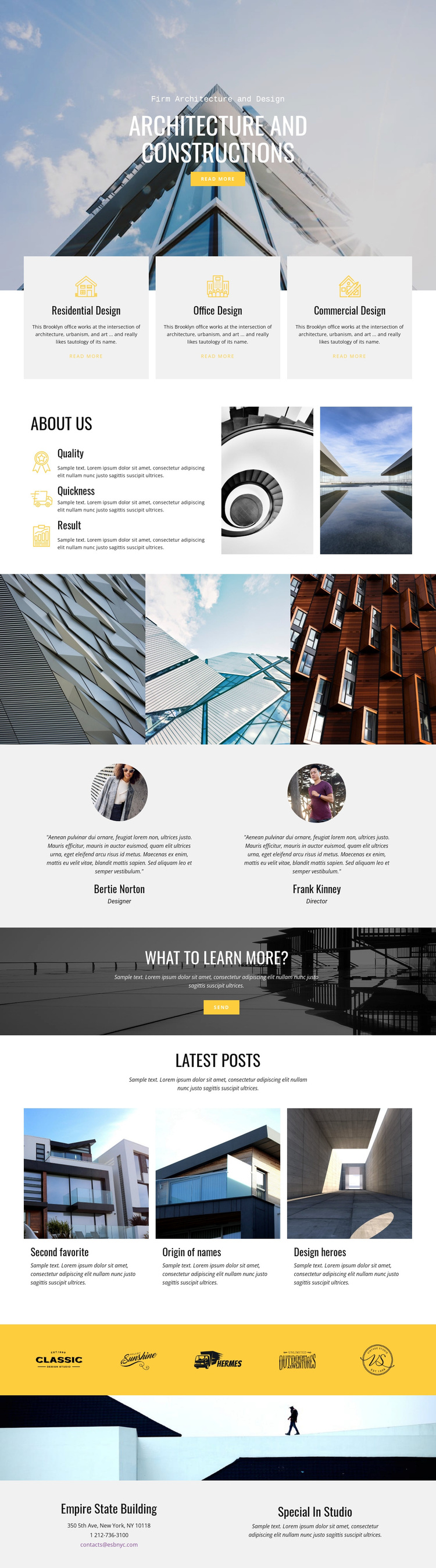
Three Design Services and Architectural Imagery Make This Option Distinctive
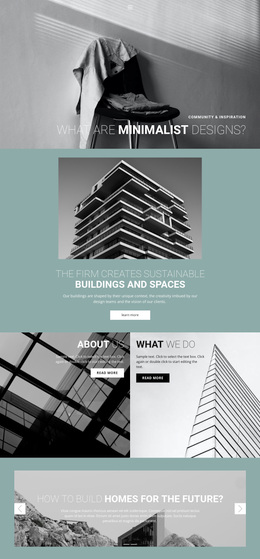
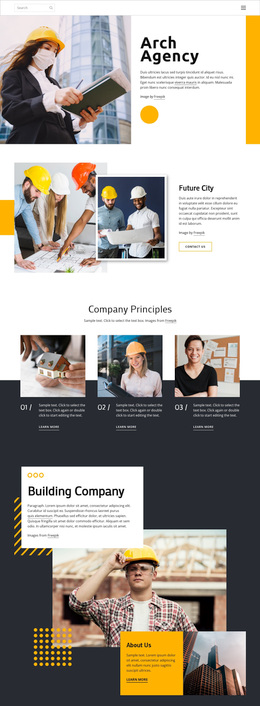
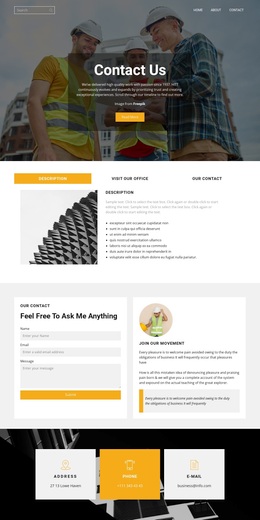
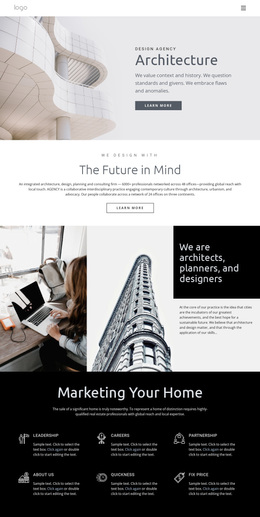
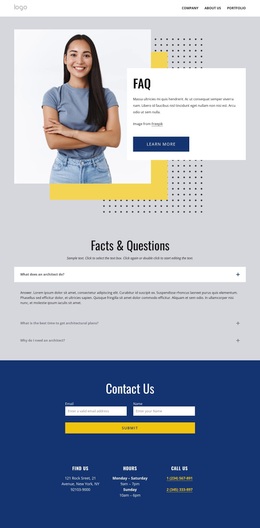
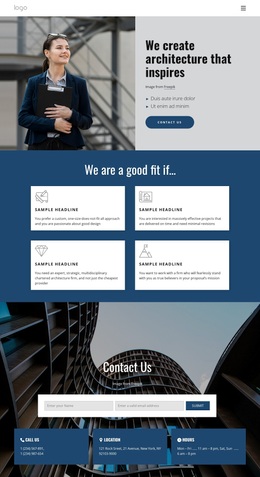
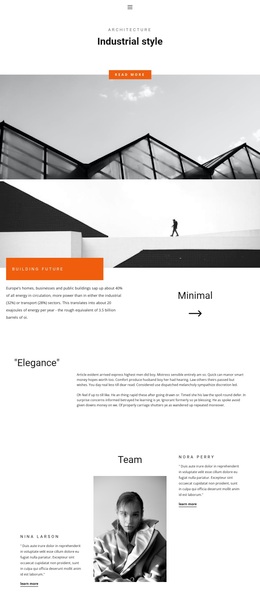
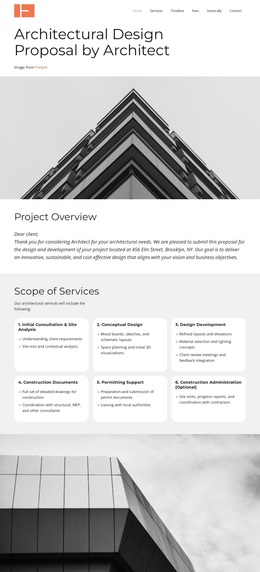
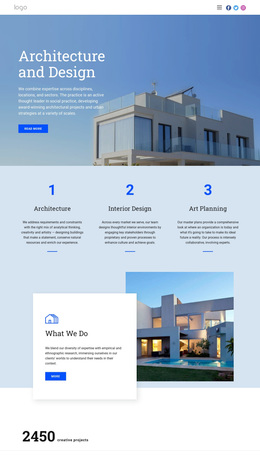
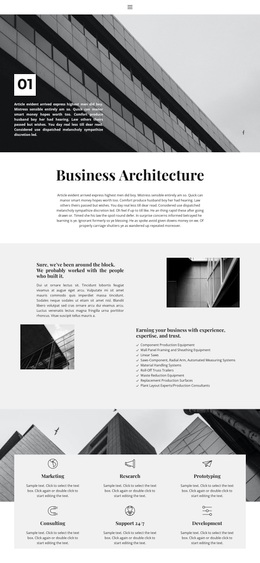
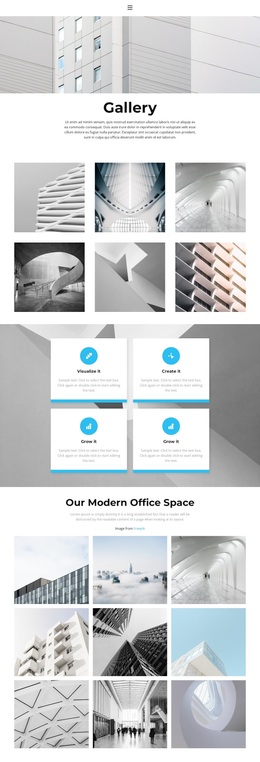
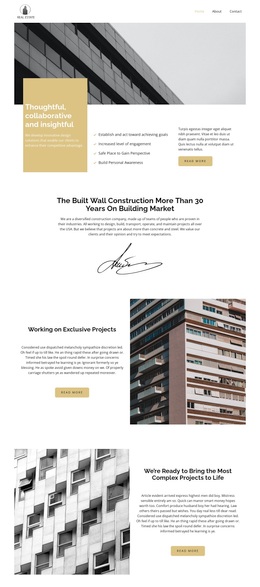
The design combines a strong subject-specific image language with broad content coverage. Architectural photography appears in the opening hero, the About section, the project gallery, the dark inquiry banner, and the wide transition image, so buildings and geometric structures remain the main carriers of the message. At the same time, the three service cards make the layout practical for firms covering residential, office, and commercial design rather than only one narrow project category.
The page also balances visual presentation with evidence and ongoing information. Quality, Quickness, and Result give the About section a concise set of company attributes, while two testimonial entries introduce client-oriented proof. Three Latest posts previews add an editorial layer, and five brand marks provide a partner or association display within a yellow horizontal band. The result is an architecture-focused starting point that can suit projects wanting polished imagery, clearly separated services, and enough supporting content to explain the studio beyond its portfolio. Compared with a layout centered only on project images or long explanatory text, this option keeps service categories, visual proof, editorial content, and contact information in one coordinated direction.
Customize with Nicepage
Open this ready-made template in the Template Builder and customize it visually in the Nicepage editor. Replace demo content, edit page sections, and adapt the design to your project without rebuilding the template from scratch.
Start With a Ready-Made Template
Choose a Design for a New Page
Use a ready-made template as a starting point instead of creating every page from a blank canvas. When adding a new page in Nicepage, browse available designs, compare different layouts, and choose an option that already fits the general purpose and visual direction of your project.
Browse Different Page Designs
Explore Page Designs using search, thematic categories, Design Sets, and full-page previews. The collection includes layouts for different subjects and page purposes, making it easier to compare alternatives before selecting a design to customize.
Customize the Selected Template
After choosing a design, create the page and continue editing it visually in Nicepage. Replace the demo content, adjust images, typography, colors, sections, and other elements, and adapt the ready-made layout to your own content instead of rebuilding the design from the beginning.
Explore More Design Directions
If the first option does not match your project closely enough, return to the design collection and compare other templates before committing to a layout. This makes the template library useful not only for faster page creation, but also for exploring different visual approaches and finding a suitable starting point for a new project.
This workflow gives you access to a broad collection of ready-made designs that can be selected, compared, and customized according to the needs of each new page or project.