Faq page Template


Edit Template Offline
2. Create new page and search for id 6416832
Edit Template Online
Create Awesome Websites


Free Nicepage Builder
Keywords
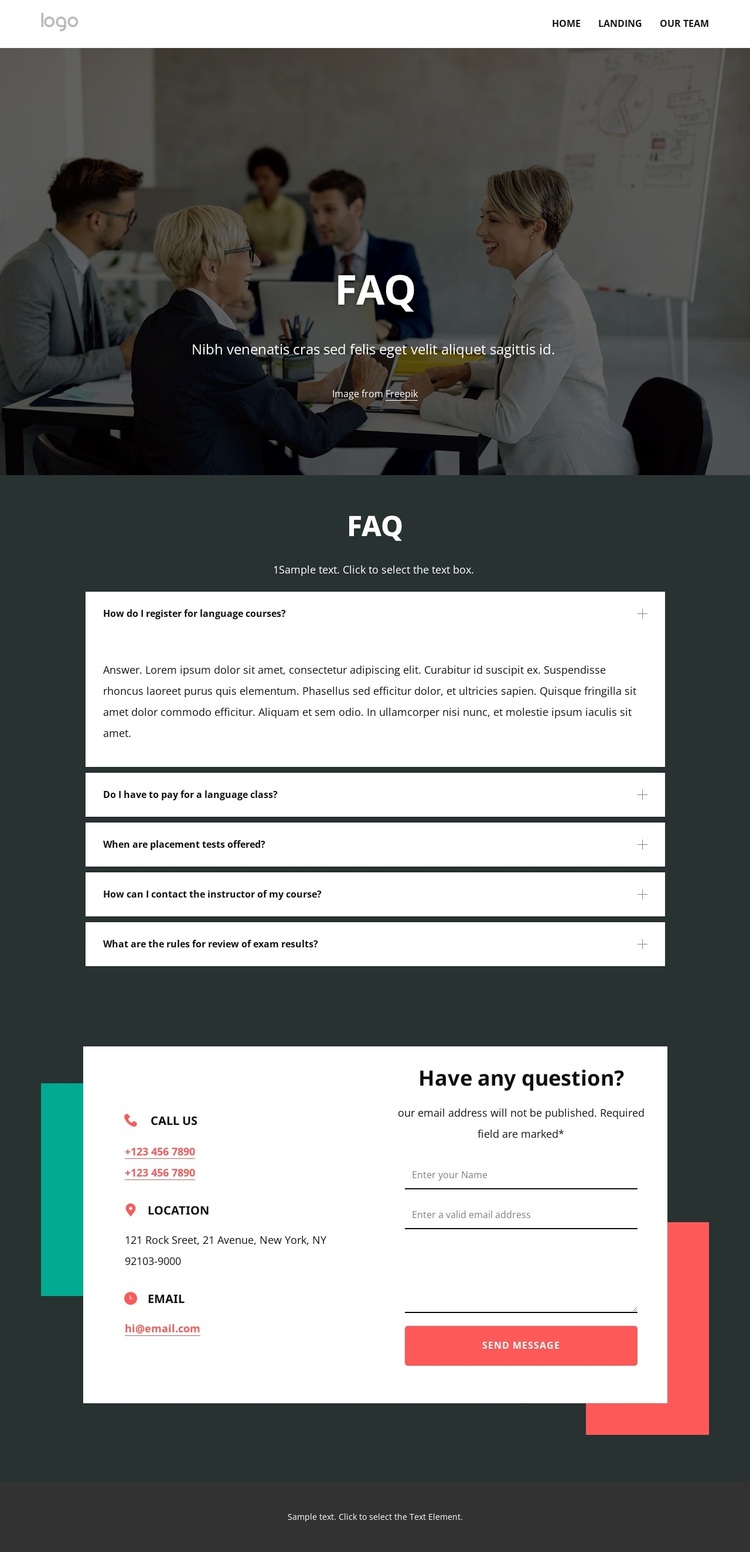
Five Practical Questions Give This Language Page Its Focus
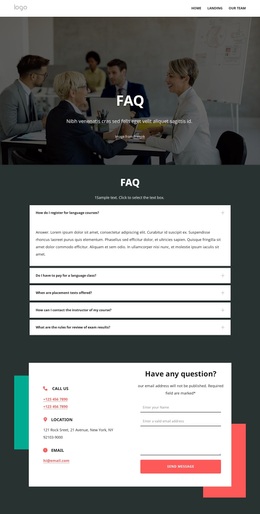
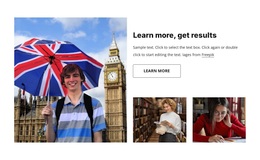
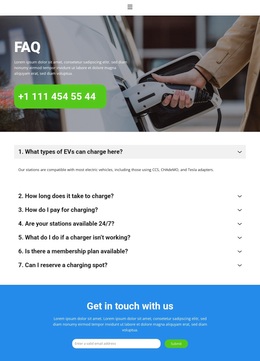
The classroom photograph, centered FAQ heading, and five-question accordion make this design especially focused on helping prospective language students find answers before contacting the center. The questions address registration, course fees, placement tests, instructor contact, and exam-result reviews, so the page is shaped around the concerns that can influence whether a visitor continues exploring a course provider. The accordion also keeps those topics together without overwhelming the opening presentation.
The surrounding content broadens the design without weakening that focus. Links for private lessons, online learning, English for kids, long-term courses, and English for business show several recognizable study directions. The visitor can therefore move from a general question to a more relevant course category, then use the contact area when a personal response is needed. The two-column arrangement of contact details and message form gives the page a practical next step, while the newsletter prompt supports visitors who prefer to stay connected.
This template is worth considering when the project needs an answer-led presentation rather than a page dominated by long service descriptions or product grids. Its strongest distinction is the relationship between the classroom-led introduction, the five practical questions, and the closing contact route. Course and support links, social icons, and the dark footer add useful context around the core FAQ experience. The result is a ready-made design direction for language education projects that need clarity, course orientation, and an accessible way to submit questions.
Customize with Nicepage
Open this ready-made template in the Template Builder and customize it visually in the Nicepage editor. Replace demo content, edit page sections, and adapt the design to your project without rebuilding the template from scratch.
Start With a Ready-Made Template
Choose a Design for a New Page
Use a ready-made template as a starting point instead of creating every page from a blank canvas. When adding a new page in Nicepage, browse available designs, compare different layouts, and choose an option that already fits the general purpose and visual direction of your project.
Browse Different Page Designs
Explore Page Designs using search, thematic categories, Design Sets, and full-page previews. The collection includes layouts for different subjects and page purposes, making it easier to compare alternatives before selecting a design to customize.
Customize the Selected Template
After choosing a design, create the page and continue editing it visually in Nicepage. Replace the demo content, adjust images, typography, colors, sections, and other elements, and adapt the ready-made layout to your own content instead of rebuilding the design from the beginning.
Explore More Design Directions
If the first option does not match your project closely enough, return to the design collection and compare other templates before committing to a layout. This makes the template library useful not only for faster page creation, but also for exploring different visual approaches and finding a suitable starting point for a new project.
This workflow gives you access to a broad collection of ready-made designs that can be selected, compared, and customized according to the needs of each new page or project.

Design Set (22)
-

-
-
-
-
-
-
-
-
-
-
-
-
Free Website Builder SoftwareDownload
-
-