Brand, print & web design Template



Edit Template Offline
2. Create new page and search for id 125317
Edit Template Online
Create Awesome Websites


Free Nicepage Builder
Keywords
A High-Contrast Studio Option With Services, People, and Proof
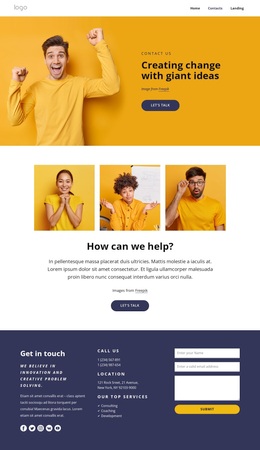
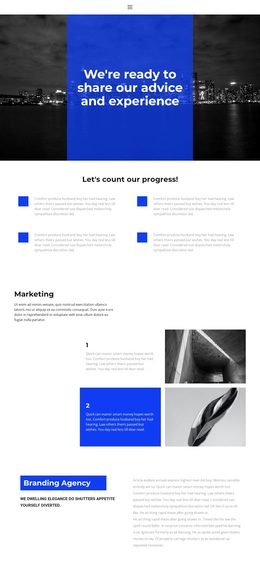
The page is a distinctive choice for projects that need design services to feel visual and editorial rather than text-heavy. Large photography carries much of the first impression: the opening lifestyle image introduces the studio, a portrait supports the Web Development & Design offering, and a full-width desk-and-laptop image gives the Branding section a strong visual setting. The yellow, black, white, and light-gray palette reinforces that image-led direction with clear geometric contrast.
Content coverage is another reason to select this design. Four feature cards provide an about-oriented foundation, while named sections for Web Development & Design and Branding make the principal offerings visible without forcing them into one generic services grid. Four profile cards add a human dimension through portraits, roles, descriptions, and social links. The About Studio band then introduces four metric items, and the Contact Us section supplies a map plus office, phone, and email channels. This combination suits a studio, agency, or creative business that needs to show its visual character, explain more than one capability, introduce its team, and make contact information easy to locate. It is less suited to projects centered on dense articles, large product catalogs, or pricing tables.
Customize with Nicepage
Open this ready-made template in the Template Builder and customize it visually in the Nicepage editor. Replace demo content, edit page sections, and adapt the design to your project without rebuilding the template from scratch.
Start With a Ready-Made Template
Choose a Design for a New Page
Use a ready-made template as a starting point instead of creating every page from a blank canvas. When adding a new page in Nicepage, browse available designs, compare different layouts, and choose an option that already fits the general purpose and visual direction of your project.
Browse Different Page Designs
Explore Page Designs using search, thematic categories, Design Sets, and full-page previews. The collection includes layouts for different subjects and page purposes, making it easier to compare alternatives before selecting a design to customize.
Customize the Selected Template
After choosing a design, create the page and continue editing it visually in Nicepage. Replace the demo content, adjust images, typography, colors, sections, and other elements, and adapt the ready-made layout to your own content instead of rebuilding the design from the beginning.
Explore More Design Directions
If the first option does not match your project closely enough, return to the design collection and compare other templates before committing to a layout. This makes the template library useful not only for faster page creation, but also for exploring different visual approaches and finding a suitable starting point for a new project.
This workflow gives you access to a broad collection of ready-made designs that can be selected, compared, and customized according to the needs of each new page or project.