Successful consultants Template



Edit Template Offline
2. Create new page and search for id 2251697
Edit Template Online
Create Awesome Websites


Free Nicepage Builder
Keywords
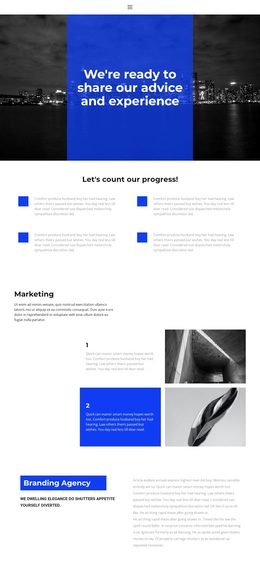
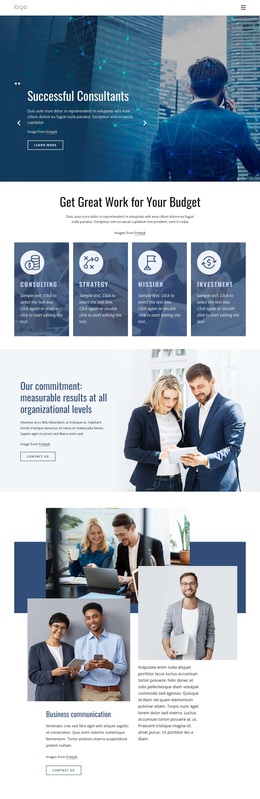
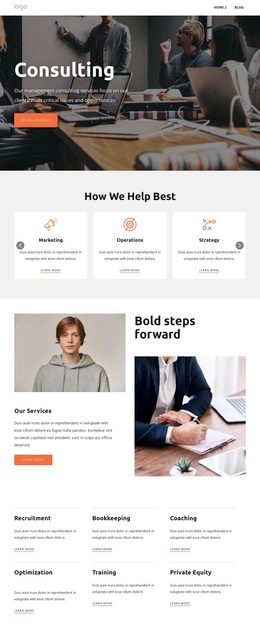
Four Capability Cards Connect the Visual Story to Consulting Content
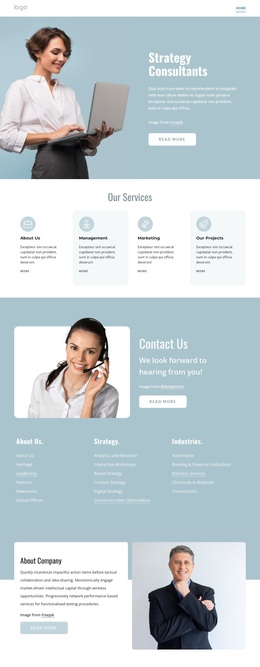
The four image-backed cards give this design a clear reason to stand out among broader consulting layouts. Consulting, Strategy, Mission, and Investment are presented as a related capability group, so the page can communicate coverage without relying on a dense list of services. Their repeated visual treatment also creates a strong center point after the two-slide hero introduces Successful Consultants and Coaching and Training.
The rest of the page supports that choice with varied but connected content. The measurable-results section adds a commitment statement and contact action, while the business communication block uses several photographs and supporting text to make the subject more tangible. A layered planning section introduces Start Now and strategy language, and the construction-project callout gives the design a more specific professional-services context. Three numbered information cards then provide another compact way to organize consulting-related explanation before Growth Strategy returns to a focused offering.
This combination suits a project that needs both visual business storytelling and multiple entry points into consulting content. The blue and pale-gray palette keeps the page controlled, while large photographs supply context and the repeated action language keeps contact visible. The final form and displayed contact details complete the selection: the design does not stop at presenting a visual direction, but carries the visitor toward an inquiry space. It is therefore a practical option for organizations that want service breadth, imagery, and response opportunities in one page.
Customize with Nicepage
Open this ready-made template in the Template Builder and customize it visually in the Nicepage editor. Replace demo content, edit page sections, and adapt the design to your project without rebuilding the template from scratch.
Start With a Ready-Made Template
Choose a Design for a New Page
Use a ready-made template as a starting point instead of creating every page from a blank canvas. When adding a new page in Nicepage, browse available designs, compare different layouts, and choose an option that already fits the general purpose and visual direction of your project.
Browse Different Page Designs
Explore Page Designs using search, thematic categories, Design Sets, and full-page previews. The collection includes layouts for different subjects and page purposes, making it easier to compare alternatives before selecting a design to customize.
Customize the Selected Template
After choosing a design, create the page and continue editing it visually in Nicepage. Replace the demo content, adjust images, typography, colors, sections, and other elements, and adapt the ready-made layout to your own content instead of rebuilding the design from the beginning.
Explore More Design Directions
If the first option does not match your project closely enough, return to the design collection and compare other templates before committing to a layout. This makes the template library useful not only for faster page creation, but also for exploring different visual approaches and finding a suitable starting point for a new project.
This workflow gives you access to a broad collection of ready-made designs that can be selected, compared, and customized according to the needs of each new page or project.