Car repair team Template


Edit Template Offline
2. Create new page and search for id 6334504
Edit Template Online
Create Awesome Websites


Free Nicepage Builder
Keywords
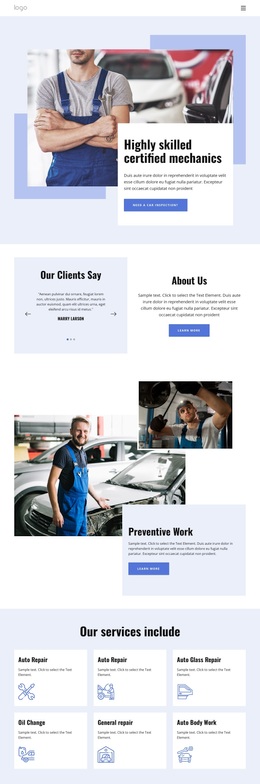
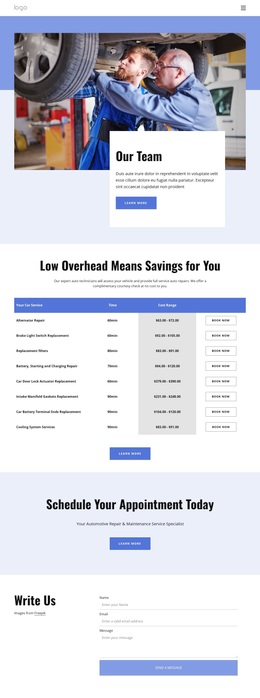
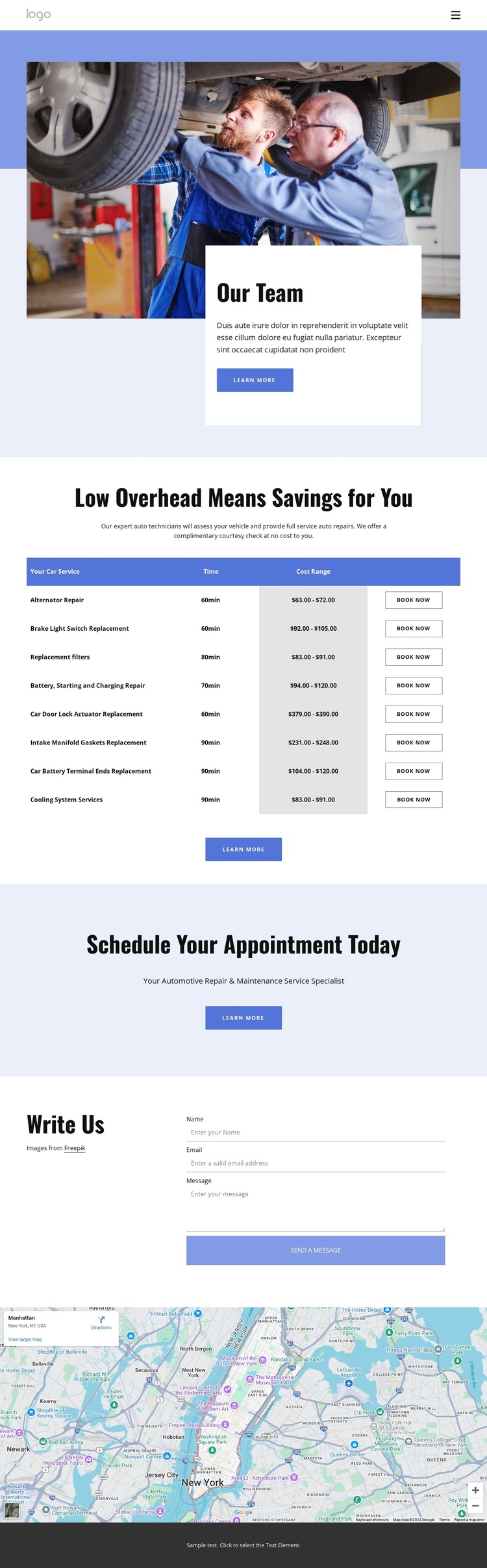
Eight Service Rows Turn Repair Pricing Into a Clear Starting Point
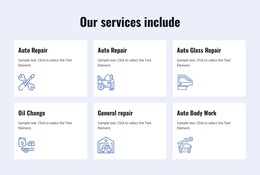
The strongest reason to choose this design is the way it turns automotive repair information into a visible comparison. Eight repeated service rows place repair names, estimated durations, cost ranges, and booking actions in one table, so visitors can understand the relationship between the work offered and the next step. That is more specific than a generic service grid: the page is organized around pricing decisions and appointment intent from the beginning.
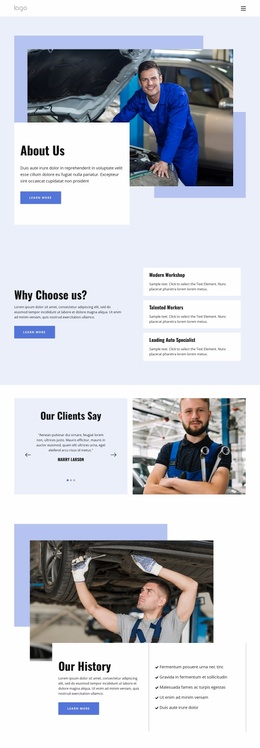
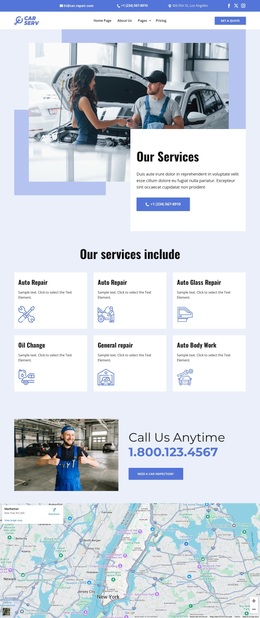
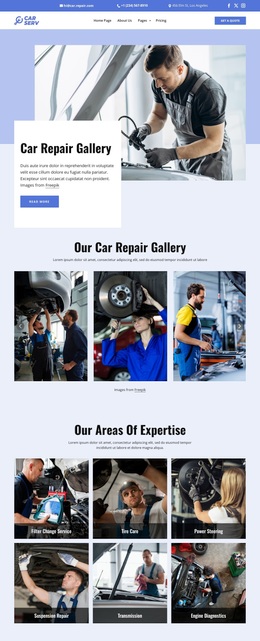
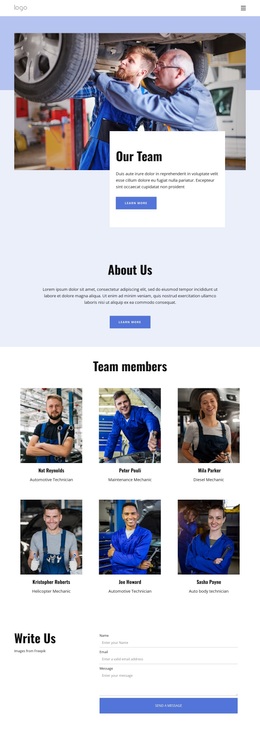
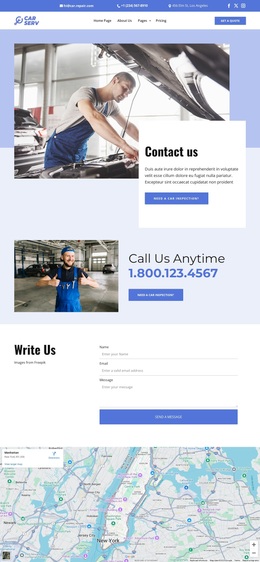
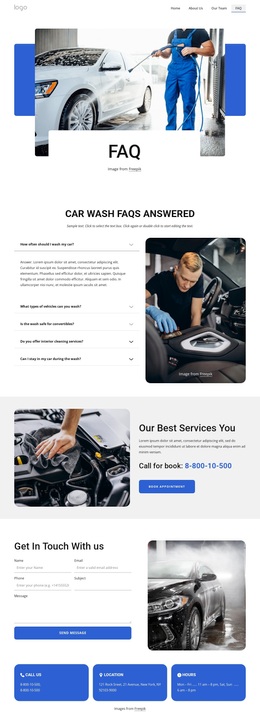
The opening block supports that purpose without competing with it. A large automotive image establishes the repair context, while the overlapping white card introduces the pricing page and its action. The pale blue appointment section then gives scheduling its own visual pause before the contact area collects a name, email, and message. A map below the form adds location context, and the dark footer supplies service links, quick links, contact information, working hours, social links, and an email subscription form.
This combination suits repair businesses that need to show several service options while keeping booking and inquiry paths visible. The design is worth considering because its content coverage is practical: it connects price comparison, appointment prompting, direct communication, location reference, and ongoing contact information in one coherent page. Demo values should be replaced with the project’s verified pricing and business details.
Customize with Nicepage
Open this ready-made template in the Template Builder and customize it visually in the Nicepage editor. Replace demo content, edit page sections, and adapt the design to your project without rebuilding the template from scratch.
Start With a Ready-Made Template
Choose a Design for a New Page
Use a ready-made template as a starting point instead of creating every page from a blank canvas. When adding a new page in Nicepage, browse available designs, compare different layouts, and choose an option that already fits the general purpose and visual direction of your project.
Browse Different Page Designs
Explore Page Designs using search, thematic categories, Design Sets, and full-page previews. The collection includes layouts for different subjects and page purposes, making it easier to compare alternatives before selecting a design to customize.
Customize the Selected Template
After choosing a design, create the page and continue editing it visually in Nicepage. Replace the demo content, adjust images, typography, colors, sections, and other elements, and adapt the ready-made layout to your own content instead of rebuilding the design from the beginning.
Explore More Design Directions
If the first option does not match your project closely enough, return to the design collection and compare other templates before committing to a layout. This makes the template library useful not only for faster page creation, but also for exploring different visual approaches and finding a suitable starting point for a new project.
This workflow gives you access to a broad collection of ready-made designs that can be selected, compared, and customized according to the needs of each new page or project.