Car repair experts Template



Edit Template Offline
2. Create new page and search for id 6308325
Edit Template Online
Create Awesome Websites


Free Nicepage Builder
Keywords
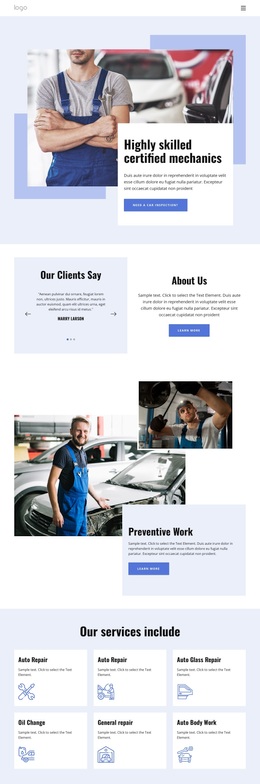
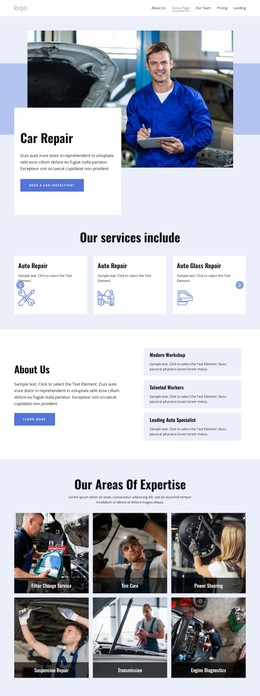
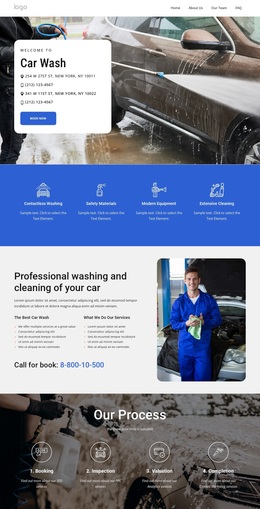
Six service cards and an expertise gallery define the design’s strongest choice
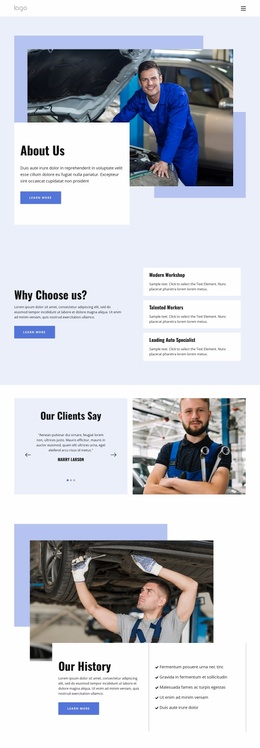
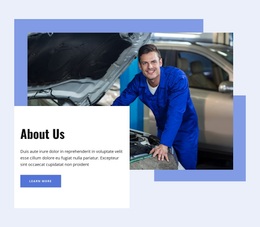
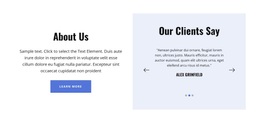
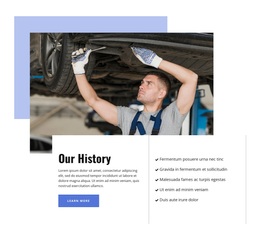
The design is a useful option when an automotive repair project needs to communicate both service breadth and practical expertise. The opening mechanic image and overlapping white panel create an immediate subject focus, while the inspection action makes the intended audience clear without relying on dense introductory copy. The adjacent testimonial carousel and About Us panel add human and organizational context early in the page.
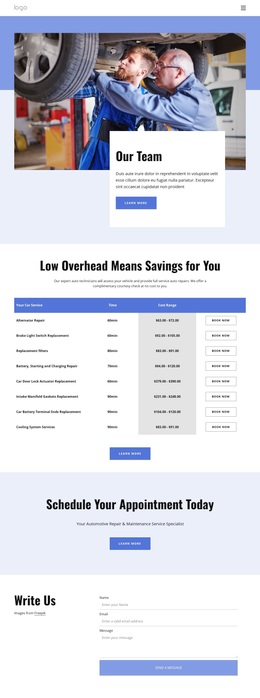
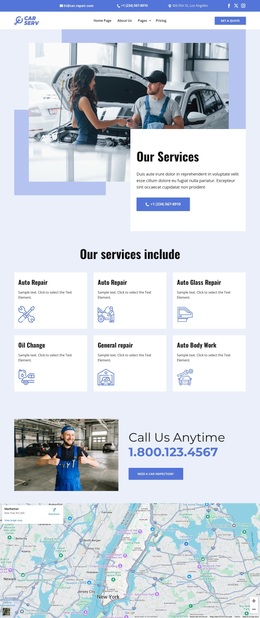
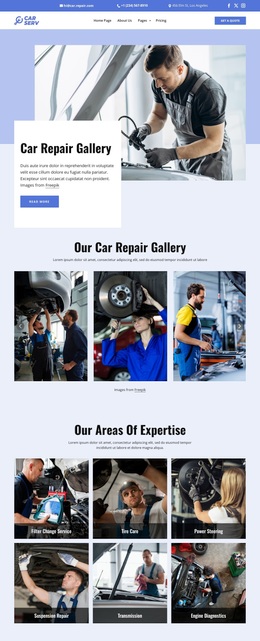
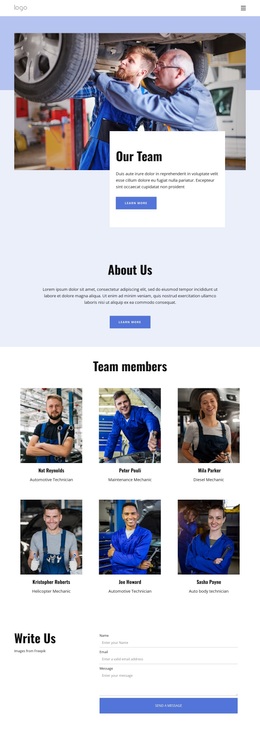
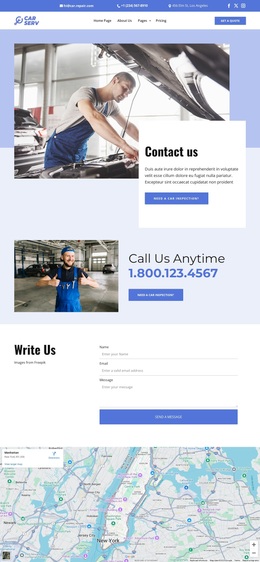
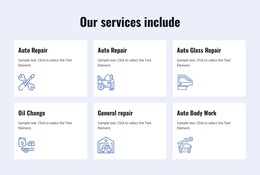
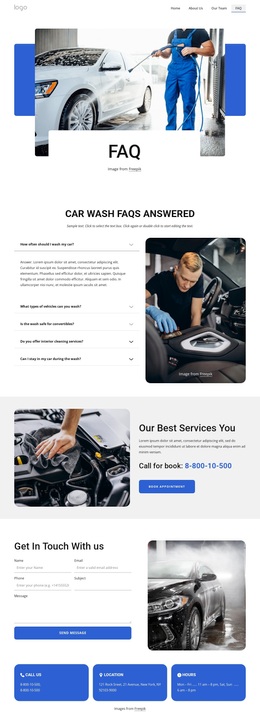
Its strongest distinctive feature is the way the offer is divided into two related collections. Six repeated service cards cover broad needs such as auto repair, auto glass repair, oil changes, general repair, and body work. The later six-item image gallery shifts from general categories to specific expertise, including tire care, power steering, suspension, transmission, and engine diagnostics. That separation helps visitors understand both what the workshop offers and where its technical focus extends. The FAQ section, team presentation, and four structural metrics add supporting depth, while the phone callout, message form, map, subscription form, and footer links provide several practical contact routes. Compared with a design centered only on a hero and a short service list, this option gives automotive businesses a fuller narrative from capability to reassurance and inquiry.
Customize with Nicepage
Open this ready-made template in the Template Builder and customize it visually in the Nicepage editor. Replace demo content, edit page sections, and adapt the design to your project without rebuilding the template from scratch.
Start With a Ready-Made Template
Choose a Design for a New Page
Use a ready-made template as a starting point instead of creating every page from a blank canvas. When adding a new page in Nicepage, browse available designs, compare different layouts, and choose an option that already fits the general purpose and visual direction of your project.
Browse Different Page Designs
Explore Page Designs using search, thematic categories, Design Sets, and full-page previews. The collection includes layouts for different subjects and page purposes, making it easier to compare alternatives before selecting a design to customize.
Customize the Selected Template
After choosing a design, create the page and continue editing it visually in Nicepage. Replace the demo content, adjust images, typography, colors, sections, and other elements, and adapt the ready-made layout to your own content instead of rebuilding the design from the beginning.
Explore More Design Directions
If the first option does not match your project closely enough, return to the design collection and compare other templates before committing to a layout. This makes the template library useful not only for faster page creation, but also for exploring different visual approaches and finding a suitable starting point for a new project.
This workflow gives you access to a broad collection of ready-made designs that can be selected, compared, and customized according to the needs of each new page or project.