Audi aero program car Template


Edit Template Offline
2. Create new page and search for id 18792
Edit Template Online
Create Awesome Websites


Free Nicepage Builder
Keywords
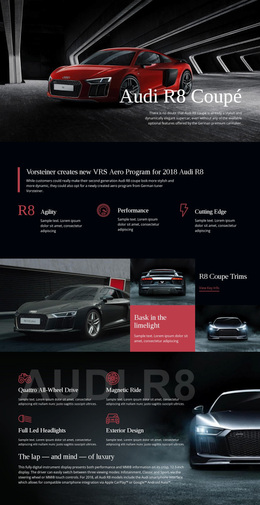
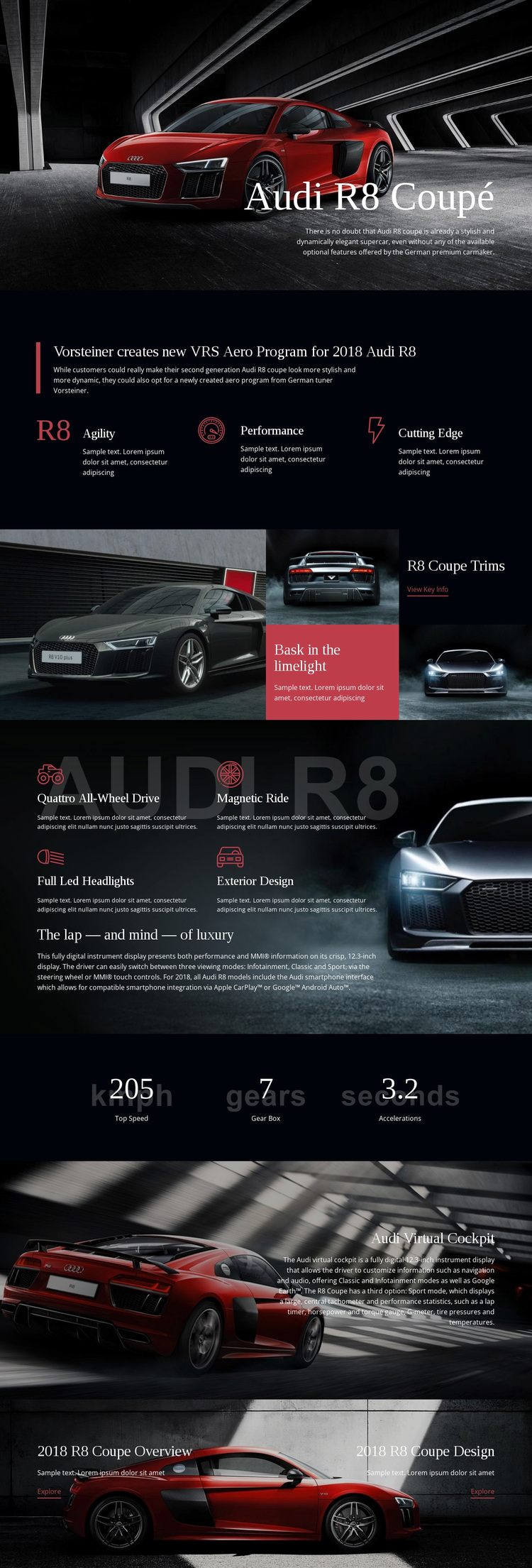
Aero Storytelling and Trim Imagery Give the Design Its Character
Large red Audi R8 imagery carries much of the page’s identity, but the design is not limited to a single promotional hero. The opening image establishes a cinematic direction, then the Vorsteiner aero program section adds an editorial explanation supported by three compact themes: Agility, Performance, and Cutting Edge. This combination suits projects that need to present a vehicle through both visual impact and concise feature interpretation.
The R8 Coupe Trims section is the most distinctive content choice. Instead of using a uniform row of cards, it combines a large vehicle image with smaller image-and-text panels and a “View Key Info” action. That mosaic approach makes styling and trim information feel like part of a visual story. The later luxury section continues the same idea by placing four concrete technology and design features around a longer concluding panel.
The page also covers information that many purely image-led concepts would omit. Displayed figures for top speed, gear box, and accelerations provide a compact performance summary, while the Audi Virtual Cockpit section identifies a 12.3-inch digital instrument display. Two final Explore actions divide overview and design information into clear next steps. Together, these relationships make the template a useful choice for a high-performance vehicle presentation where imagery, technical detail, and product exploration need to coexist.
Customize with Nicepage
Open this ready-made template in the Template Builder and customize it visually in the Nicepage editor. Replace demo content, edit page sections, and adapt the design to your project without rebuilding the template from scratch.
Start With a Ready-Made Template
Choose a Design for a New Page
Use a ready-made template as a starting point instead of creating every page from a blank canvas. When adding a new page in Nicepage, browse available designs, compare different layouts, and choose an option that already fits the general purpose and visual direction of your project.
Browse Different Page Designs
Explore Page Designs using search, thematic categories, Design Sets, and full-page previews. The collection includes layouts for different subjects and page purposes, making it easier to compare alternatives before selecting a design to customize.
Customize the Selected Template
After choosing a design, create the page and continue editing it visually in Nicepage. Replace the demo content, adjust images, typography, colors, sections, and other elements, and adapt the ready-made layout to your own content instead of rebuilding the design from the beginning.
Explore More Design Directions
If the first option does not match your project closely enough, return to the design collection and compare other templates before committing to a layout. This makes the template library useful not only for faster page creation, but also for exploring different visual approaches and finding a suitable starting point for a new project.
This workflow gives you access to a broad collection of ready-made designs that can be selected, compared, and customized according to the needs of each new page or project.