Quality haircuts and hairstyles Template

Edit Template Offline
2. Create new page and search for id 18682
Edit Template Online
Create Awesome Websites


Free Nicepage Builder
Keywords
Hot-Shave Content and Gallery Storytelling Define the Design Choice
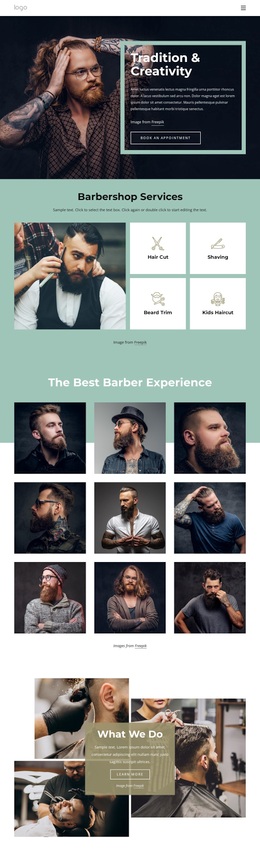
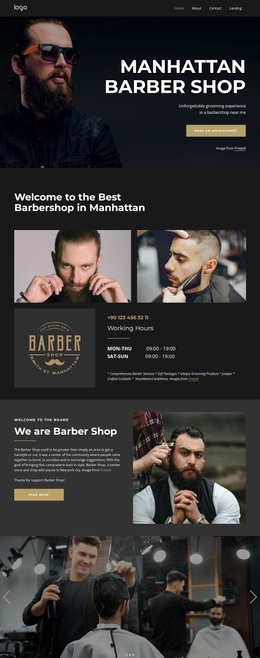
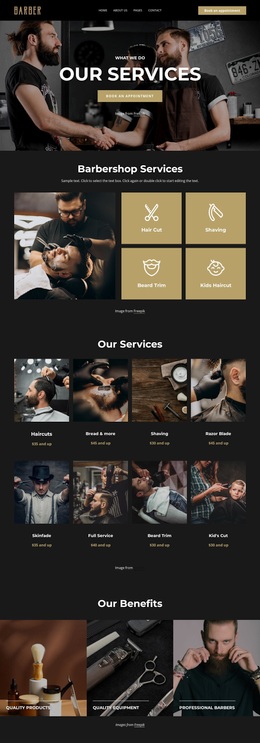
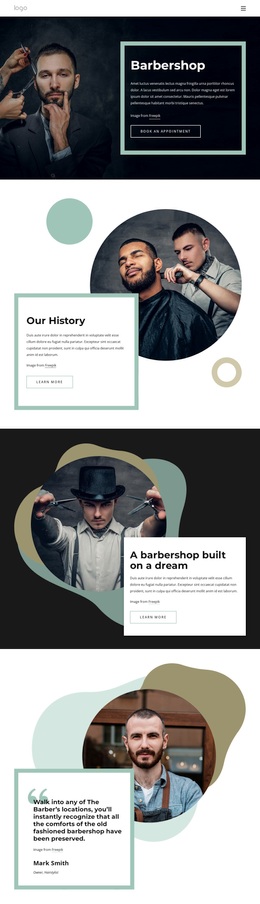
The six-image gallery makes photography a central carrier of the barber shop message. Instead of relying only on service lists, the design uses barbering and shop scenes to establish atmosphere and provide visual evidence of the setting. That choice is reinforced by the hero photograph and by the layered hot-shave section, where facial-hair care receives a focused presentation against large imagery.
The content coverage is broad without losing its subject. Visitors can learn about the shop, review working hours and contact details, read about the haircut experience, and explore traditional barbering through separate image-and-text sections. The three barber profile cards then add a human dimension, while the single highlighted testimonial supplies a compact customer-facing proof point. These relationships make the page suitable for a shop that wants its environment and craft to be visible alongside its services.
The muted palette, serif headings, uppercase labels, framed overlays, and asymmetrical compositions further distinguish this option from a simple appointment or price-list layout. It is a useful starting choice when a men’s grooming project needs classic barbershop atmosphere, service explanation, gallery-led storytelling, team presentation, and social presence in one connected design.
Customize with Nicepage
Open this ready-made template in the Template Builder and customize it visually in the Nicepage editor. Replace demo content, edit page sections, and adapt the design to your project without rebuilding the template from scratch.
Start With a Ready-Made Template
Choose a Design for a New Page
Use a ready-made template as a starting point instead of creating every page from a blank canvas. When adding a new page in Nicepage, browse available designs, compare different layouts, and choose an option that already fits the general purpose and visual direction of your project.
Browse Different Page Designs
Explore Page Designs using search, thematic categories, Design Sets, and full-page previews. The collection includes layouts for different subjects and page purposes, making it easier to compare alternatives before selecting a design to customize.
Customize the Selected Template
After choosing a design, create the page and continue editing it visually in Nicepage. Replace the demo content, adjust images, typography, colors, sections, and other elements, and adapt the ready-made layout to your own content instead of rebuilding the design from the beginning.
Explore More Design Directions
If the first option does not match your project closely enough, return to the design collection and compare other templates before committing to a layout. This makes the template library useful not only for faster page creation, but also for exploring different visual approaches and finding a suitable starting point for a new project.
This workflow gives you access to a broad collection of ready-made designs that can be selected, compared, and customized according to the needs of each new page or project.