Bumble Space Template


Edit Template Offline
2. Create new page and search for id 12818
Edit Template Online
Create Awesome Websites


Free Nicepage Builder
Keywords
Founder, Community, and Product Stories Share One Editorial Direction
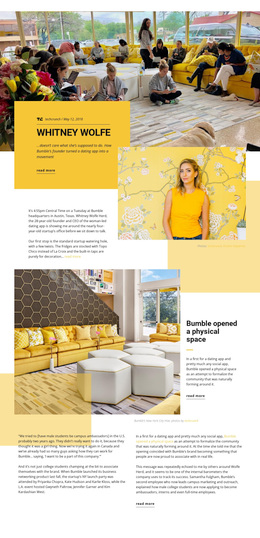
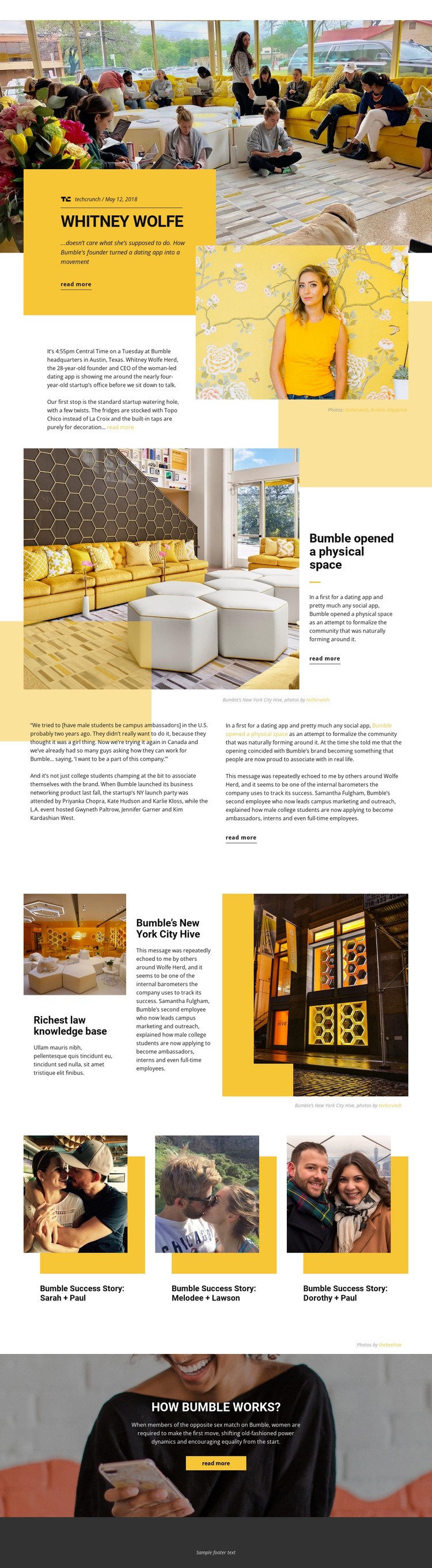
The Whitney Wolfe profile gives Bumble Space a clear human entry point, combining a founder heading, article summary, date and source reference, yellow panel, and supporting photography. That opening is distinctive because it presents the subject through an editorial story rather than through a standard business hero or a list of services. The following feature about Bumble’s physical space in New York City widens the focus from one person to the community environment associated with the brand.
The design continues that direction with article excerpts, quotations, captions, and photographs arranged in changing magazine-style compositions. Three related success-story cards add a more personal layer, showing how the page can connect a central feature to supporting stories. The final “HOW BUMBLE WORKS?” block supplies useful product context by explaining Bumble’s matching interaction instead of ending with another generic promotional panel.
These relationships make the design worth choosing for projects that need a photojournalistic profile, company feature, or culture-focused story with room for related content. The yellow, white, and black palette and varied image scales reinforce the editorial character, while the repeated read-more links support exploration. Its strongest distinction is the combination of founder narrative, physical-space coverage, community stories, and product explanation in one visually varied page.
Customize with Nicepage
Open this ready-made template in the Template Builder and customize it visually in the Nicepage editor. Replace demo content, edit page sections, and adapt the design to your project without rebuilding the template from scratch.
Start With a Ready-Made Template
Choose a Design for a New Page
Use a ready-made template as a starting point instead of creating every page from a blank canvas. When adding a new page in Nicepage, browse available designs, compare different layouts, and choose an option that already fits the general purpose and visual direction of your project.
Browse Different Page Designs
Explore Page Designs using search, thematic categories, Design Sets, and full-page previews. The collection includes layouts for different subjects and page purposes, making it easier to compare alternatives before selecting a design to customize.
Customize the Selected Template
After choosing a design, create the page and continue editing it visually in Nicepage. Replace the demo content, adjust images, typography, colors, sections, and other elements, and adapt the ready-made layout to your own content instead of rebuilding the design from the beginning.
Explore More Design Directions
If the first option does not match your project closely enough, return to the design collection and compare other templates before committing to a layout. This makes the template library useful not only for faster page creation, but also for exploring different visual approaches and finding a suitable starting point for a new project.
This workflow gives you access to a broad collection of ready-made designs that can be selected, compared, and customized according to the needs of each new page or project.