Three important step Joomla Template


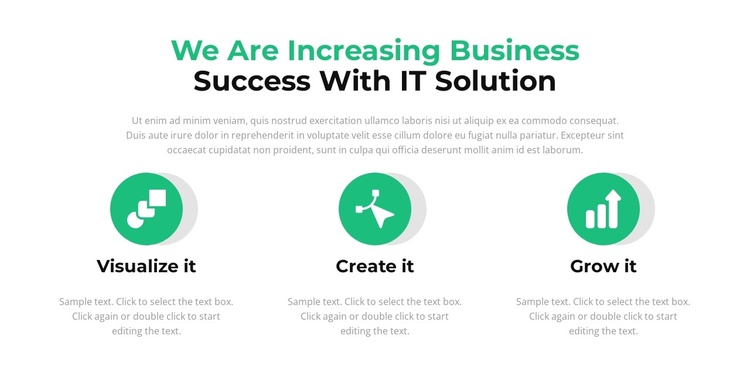
Three Capability Cards Form a Structured Joomla Content Area
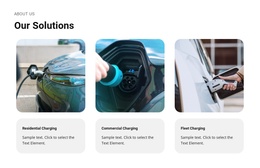
The centered heading and supporting paragraph establish one introductory group before the three feature items begin. That order gives the section a clear informational hierarchy: visitors first encounter the overall IT solution message, then move across the repeated capability row. “Visualize it,” “Create it,” and “Grow it” act as three distinct content labels, while the circular icons and matching descriptions connect them as parts of one feature overview.
In a Joomla-managed page, this structure can work as a reusable informational region for presenting related capabilities or service ideas. The block remains a visual section within the surrounding page, while the broader Joomla project can manage other content around it. Its centered alignment and evenly spaced columns make the three items feel like parallel entries rather than a chronological interface or an interactive control. Because the interaction is static, the descriptions remain visible and can be read without expanding panels or changing slides.
The white background, green and black typographic hierarchy, and soft gray icon shadows provide a restrained visual treatment for structured content. This makes the section suitable for a Joomla content area where clarity between related information units matters more than dense detail. The repeated card pattern also gives editors a consistent place to adapt capability titles and descriptions while preserving the block’s recognizable three-part organization.
Customize with Nicepage
Open this ready-made template in the Joomla Page Builder and customize it visually in the Nicepage editor. Replace demo content, edit page sections, and adapt the design to your project without rebuilding the template from scratch.
Edit Template Offline
2. Create a new page or select existing
3. Click Add new block, search for id 2234053 and click enter
Edit Template Online
Create Awesome Websites


Free Nicepage Builder
Keywords
Work With This Template in Joomla
Customize and Install the Joomla Template
Start with this ready-made template instead of building the Joomla design from scratch. Customize its layout, content, typography, images, sections, and other design elements visually in the Nicepage application, then export and install the Joomla Template, Nicepage Extension, and supported content on your Joomla website.
Edit the Template Directly in Joomla
After installation, you can edit the Joomla Template directly in Joomla with the Nicepage Joomla Extension. Customize the Header, Footer, Colors, Fonts, typography, and Page Templates from the Joomla workflow while keeping the site design connected with your CMS content.
Edit Joomla Articles Visually
Use the Nicepage Joomla Extension to open and edit Joomla Articles visually from the Joomla Administrator. Change text, images, sections, layouts, and other page content in the Nicepage editor while continuing to manage the Articles through Joomla.
Joomla Content and Template Integration
Use the customized template together with Joomla Articles, module Positions, menus, forms, Blog Pages, and other supported CMS elements. With the Nicepage Extension used as the Site Style Source, shared design settings can be applied across Joomla Articles while Joomla continues to provide the CMS environment for managing site content.
This workflow combines a ready-made Joomla Template with visual customization, direct template editing in Joomla, and continued content management through the Nicepage Joomla Extension.