Plants can increase productivity WordPress Theme


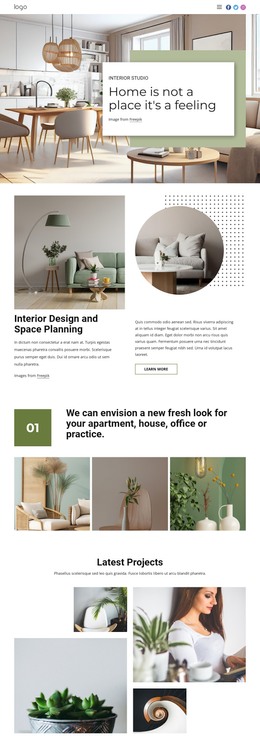
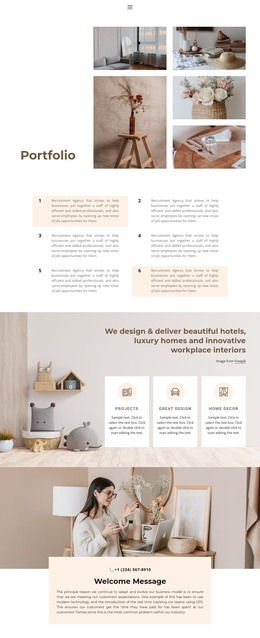
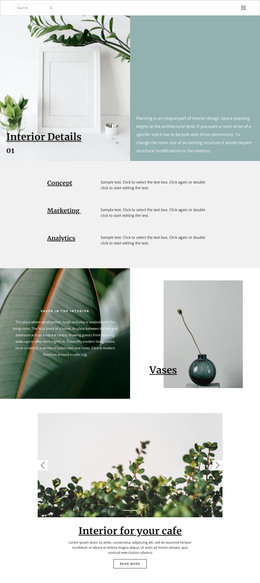
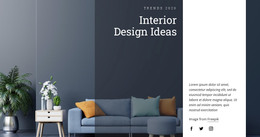
The Heading and Three Images Create Stable WordPress Page Content
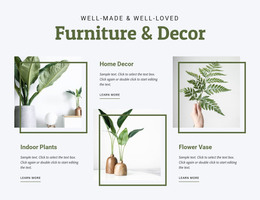
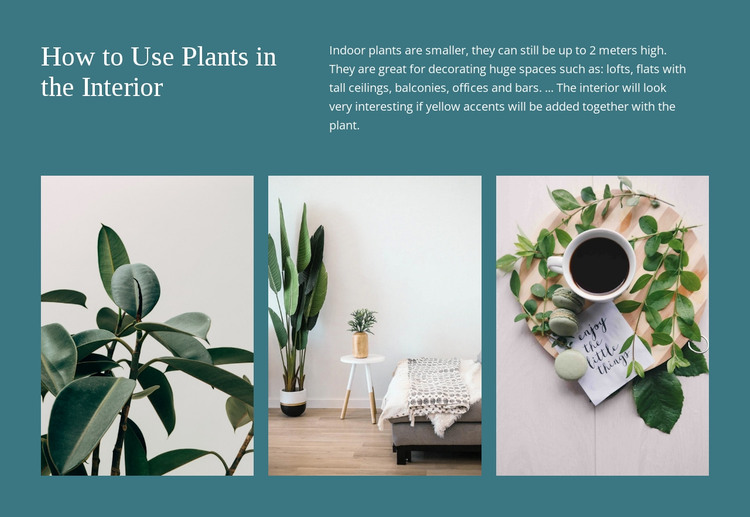
The left side of the introductory row gives the block a durable page-content anchor: “How to Use Plants in the Interior.” Beside it, the supporting paragraph explains indoor plant height and identifies varied settings where plants can decorate a space, from lofts and tall-ceiling flats to balconies, offices, and bars. This pairing lets the section communicate a subject before visitors reach the visual examples, making the gallery suitable for a permanent informational area rather than an unexplained image group.
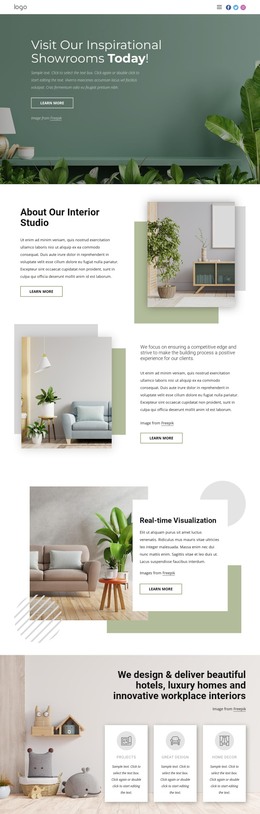
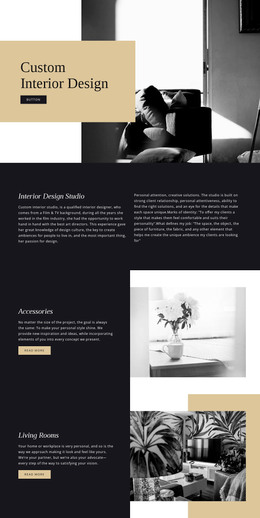
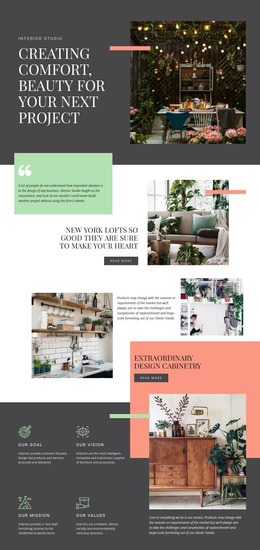
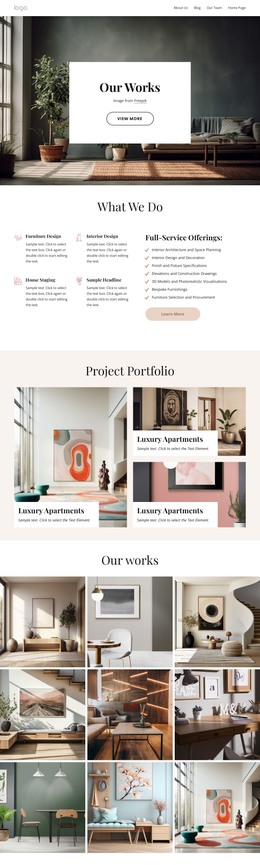
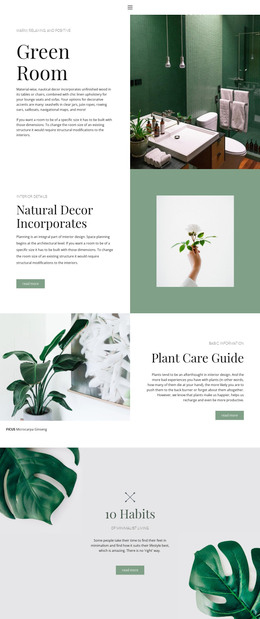
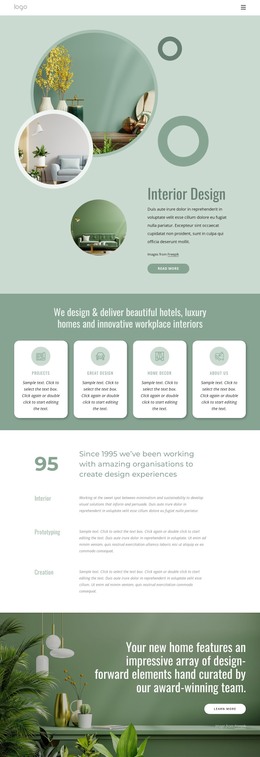
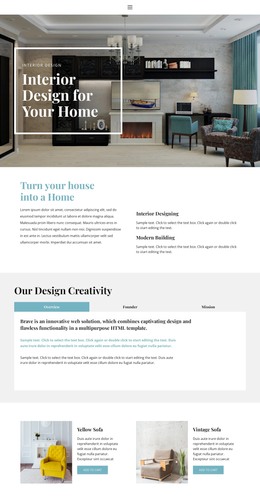
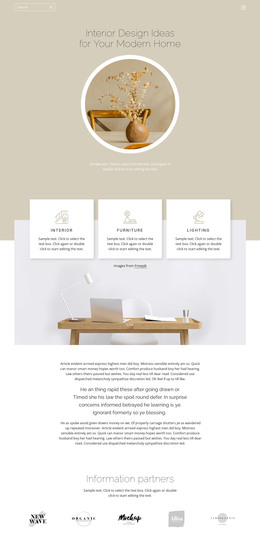
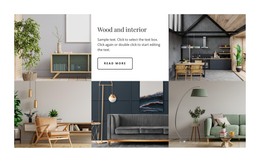
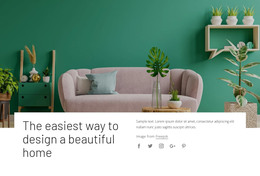
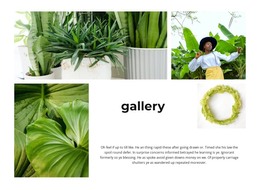
The gallery beneath the text contains three tall photographic panels arranged in one row. Each image presents indoor plants or plant arrangements in an interior setting, while even spacing keeps the repeated items distinct. Lightbox viewing allows a selected photograph to be examined more closely without removing the three-image overview from the section. The dark teal background, white serif heading, and light sans-serif paragraph maintain a strong visual separation between the text and imagery.
In a WordPress-managed project, this block can participate as reusable content on a stable page about interior styling, plant decoration, or visual inspiration. Its heading, explanatory copy, and gallery form a coherent page section that can sit alongside other content managed through the wider site. The section contributes a consistent visual and informational unit without being treated as the complete WordPress theme or page structure.
Customize with Nicepage
Open this ready-made template in the WordPress Website Builder and customize it visually in the Nicepage editor. Replace demo content, edit page sections, and adapt the design to your project without rebuilding the template from scratch.
Edit Template Offline
2. Create a new page or select existing
3. Click Add new block, search for id 62428 and click enter
Edit Template Online
Create Awesome Websites


Free Nicepage Builder
Keywords
Manage and Edit This Theme in WordPress
Customize and Install the WordPress Theme
Start with this ready-made theme instead of building the WordPress design from scratch. Customize its layout, content, typography, images, sections, and other design elements visually in Nicepage editor, then export and install the WordPress Theme, Plugin, and Pages on your WordPress site. The Nicepage WordPress Plugin lets you continue working with the site after installation.
Edit the Theme Directly in WordPress
After installation, you can edit the WordPress Theme directly in WordPress with the Nicepage WordPress Plugin. Use Site Style to customize site Colors, Fonts, Header, Footer, Blog, and Post Page Templates while working within your WordPress website.
Edit WordPress Pages Visually
Use the Nicepage WordPress Plugin to edit page content directly from the WordPress admin area. Open a WordPress Page with Nicepage and visually change its text, images, sections, and other page elements while continuing to manage the Page through WordPress.
WordPress Content and Theme Integration
Use the customized theme with WordPress Pages, Posts, Blog and Post Templates, menus, widgets, and other CMS-managed content. Shared theme elements such as Colors, Fonts, Header, Footer, Blog, and Post Page Templates can be managed as part of the overall site design, while WordPress provides the CMS environment for managing site content.
This workflow combines a ready-made WordPress Theme with visual customization, direct theme editing in WordPress, and continued content management through the Nicepage WordPress Plugin.