Your assistant WordPress Theme


Portrait-Led Context Supports Stable WordPress Page Content
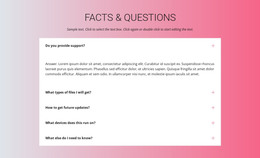
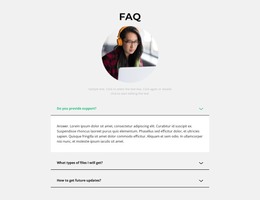
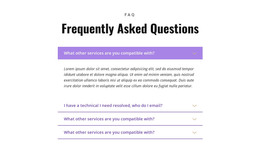
The centered “FAQ” heading and circular portrait give the section a recognizable introduction before the information becomes interactive. A supporting paragraph completes that opening group, then three question-and-answer items continue in a single vertical accordion. The first answer is expanded in the rendered preview, demonstrating the visible content state, while the remaining two rows are collapsed and available for focused reading.
This structure fits stable page-oriented content in a WordPress-managed site. Questions such as support, deliverables, and future updates can remain grouped in one reusable section rather than being scattered across unrelated page areas. The single-column list provides a predictable reading sequence, and thin rules with bold labels make the repeated items easy to scan. The restrained white, black, and gray treatment also lets the section sit alongside other page content without requiring the entire project to adopt the same visual emphasis.
The block can therefore function as a dependable FAQ region on a permanent information page, with surrounding WordPress-managed content handling other subjects and page roles. Its visual structure remains the same whether the section appears after explanatory content or before a contact area. When CMS context is needed, Nicepage documents the WordPress Theme, Plugin, and Pages workflow for the broader project, while this block contributes its own page content and layout.
Customize with Nicepage
Open this ready-made template in the WordPress Website Builder and customize it visually in the Nicepage editor. Replace demo content, edit page sections, and adapt the design to your project without rebuilding the template from scratch.
Edit Template Offline
2. Create a new page or select existing
3. Click Add new block, search for id 498296 and click enter
Edit Template Online
Create Awesome Websites


Free Nicepage Builder
Keywords
Manage and Edit This Theme in WordPress
Customize and Install the WordPress Theme
Start with this ready-made theme instead of building the WordPress design from scratch. Customize its layout, content, typography, images, sections, and other design elements visually in Nicepage editor, then export and install the WordPress Theme, Plugin, and Pages on your WordPress site. The Nicepage WordPress Plugin lets you continue working with the site after installation.
Edit the Theme Directly in WordPress
After installation, you can edit the WordPress Theme directly in WordPress with the Nicepage WordPress Plugin. Use Site Style to customize site Colors, Fonts, Header, Footer, Blog, and Post Page Templates while working within your WordPress website.
Edit WordPress Pages Visually
Use the Nicepage WordPress Plugin to edit page content directly from the WordPress admin area. Open a WordPress Page with Nicepage and visually change its text, images, sections, and other page elements while continuing to manage the Page through WordPress.
WordPress Content and Theme Integration
Use the customized theme with WordPress Pages, Posts, Blog and Post Templates, menus, widgets, and other CMS-managed content. Shared theme elements such as Colors, Fonts, Header, Footer, Blog, and Post Page Templates can be managed as part of the overall site design, while WordPress provides the CMS environment for managing site content.
This workflow combines a ready-made WordPress Theme with visual customization, direct theme editing in WordPress, and continued content management through the Nicepage WordPress Plugin.