Drain Cleaning and Unclogging Template


Edit Template Offline
2. Create new page and search for id 6475662
Edit Template Online
Create Awesome Websites


Free Nicepage Builder
Keywords
A Strong Photo-Led Choice for Plumbing Service Contact Content
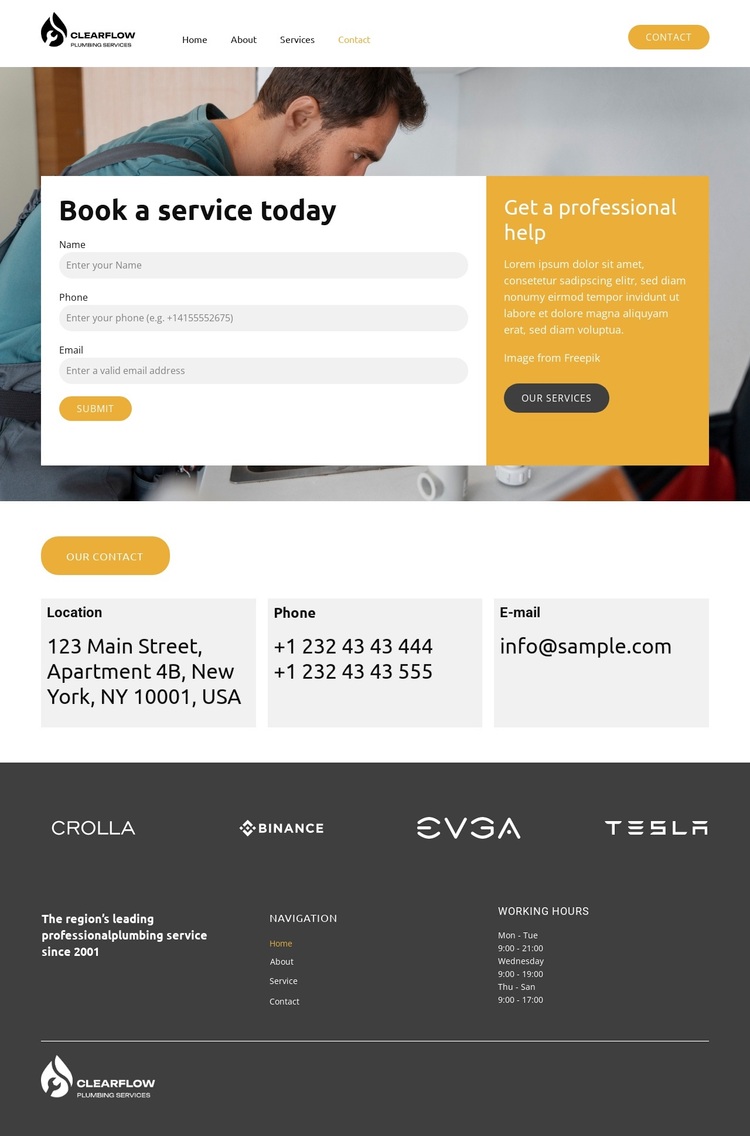
The large photographic background immediately gives this design a recognizable direction, while the white booking panel and mustard information card keep the page grounded in a practical service request. That combination suits a plumbing project that needs more than a plain contact form: the page can communicate a service-oriented atmosphere first, then present a direct way to provide name, phone, and email details.
Its content coverage is another reason to choose this option. The header connects Home, About, Services, and Contact, so the contact page is visually related to a broader business presentation without claiming that additional pages are included here. Below the booking area, three repeated cards separate Location, Phone, and E-mail. A working-hours area adds operational context, while the brand-logo strip and dark footer supply supporting business structure and a finished lower-page transition.
The palette also distinguishes the design from contact layouts built around pale neutrals or dense text. Charcoal surfaces create depth, white panels clarify interaction, and mustard yellow marks the supporting service message. Rounded form fields soften the contrast and keep the request area approachable. These relationships make the template worth considering when visual emphasis, practical contact coverage, and a clear plumbing-service identity need to coexist on one focused page.
Customize with Nicepage
Open this ready-made template in the Template Builder and customize it visually in the Nicepage editor. Replace demo content, edit page sections, and adapt the design to your project without rebuilding the template from scratch.
Start With a Ready-Made Template
Choose a Design for a New Page
Use a ready-made template as a starting point instead of creating every page from a blank canvas. When adding a new page in Nicepage, browse available designs, compare different layouts, and choose an option that already fits the general purpose and visual direction of your project.
Browse Different Page Designs
Explore Page Designs using search, thematic categories, Design Sets, and full-page previews. The collection includes layouts for different subjects and page purposes, making it easier to compare alternatives before selecting a design to customize.
Customize the Selected Template
After choosing a design, create the page and continue editing it visually in Nicepage. Replace the demo content, adjust images, typography, colors, sections, and other elements, and adapt the ready-made layout to your own content instead of rebuilding the design from the beginning.
Explore More Design Directions
If the first option does not match your project closely enough, return to the design collection and compare other templates before committing to a layout. This makes the template library useful not only for faster page creation, but also for exploring different visual approaches and finding a suitable starting point for a new project.
This workflow gives you access to a broad collection of ready-made designs that can be selected, compared, and customized according to the needs of each new page or project.