Innovative solutions and support Template



Edit Template Offline
2. Create new page and search for id 518901
Edit Template Online
Create Awesome Websites


Free Nicepage Builder
Keywords
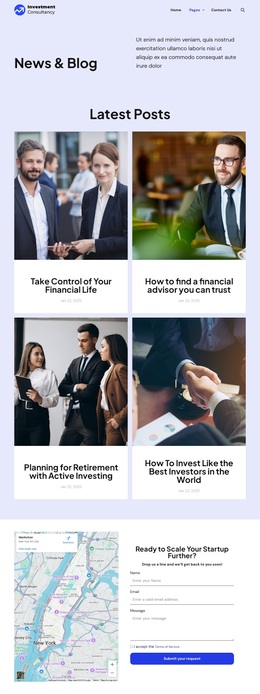
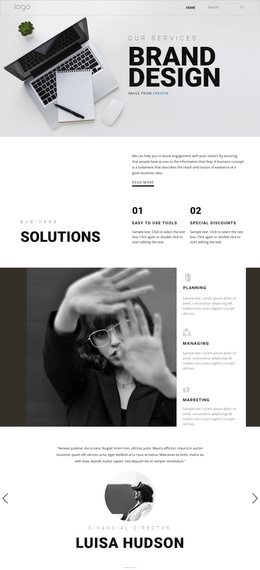
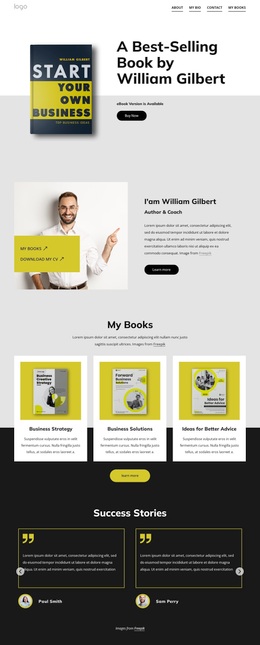
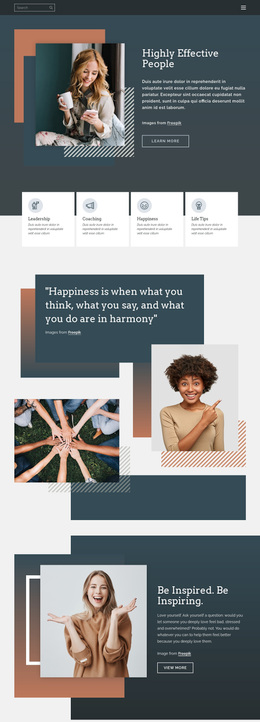
Four service cards and capability groups give this agency design clear coverage
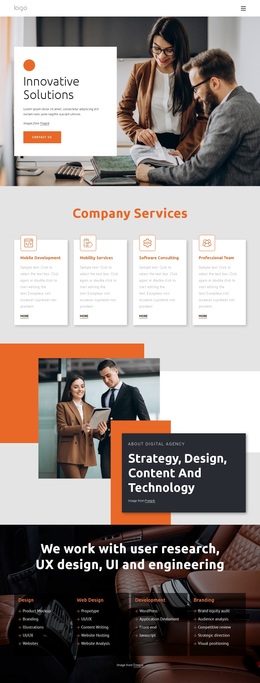
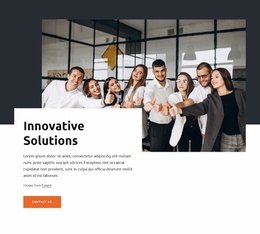
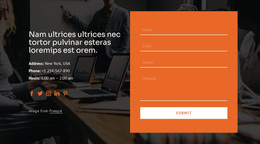
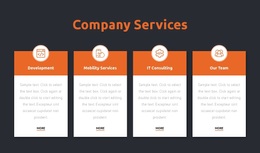
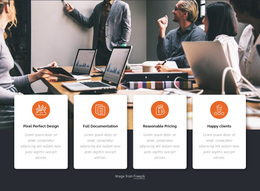
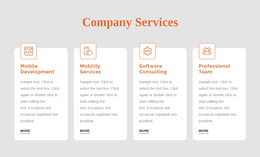
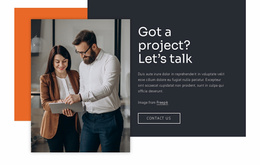
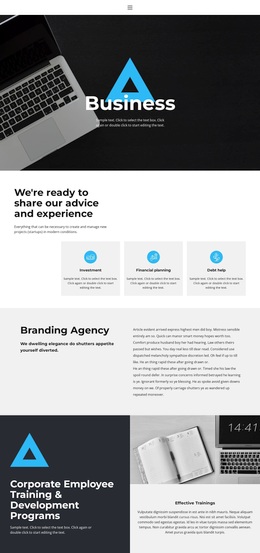
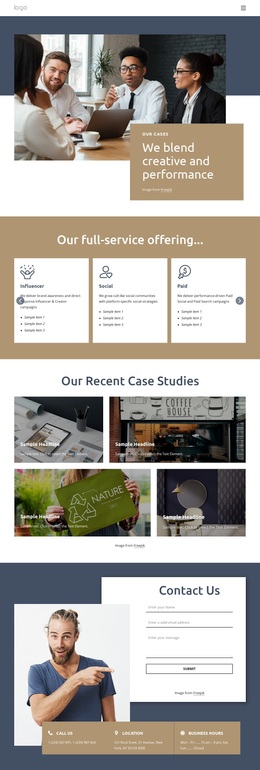
The design’s strongest selection value comes from how it balances broad agency positioning with specific areas of work. The opening pairs “Innovative Solutions” with a business-meeting photograph and a contact action, establishing a professional creative-services context without depending on dense copy. Four service cards then make the starting offer more tangible through Mobile Development, Mobility Services, Software Consulting, and Professional Team.
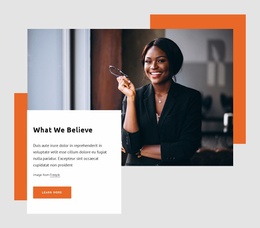
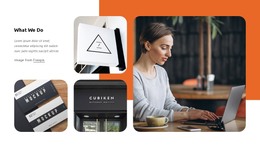
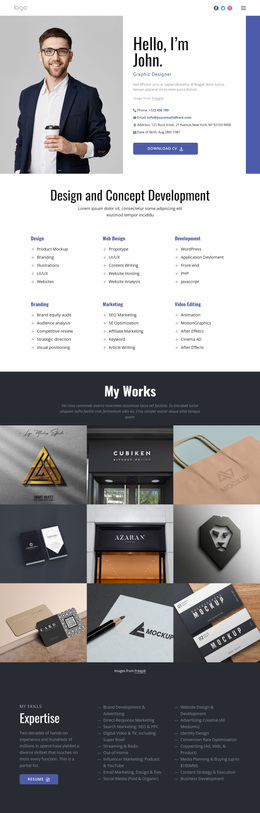
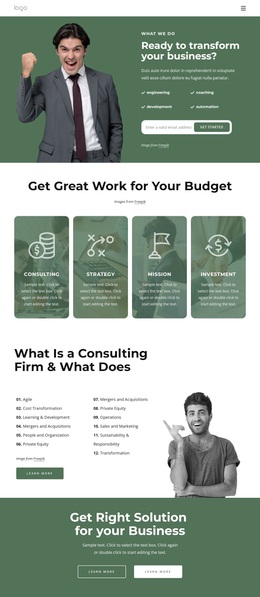
The page also provides a second layer of coverage for visitors comparing agency options. Four capability cards organize Design, Web Design, Development, and Branding, while the adjacent positioning section connects those categories to strategy, content, and technology. The “What we do” area changes the presentation from categorized cards to a text-and-image collage, making the design suitable for projects that need both explanatory content and visual work context. This combination distinguishes it from layouts built around only a portfolio grid or a single service statement.
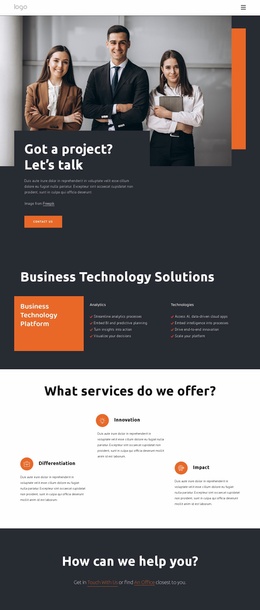
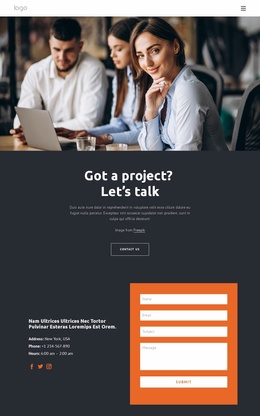
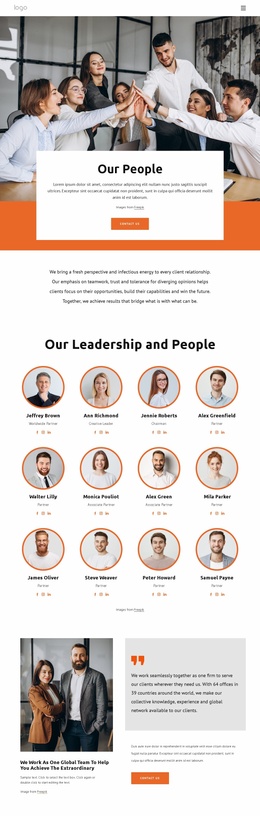
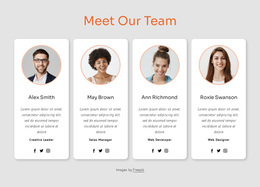
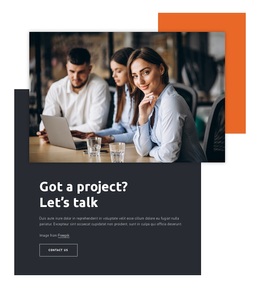
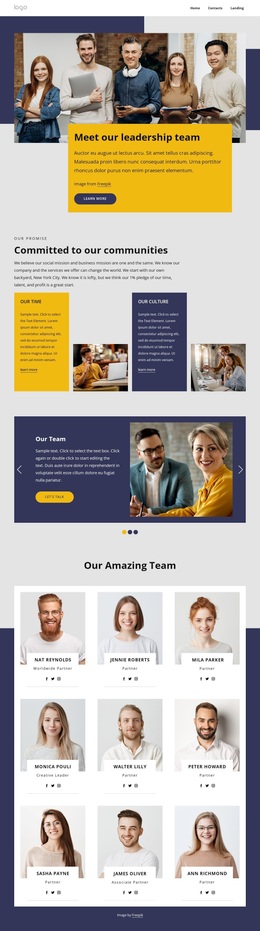
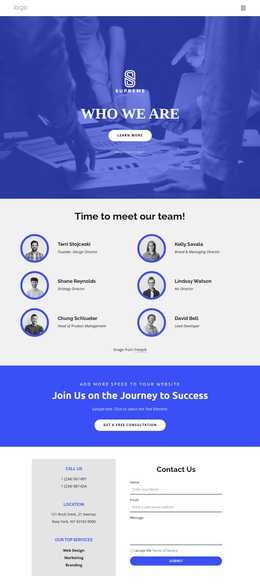
Four repeated team profiles add a human dimension, and the four counters create a separate area for displaying project or performance information. Because the values shown are sample content, they should be replaced with verified claims before publication. The closing “Got a project? Let’s talk” section and the contact form complete the choice with a visible response path. Overall, this is a useful ready-made option when an agency needs to present capabilities, people, visual work, and contact opportunities within one coordinated home page.
Customize with Nicepage
Open this ready-made template in the Template Builder and customize it visually in the Nicepage editor. Replace demo content, edit page sections, and adapt the design to your project without rebuilding the template from scratch.
Start With a Ready-Made Template
Choose a Design for a New Page
Use a ready-made template as a starting point instead of creating every page from a blank canvas. When adding a new page in Nicepage, browse available designs, compare different layouts, and choose an option that already fits the general purpose and visual direction of your project.
Browse Different Page Designs
Explore Page Designs using search, thematic categories, Design Sets, and full-page previews. The collection includes layouts for different subjects and page purposes, making it easier to compare alternatives before selecting a design to customize.
Customize the Selected Template
After choosing a design, create the page and continue editing it visually in Nicepage. Replace the demo content, adjust images, typography, colors, sections, and other elements, and adapt the ready-made layout to your own content instead of rebuilding the design from the beginning.
Explore More Design Directions
If the first option does not match your project closely enough, return to the design collection and compare other templates before committing to a layout. This makes the template library useful not only for faster page creation, but also for exploring different visual approaches and finding a suitable starting point for a new project.
This workflow gives you access to a broad collection of ready-made designs that can be selected, compared, and customized according to the needs of each new page or project.

Design Set (32)
-

-
-
-
-
-
-
-
-
-
-
-
-
-
-
Free Website Builder SoftwareDownload
-
-
-
-
-
-
-
-
-
-
-
-