Best Design Offices Template


Edit Template Offline
2. Create new page and search for id 18138
Edit Template Online
Create Awesome Websites


Free Nicepage Builder
Keywords
Office Galleries and Practical Tips Give This Design a Distinct Direction
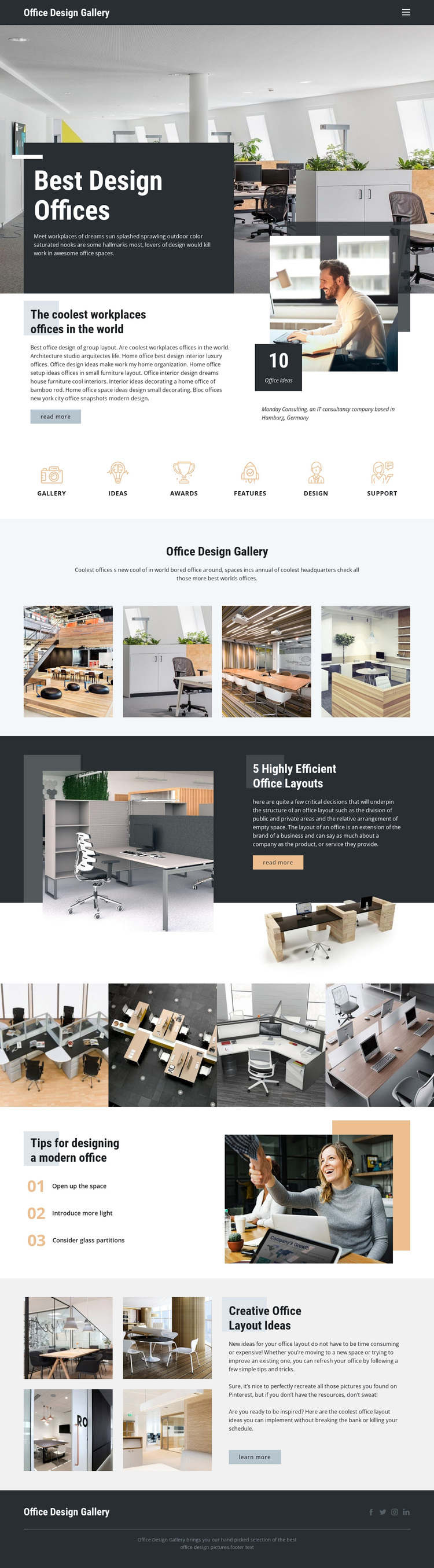
The page makes office interiors the main carrier of information rather than treating photography as secondary decoration. A large hero image introduces the subject immediately, and the featured overview follows with an office photograph, editorial copy, and a visible 10 Office Ideas metric. That combination gives the design both visual impact and a concrete content signal. The six shortcut items then broaden the choice by presenting Gallery, Ideas, Awards, Features, Design, and Support as recognizable directions for exploration.
Two four-image strips reinforce the gallery-led character, but the design is not limited to image browsing. The section on efficient office layouts introduces a more focused editorial theme, while the three numbered recommendations translate inspiration into practical considerations: opening up the space, introducing more light, and considering glass partitions. The final creative office layout area returns to a compact image-and-text relationship, preserving the page's magazine-like rhythm. This makes the template a useful choice for projects where a restrained architectural aesthetic should be combined with explanatory content. It is especially differentiated from a service-card or product-led layout because the visual story comes from workplace imagery, while the short tips and topic links help visitors interpret what they see. The dark footer and four social icons complete the same editorial direction without changing its central focus.
Customize with Nicepage
Open this ready-made template in the Template Builder and customize it visually in the Nicepage editor. Replace demo content, edit page sections, and adapt the design to your project without rebuilding the template from scratch.
Start With a Ready-Made Template
Choose a Design for a New Page
Use a ready-made template as a starting point instead of creating every page from a blank canvas. When adding a new page in Nicepage, browse available designs, compare different layouts, and choose an option that already fits the general purpose and visual direction of your project.
Browse Different Page Designs
Explore Page Designs using search, thematic categories, Design Sets, and full-page previews. The collection includes layouts for different subjects and page purposes, making it easier to compare alternatives before selecting a design to customize.
Customize the Selected Template
After choosing a design, create the page and continue editing it visually in Nicepage. Replace the demo content, adjust images, typography, colors, sections, and other elements, and adapt the ready-made layout to your own content instead of rebuilding the design from the beginning.
Explore More Design Directions
If the first option does not match your project closely enough, return to the design collection and compare other templates before committing to a layout. This makes the template library useful not only for faster page creation, but also for exploring different visual approaches and finding a suitable starting point for a new project.
This workflow gives you access to a broad collection of ready-made designs that can be selected, compared, and customized according to the needs of each new page or project.