Tips and tricks Template


Edit Template Offline
2. Create new page and search for id 6067628
Edit Template Online
Create Awesome Websites


Free Nicepage Builder
Keywords
A portrait-led company story with a defined subscription finish
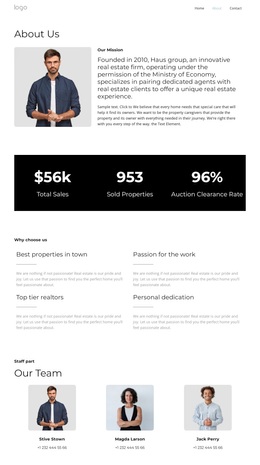
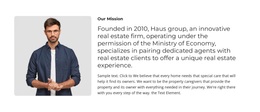
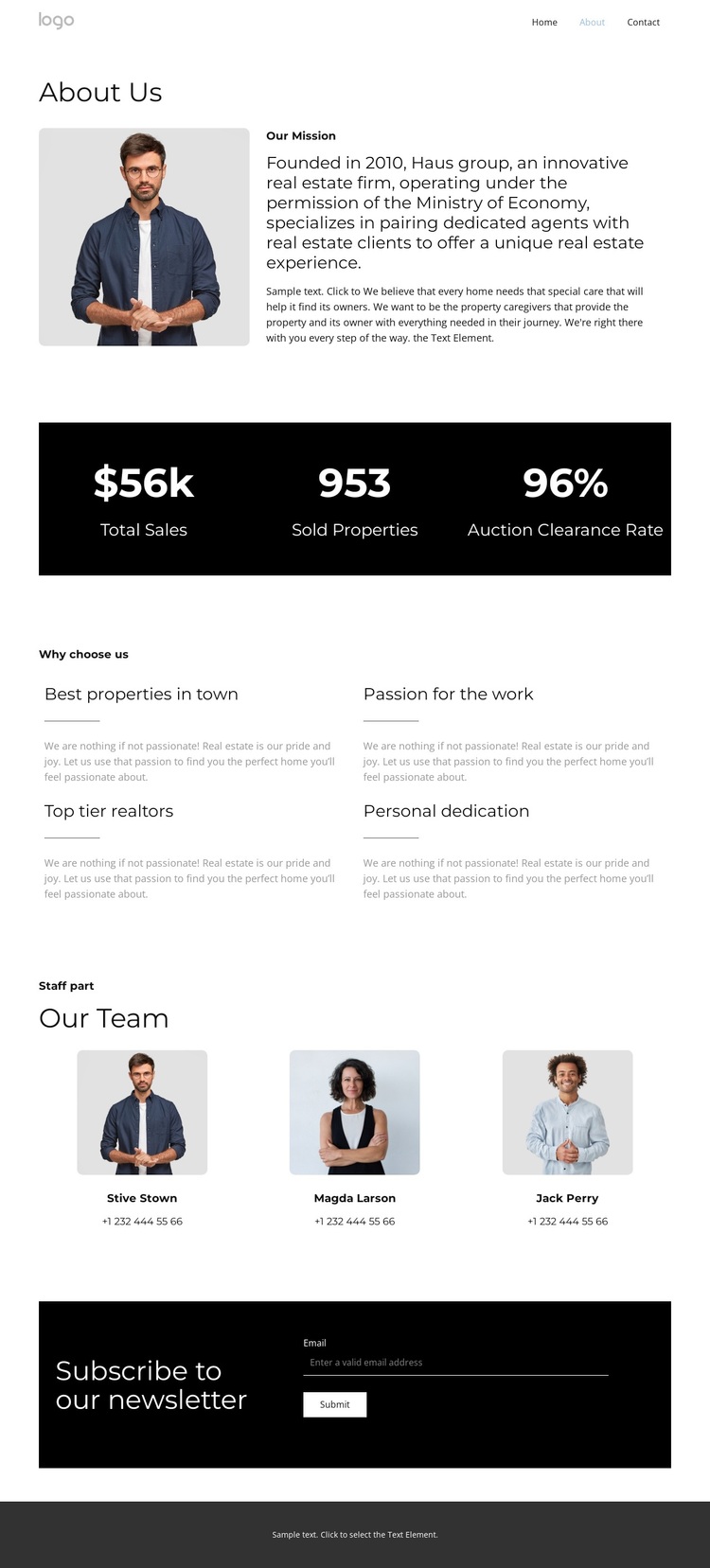
The strongest reason to choose this design is its coverage of the main content needed for a real estate firm profile without spreading the message across an overly complex arrangement. The page begins with a compact navigation line and moves directly into an About Us section that pairs a company portrait with mission-focused text. That combination gives the design both an identifiable subject and an explanatory center.
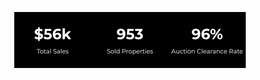
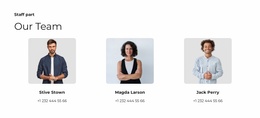
The supporting content is varied but controlled. Three displayed metric panels create a high-contrast summary, while four reasons-to-choose-us labels cover practical and personal themes such as properties, passion, realtor quality, and dedication. The three portrait cards then shift attention toward the people behind the firm. This progression makes the page suitable for projects that need to present company character and team context before asking visitors to remain connected.
The final newsletter band is another useful distinguishing feature. Instead of ending with team information alone, the page reserves a dark, visually prominent area for an email input and submit action. The result is a ready-made option for a firm that wants its About page to support ongoing communication as well as introduction. Its restrained palette, rounded portraits, spacious sections, and compact copy also separate it from layouts centered primarily on listings, pricing tables, or dense service catalogs.
Customize with Nicepage
Open this ready-made template in the Template Builder and customize it visually in the Nicepage editor. Replace demo content, edit page sections, and adapt the design to your project without rebuilding the template from scratch.
Start With a Ready-Made Template
Choose a Design for a New Page
Use a ready-made template as a starting point instead of creating every page from a blank canvas. When adding a new page in Nicepage, browse available designs, compare different layouts, and choose an option that already fits the general purpose and visual direction of your project.
Browse Different Page Designs
Explore Page Designs using search, thematic categories, Design Sets, and full-page previews. The collection includes layouts for different subjects and page purposes, making it easier to compare alternatives before selecting a design to customize.
Customize the Selected Template
After choosing a design, create the page and continue editing it visually in Nicepage. Replace the demo content, adjust images, typography, colors, sections, and other elements, and adapt the ready-made layout to your own content instead of rebuilding the design from the beginning.
Explore More Design Directions
If the first option does not match your project closely enough, return to the design collection and compare other templates before committing to a layout. This makes the template library useful not only for faster page creation, but also for exploring different visual approaches and finding a suitable starting point for a new project.
This workflow gives you access to a broad collection of ready-made designs that can be selected, compared, and customized according to the needs of each new page or project.