Entrepreneurial Mindset WordPress Theme


Project Examples Form Stable Page Content
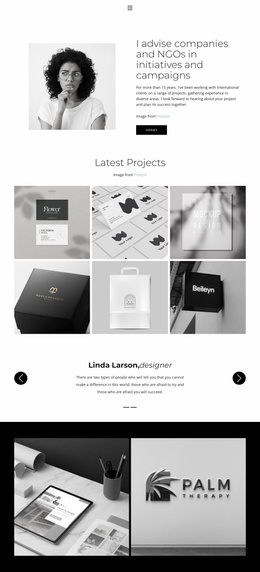
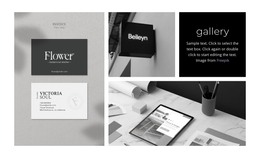
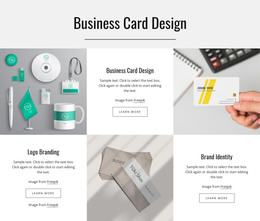
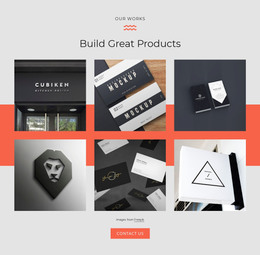
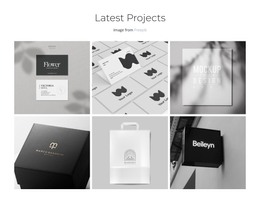
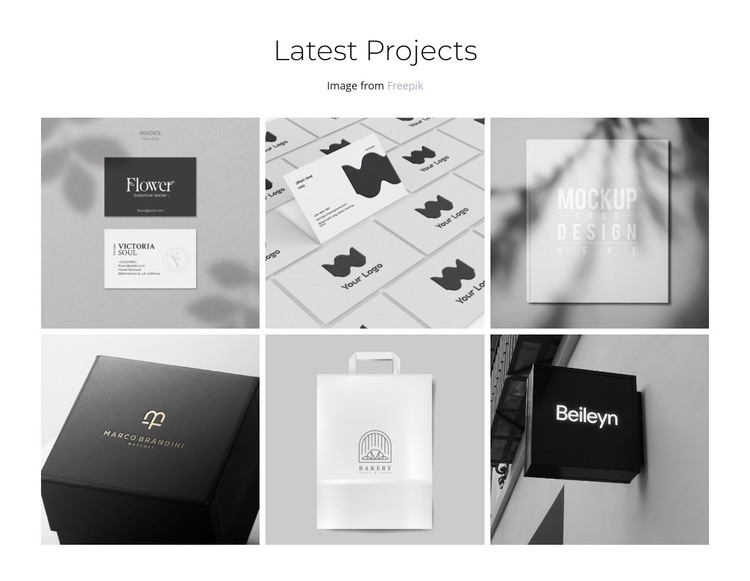
The centered “Latest Projects” heading and six-image gallery read as stable portfolio content rather than a stream of time-sensitive updates. The three-column, two-row grid groups branding, packaging, signage, and logo mockups into one visual-design section, while consistent cropping makes the examples feel like a deliberate selection. The “Image from Freepik” line remains part of the displayed content, and the lightbox gives visitors a way to inspect an image beyond its tile-sized overview.
Within a WordPress-managed page, this block can serve as a reusable visual area for featured work or selected projects. The page around it may contain introductory copy, service information, or a contact path, but those functions remain outside this section. The block’s contribution is narrower and more concrete: it gives publishable page content a structured image presentation that can remain visually consistent as the wider site develops.
The gallery can also provide a stable design pattern for related portfolio content if the project later uses similar sections. Its centered heading, repeated tiles, restrained monochrome palette, and image-first hierarchy distinguish it from an article list or a general content column. The WordPress context concerns how this section participates in a managed page; it does not turn the block itself into a standalone theme.
Customize with Nicepage
Open this ready-made template in the WordPress Website Builder and customize it visually in the Nicepage editor. Replace demo content, edit page sections, and adapt the design to your project without rebuilding the template from scratch.
Edit Template Offline
2. Create a new page or select existing
3. Click Add new block, search for id 6174838 and click enter
Edit Template Online
Create Awesome Websites


Free Nicepage Builder
Keywords
Manage and Edit This Theme in WordPress
Customize and Install the WordPress Theme
Start with this ready-made theme instead of building the WordPress design from scratch. Customize its layout, content, typography, images, sections, and other design elements visually in Nicepage editor, then export and install the WordPress Theme, Plugin, and Pages on your WordPress site. The Nicepage WordPress Plugin lets you continue working with the site after installation.
Edit the Theme Directly in WordPress
After installation, you can edit the WordPress Theme directly in WordPress with the Nicepage WordPress Plugin. Use Site Style to customize site Colors, Fonts, Header, Footer, Blog, and Post Page Templates while working within your WordPress website.
Edit WordPress Pages Visually
Use the Nicepage WordPress Plugin to edit page content directly from the WordPress admin area. Open a WordPress Page with Nicepage and visually change its text, images, sections, and other page elements while continuing to manage the Page through WordPress.
WordPress Content and Theme Integration
Use the customized theme with WordPress Pages, Posts, Blog and Post Templates, menus, widgets, and other CMS-managed content. Shared theme elements such as Colors, Fonts, Header, Footer, Blog, and Post Page Templates can be managed as part of the overall site design, while WordPress provides the CMS environment for managing site content.
This workflow combines a ready-made WordPress Theme with visual customization, direct theme editing in WordPress, and continued content management through the Nicepage WordPress Plugin.