Ideal bathrooms WordPress Theme


Bathroom Guidance as Stable WordPress Page Content
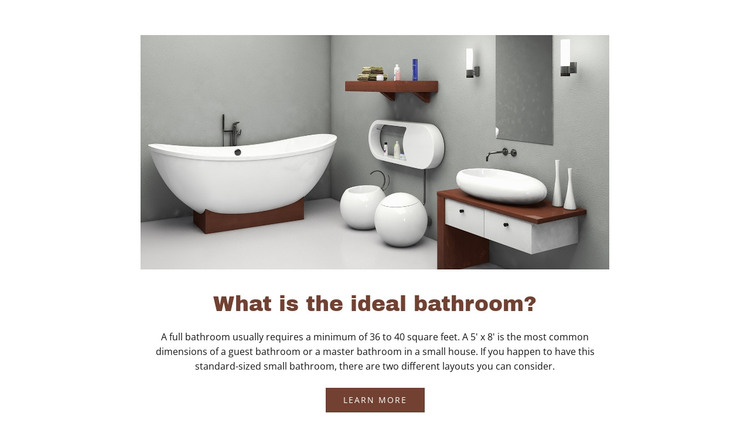
The large bathroom photograph gives the section an immediate visual subject, while the heading “What is the ideal bathroom?” defines the page content that follows. The supporting paragraph adds practical context by discussing a minimum area of 36 to 40 square feet and the common 5' x 8' bathroom size. Its references to guest bathrooms and master bathrooms in small houses make the section suitable for explaining a residential design topic without turning the content into a complete room-planning service or full website structure.
In a WordPress-managed page, this block can function as a stable bathroom-layout information area surrounded by other content such as room inspiration, project examples, design services, or contact details. The image, explanatory text, and learn-more action form one coherent visual section, so the page can preserve the arrangement while the wider WordPress project manages additional content around it. The button can lead to a related information destination, with the main role here remaining educational rather than transactional.
The centered column, white background, and generous spacing make the section easy to distinguish from neighboring page content. Dark brown heading and button styling provide a repeatable visual accent, while the neutral gray, white, and wood tones in the photograph support the interior-design subject. Nicepage supports editing page content through its WordPress workflow, but the block remains one reusable section within the broader theme and page context.
Customize with Nicepage
Open this ready-made template in the WordPress Website Builder and customize it visually in the Nicepage editor. Replace demo content, edit page sections, and adapt the design to your project without rebuilding the template from scratch.
Edit Template Offline
2. Create a new page or select existing
3. Click Add new block, search for id 56571 and click enter
Edit Template Online
Create Awesome Websites


Free Nicepage Builder
Keywords
Manage and Edit This Theme in WordPress
Customize and Install the WordPress Theme
Start with this ready-made theme instead of building the WordPress design from scratch. Customize its layout, content, typography, images, sections, and other design elements visually in Nicepage editor, then export and install the WordPress Theme, Plugin, and Pages on your WordPress site. The Nicepage WordPress Plugin lets you continue working with the site after installation.
Edit the Theme Directly in WordPress
After installation, you can edit the WordPress Theme directly in WordPress with the Nicepage WordPress Plugin. Use Site Style to customize site Colors, Fonts, Header, Footer, Blog, and Post Page Templates while working within your WordPress website.
Edit WordPress Pages Visually
Use the Nicepage WordPress Plugin to edit page content directly from the WordPress admin area. Open a WordPress Page with Nicepage and visually change its text, images, sections, and other page elements while continuing to manage the Page through WordPress.
WordPress Content and Theme Integration
Use the customized theme with WordPress Pages, Posts, Blog and Post Templates, menus, widgets, and other CMS-managed content. Shared theme elements such as Colors, Fonts, Header, Footer, Blog, and Post Page Templates can be managed as part of the overall site design, while WordPress provides the CMS environment for managing site content.
This workflow combines a ready-made WordPress Theme with visual customization, direct theme editing in WordPress, and continued content management through the Nicepage WordPress Plugin.