Car repair services contacts WordPress Theme


A Stable Page-Content Pattern for Automotive Contact Details
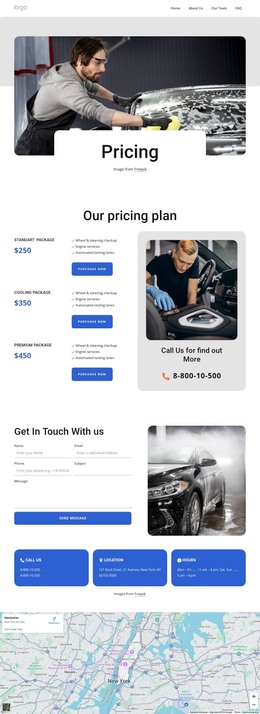
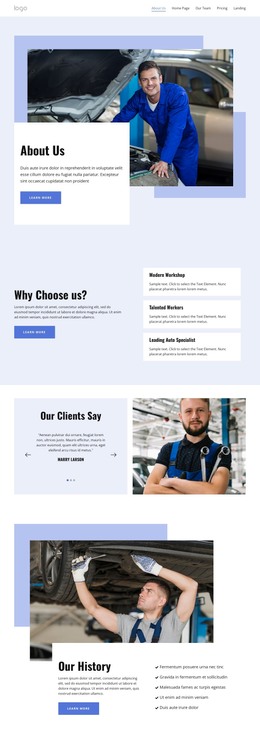
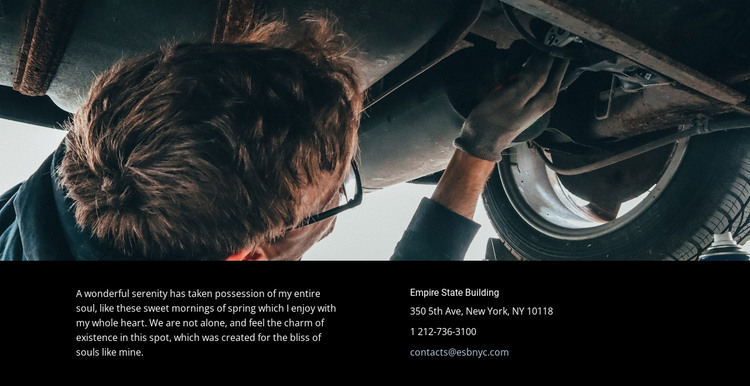
The contact information is given a clear page-content role through the relationship between the image and the lower text row. The wide repair photograph provides visual context for automotive services, while the black section beneath it keeps the practical details separate from the image. This makes the block suitable for a WordPress-managed services or contact page where a permanent content area needs to remain distinct from regularly updated material elsewhere in the project.
The two-column structure supports two different reading tasks. The left paragraph can carry a concise explanation or invitation to get in touch, while the right column concentrates the address, phone number, and email in a predictable location. Visitors can therefore scan the contact set without searching through the explanatory copy. The light text and generous spacing reinforce that separation, and the static interaction keeps the section focused on direct information rather than an embedded workflow.
For WordPress-oriented page content, the displayed Empire State Building reference, sample telephone number, and contacts@esbnyc.com address should be replaced with the relevant organization’s details. The underlying arrangement can remain a reusable visual pattern for a services page or another stable content area. It does not require assumptions about Posts, categories, widgets, or forms; the block’s value lies in presenting contact information with a strong automotive image and an orderly text relationship.
Customize with Nicepage
Open this ready-made template in the WordPress Website Builder and customize it visually in the Nicepage editor. Replace demo content, edit page sections, and adapt the design to your project without rebuilding the template from scratch.
Edit Template Offline
2. Create a new page or select existing
3. Click Add new block, search for id 55694 and click enter
Edit Template Online
Create Awesome Websites


Free Nicepage Builder
Keywords
Manage and Edit This Theme in WordPress
Customize and Install the WordPress Theme
Start with this ready-made theme instead of building the WordPress design from scratch. Customize its layout, content, typography, images, sections, and other design elements visually in Nicepage editor, then export and install the WordPress Theme, Plugin, and Pages on your WordPress site. The Nicepage WordPress Plugin lets you continue working with the site after installation.
Edit the Theme Directly in WordPress
After installation, you can edit the WordPress Theme directly in WordPress with the Nicepage WordPress Plugin. Use Site Style to customize site Colors, Fonts, Header, Footer, Blog, and Post Page Templates while working within your WordPress website.
Edit WordPress Pages Visually
Use the Nicepage WordPress Plugin to edit page content directly from the WordPress admin area. Open a WordPress Page with Nicepage and visually change its text, images, sections, and other page elements while continuing to manage the Page through WordPress.
WordPress Content and Theme Integration
Use the customized theme with WordPress Pages, Posts, Blog and Post Templates, menus, widgets, and other CMS-managed content. Shared theme elements such as Colors, Fonts, Header, Footer, Blog, and Post Page Templates can be managed as part of the overall site design, while WordPress provides the CMS environment for managing site content.
This workflow combines a ready-made WordPress Theme with visual customization, direct theme editing in WordPress, and continued content management through the Nicepage WordPress Plugin.