National park WordPress Theme


Stable Destination Content for a WordPress-Managed Page
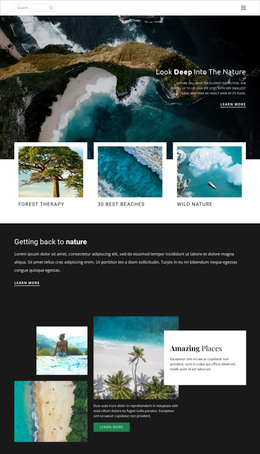
The block reads as permanent page content rather than as a stream of dated entries. Its aerial image establishes a national park setting through turquoise water, islands, and dense forest; the centered “National Park” heading gives that setting a direct label; and the yellow “View Tour” button provides a clear next destination for visitors seeking tour information. These elements form one stable hero section that can sit above more detailed content maintained elsewhere in the page or site.
In a WordPress-oriented project, the section can therefore serve as the visual introduction to a destination page while surrounding content covers descriptions, schedules, galleries, or related travel information. The CMS context concerns how the broader page is managed; it does not change the block’s own three-part relationship between image, title, and action. Nicepage supports a WordPress Theme, Plugin, and Pages workflow for broader projects, while this block remains one reusable page-content area within that environment. Its value is the focused presentation of one destination and one tour route, not a complete theme or site architecture. The static interaction also keeps the section’s content role clear and predictable.
Customize with Nicepage
Open this ready-made template in the WordPress Website Builder and customize it visually in the Nicepage editor. Replace demo content, edit page sections, and adapt the design to your project without rebuilding the template from scratch.
Edit Template Offline
2. Create a new page or select existing
3. Click Add new block, search for id 46786 and click enter
Edit Template Online
Create Awesome Websites


Free Nicepage Builder
Keywords
Use This Block in a WordPress-Managed Website
Keep the Block as Page Content
Use the block as one content/layout section inside a WordPress-oriented site rather than treating the Block ID as a complete WordPress Theme. Its verified text, images, repeated items, forms, galleries, or other elements can remain part of permanent page content while WordPress manages the wider site.
Work With Nicepage and WordPress
A Nicepage WordPress project can be installed using the WordPress Theme, Plugin, and Pages workflow. After installation, the same visual section can participate in WordPress-managed pages as part of the broader theme/site structure.
Continue Editing in WordPress
Nicepage supports editing the WordPress Theme directly in WordPress. Use WordPress Pages, Posts, Blog structures, and other CMS concepts only when they are relevant to the surrounding project; their existence must not be inferred from the analyzed block alone.
This workflow keeps the block's verified section function separate from the WordPress theme architecture while allowing it to participate in a CMS-managed website.