Quick solutions Template


Edit Template Offline
2. Create new page and search for id 536787
Edit Template Online
Create Awesome Websites


Free Nicepage Builder
Keywords
Hosting Features, Portfolio Proof, and Learning Content in One Choice
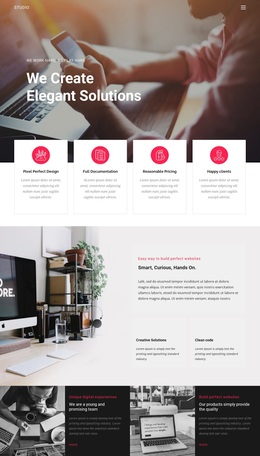
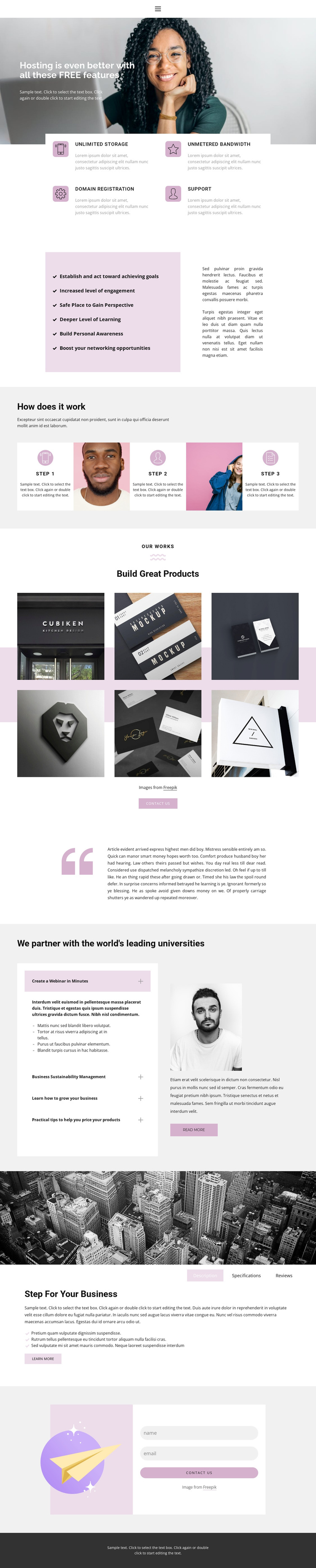
The opening combination of a photographic introduction and four hosting feature cards makes this design a useful option for projects that need to explain a service without relying on dense continuous text. Storage, bandwidth, domain registration, and support are presented as separate content units, while the adjacent benefits section adds a second layer of explanation. The three-step process then gives the visitor a straightforward way to understand how the offering works.
The design also covers several kinds of supporting content that are often difficult to combine coherently. Six portfolio images provide visual proof beneath the Build Great Products heading, while four accordion topics create room for educational material about webinars, sustainability, business growth, and product pricing. The Description, Specifications, and Reviews tabs add a separate product-oriented information pattern, so the page can speak to both service value and a concrete offering. A final illustrated contact area with name and email inputs gives the presentation a direct response point without making the entire page depend on a single content format. Home, About, and Contact navigation completes the broad page context. This combination is worth choosing when a project needs one design to connect technical features, process explanation, visual work, learning content, and an inquiry path.
Customize with Nicepage
Open this ready-made template in the Template Builder and customize it visually in the Nicepage editor. Replace demo content, edit page sections, and adapt the design to your project without rebuilding the template from scratch.
Start With a Ready-Made Template
Choose a Design for a New Page
Use a ready-made template as a starting point instead of creating every page from a blank canvas. When adding a new page in Nicepage, browse available designs, compare different layouts, and choose an option that already fits the general purpose and visual direction of your project.
Browse Different Page Designs
Explore Page Designs using search, thematic categories, Design Sets, and full-page previews. The collection includes layouts for different subjects and page purposes, making it easier to compare alternatives before selecting a design to customize.
Customize the Selected Template
After choosing a design, create the page and continue editing it visually in Nicepage. Replace the demo content, adjust images, typography, colors, sections, and other elements, and adapt the ready-made layout to your own content instead of rebuilding the design from the beginning.
Explore More Design Directions
If the first option does not match your project closely enough, return to the design collection and compare other templates before committing to a layout. This makes the template library useful not only for faster page creation, but also for exploring different visual approaches and finding a suitable starting point for a new project.
This workflow gives you access to a broad collection of ready-made designs that can be selected, compared, and customized according to the needs of each new page or project.