Confectionery reviews Template


A Circular Image and Vertical Review Group Set This Design Apart
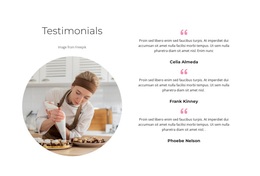
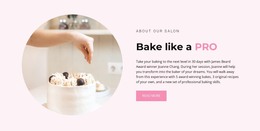
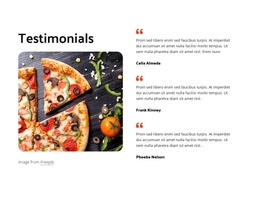
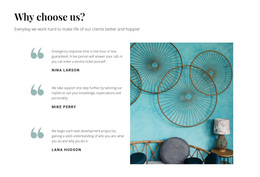
The design choice becomes clear in the relationship between its two unequal content areas. Instead of spreading feedback across a horizontal card grid, the block places a large, circular food-preparation photograph and the “Testimonials” heading in the left column. The right column reserves its height for three vertically stacked testimonial entries. Each repeated entry uses a decorative quote mark and a person-name label, giving the group a consistent rhythm while keeping the individual quotations distinguishable.
This combination makes the section useful when a page needs visible customer feedback with a stronger visual cue than text-only reviews. The circular image connects the testimonial subject to food preparation, while the white background and dark typography keep the content calm and legible. Pink quote accents provide a restrained point of emphasis, and the rounded white cards give each entry a defined surface without introducing extra interaction. Generous spacing prevents the three samples from reading as one crowded paragraph.
Among alternative testimonial designs, this block suits a project that wants one prominent image to accompany several review statements. It can sit within a broader food or restaurant presentation while other sections provide the offer, details, or contact path. The sample names and quotations indicate the content structure; the final selection should use the project’s approved testimonials rather than treating the demo wording as published customer evidence.
Customize with Nicepage
Open this ready-made template in the Template Builder and customize it visually in the Nicepage editor. Replace demo content, edit page sections, and adapt the design to your project without rebuilding the template from scratch.
Edit Template Offline
2. Create a new page or select existing
3. Click Add new block, search for id 5229843 and click enter
Edit Template Online
Create Awesome Websites


Free Nicepage Builder
Keywords
Start With a Ready-Made Template
Choose a Design for a New Page
Use a ready-made template as a starting point instead of creating every page from a blank canvas. When adding a new page in Nicepage, browse available designs, compare different layouts, and choose an option that already fits the general purpose and visual direction of your project.
Browse Different Page Designs
Explore Page Designs using search, thematic categories, Design Sets, and full-page previews. The collection includes layouts for different subjects and page purposes, making it easier to compare alternatives before selecting a design to customize.
Customize the Selected Template
After choosing a design, create the page and continue editing it visually in Nicepage. Replace the demo content, adjust images, typography, colors, sections, and other elements, and adapt the ready-made layout to your own content instead of rebuilding the design from the beginning.
Explore More Design Directions
If the first option does not match your project closely enough, return to the design collection and compare other templates before committing to a layout. This makes the template library useful not only for faster page creation, but also for exploring different visual approaches and finding a suitable starting point for a new project.
This workflow gives you access to a broad collection of ready-made designs that can be selected, compared, and customized according to the needs of each new page or project.