Confectionery workshop Template



Edit Template Offline
2. Create new page and search for id 3214938
Edit Template Online
Create Awesome Websites


Free Nicepage Builder
Keywords
A baking course design that connects instruction with choice
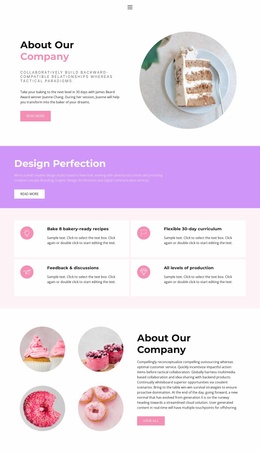
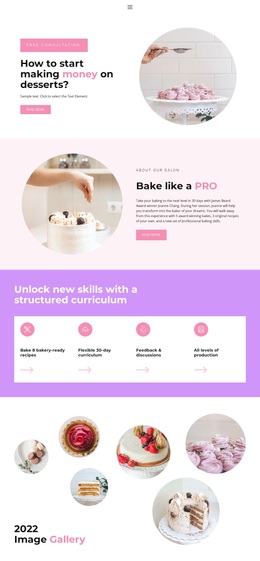
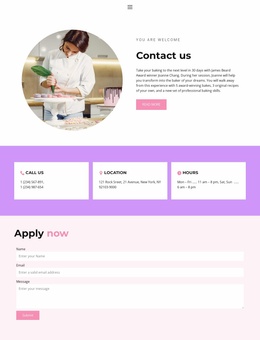
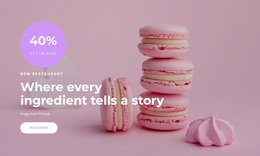
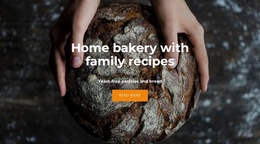
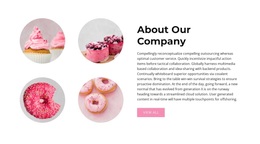
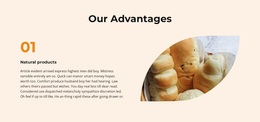
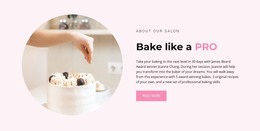
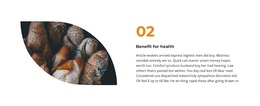
The strongest reason to choose this design is its coverage of the course decision from several complementary angles. The hero speaks to the ambition of starting with desserts, while the introductory section identifies the educational setting. Four curriculum cards then make the learning structure easy to scan, and the three skills columns add more specific subject coverage. These elements give the design more depth than a page based only on a headline and a sales button.
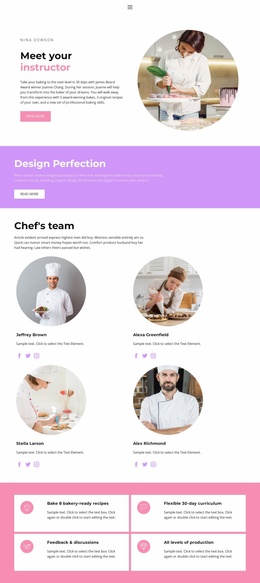
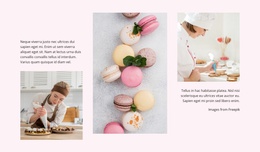
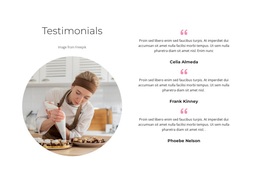
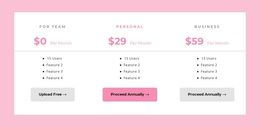
The six-image baking gallery is another distinctive part of the composition. Its repeated circular photographs make the subject visible and break up the explanatory sections without changing the page’s educational focus. The instructor block adds a personal dimension, while the three package cards let the offer be presented as a set of choices rather than a single undifferentiated purchase. A testimonial follows those choices, and the application form supplies a natural next step for visitors who have reviewed the course information. The result is a design suited to projects that need to combine visual food content, structured teaching information, package comparison, and enrollment response in one coordinated presentation. Its visual character supports the subject without replacing the practical course details.
Customize with Nicepage
Open this ready-made template in the Template Builder and customize it visually in the Nicepage editor. Replace demo content, edit page sections, and adapt the design to your project without rebuilding the template from scratch.
Start With a Ready-Made Template
Choose a Design for a New Page
Use a ready-made template as a starting point instead of creating every page from a blank canvas. When adding a new page in Nicepage, browse available designs, compare different layouts, and choose an option that already fits the general purpose and visual direction of your project.
Browse Different Page Designs
Explore Page Designs using search, thematic categories, Design Sets, and full-page previews. The collection includes layouts for different subjects and page purposes, making it easier to compare alternatives before selecting a design to customize.
Customize the Selected Template
After choosing a design, create the page and continue editing it visually in Nicepage. Replace the demo content, adjust images, typography, colors, sections, and other elements, and adapt the ready-made layout to your own content instead of rebuilding the design from the beginning.
Explore More Design Directions
If the first option does not match your project closely enough, return to the design collection and compare other templates before committing to a layout. This makes the template library useful not only for faster page creation, but also for exploring different visual approaches and finding a suitable starting point for a new project.
This workflow gives you access to a broad collection of ready-made designs that can be selected, compared, and customized according to the needs of each new page or project.