Contacts of our restaurants Template


Edit Template Offline
2. Create new page and search for id 5707813
Edit Template Online
Create Awesome Websites


Free Nicepage Builder
Keywords
Address-led content and a direct booking form make this a practical restaurant design choice
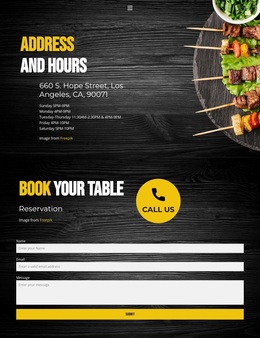
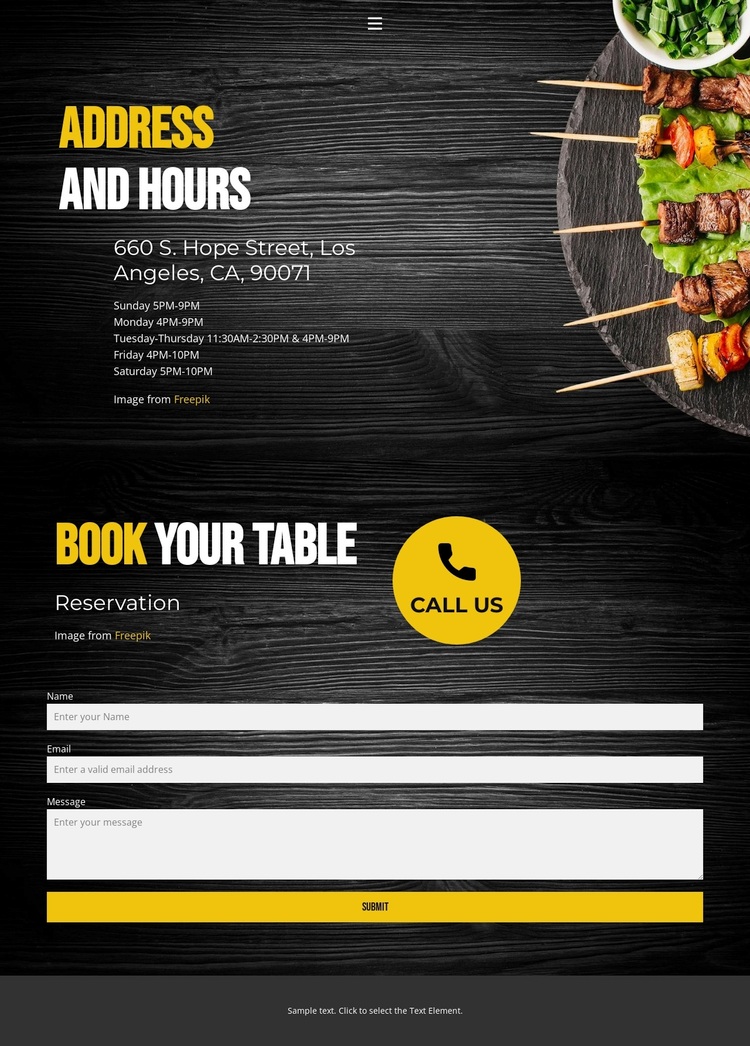
The design puts the information most relevant to a restaurant visit ahead of the response mechanism. Its Address and Hours section presents a concrete location, 660 S. Hope Street, Los Angeles, CA, 90071, and follows it with a Sunday-through-Saturday schedule. That choice gives the page a practical center: visitors can understand where the restaurant is listed and when it operates before they decide whether to continue to the reservation area.
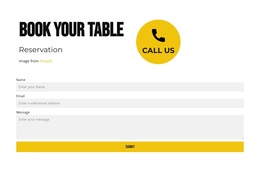
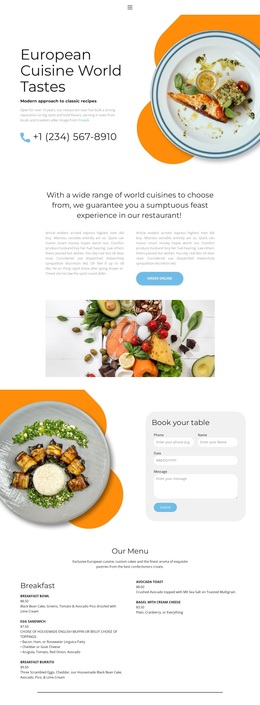
The following section makes the template more specific than a generic contact layout. The “Reservation” label, “book your table” heading, and “call us” prompt frame the contact form as a table-request interaction. Name, email, and message fields provide a simple structure for collecting the inquiry, while the submission action gives the page a defined endpoint. Food imagery alongside the contact content adds visual context without turning the page into a full menu or portfolio. The dark wood-toned background creates continuity between the information and form sections, and yellow-and-white typography supplies contrast for the most important labels. With navigation, location details, weekly hours, reservation language, and a compact footer all present, this option suits a project that needs a direct restaurant contact experience rather than a design built around extensive product listings or long editorial content.
Customize with Nicepage
Open this ready-made template in the Template Builder and customize it visually in the Nicepage editor. Replace demo content, edit page sections, and adapt the design to your project without rebuilding the template from scratch.
Start With a Ready-Made Template
Choose a Design for a New Page
Use a ready-made template as a starting point instead of creating every page from a blank canvas. When adding a new page in Nicepage, browse available designs, compare different layouts, and choose an option that already fits the general purpose and visual direction of your project.
Browse Different Page Designs
Explore Page Designs using search, thematic categories, Design Sets, and full-page previews. The collection includes layouts for different subjects and page purposes, making it easier to compare alternatives before selecting a design to customize.
Customize the Selected Template
After choosing a design, create the page and continue editing it visually in Nicepage. Replace the demo content, adjust images, typography, colors, sections, and other elements, and adapt the ready-made layout to your own content instead of rebuilding the design from the beginning.
Explore More Design Directions
If the first option does not match your project closely enough, return to the design collection and compare other templates before committing to a layout. This makes the template library useful not only for faster page creation, but also for exploring different visual approaches and finding a suitable starting point for a new project.
This workflow gives you access to a broad collection of ready-made designs that can be selected, compared, and customized according to the needs of each new page or project.