The planning firm with 53 offices and 7000+ professionals Template


Edit Template Offline
2. Create new page and search for id 5102110
Edit Template Online
Create Awesome Websites


Free Nicepage Builder
Keywords
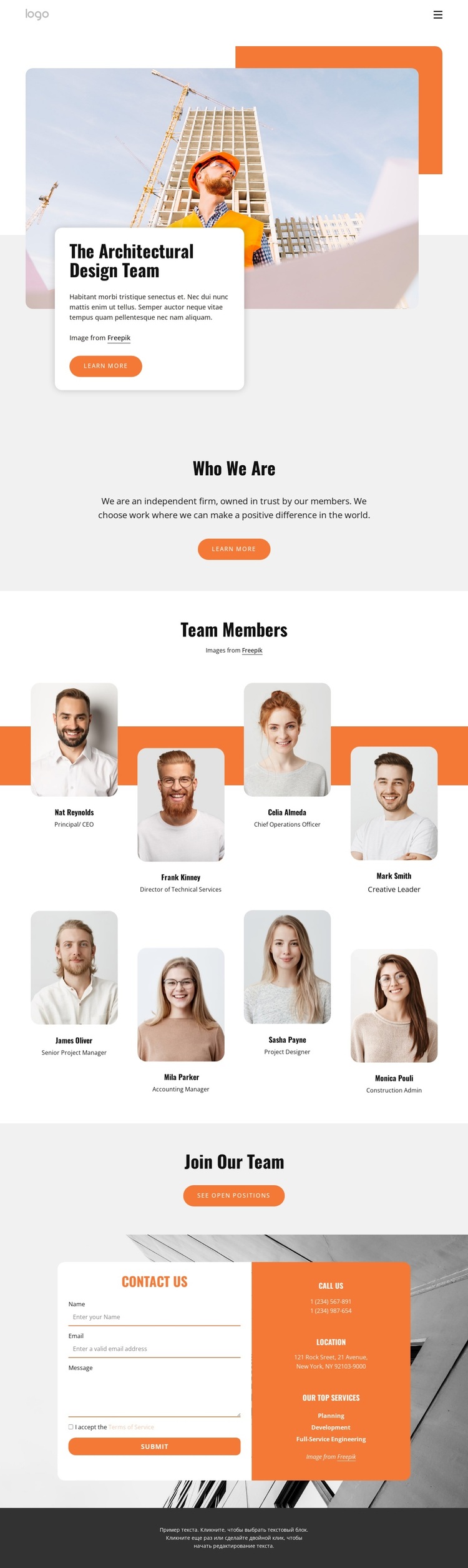
Eight Portrait Profiles Make the Architecture Team the Design’s Main Choice
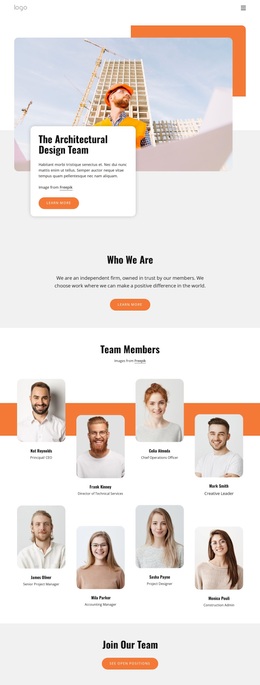
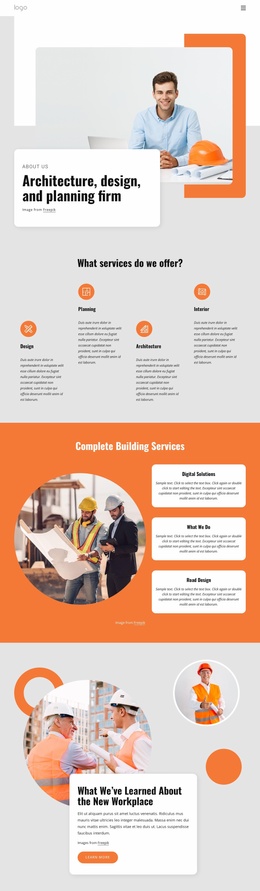
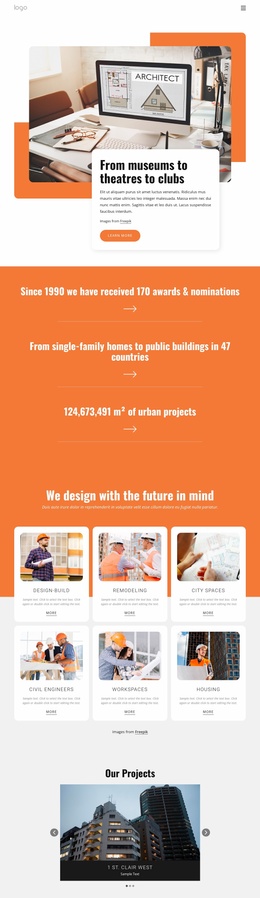
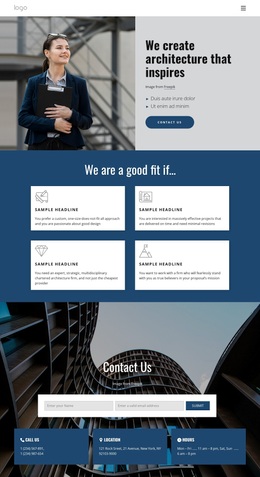
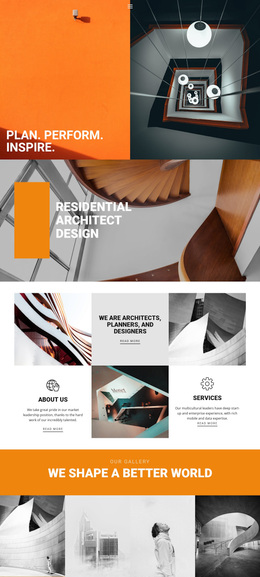
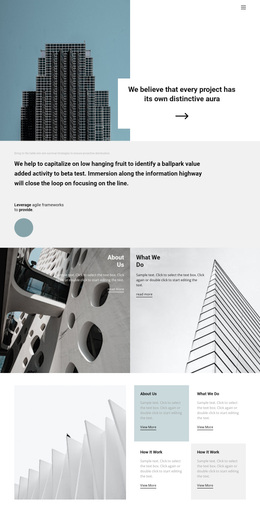
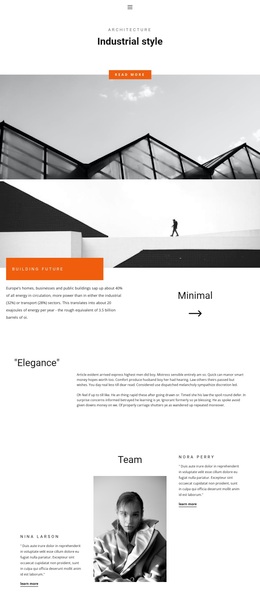
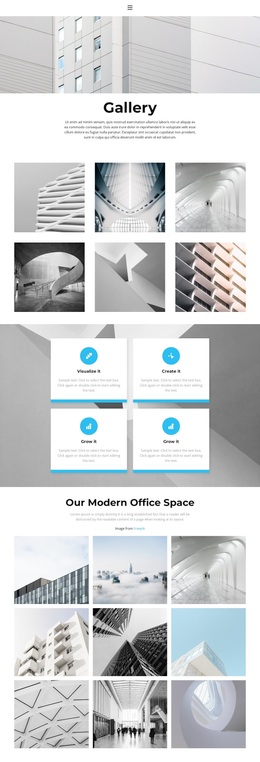
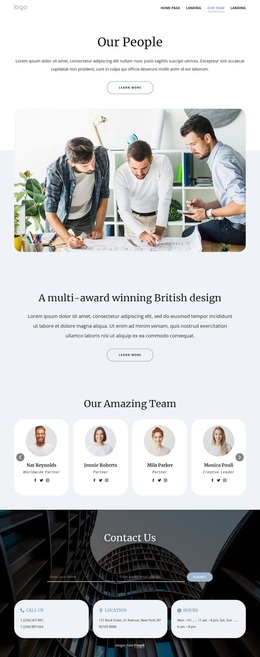
The page places people at the center of its message. A construction-related hero image establishes the architectural setting, but the strongest differentiator is the eight-profile Team Members section arranged in two rows around an orange accent band. That arrangement gives the design more human context than a layout centered only on services or project imagery. Each profile includes a sample name and professional title, allowing the page to communicate a planned team directory without treating demo identities as verified facts.
The surrounding sections support that central choice. A short Who We Are introduction explains the firm before visitors reach the profiles, while the Join Our Team block shows that the same design can address prospective applicants as well as prospective clients. Its See Open Positions button adds a distinct recruitment route instead of leaving employment interest buried in general copy.
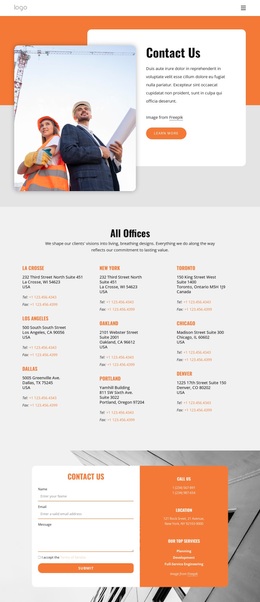
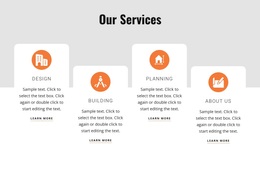
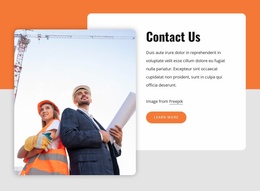
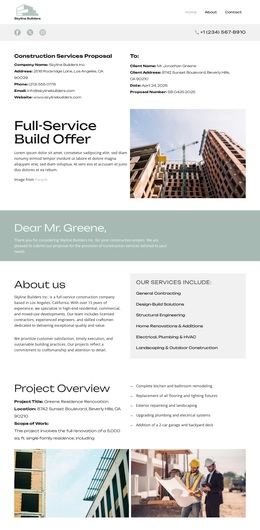
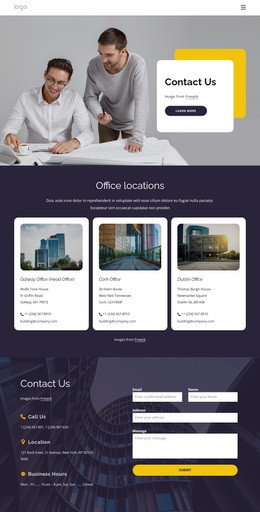
The closing contact area expands the design’s coverage through a form with name, email, message, and terms acceptance controls. A neighboring information panel presents phone, location, and service labels for planning, development, and full-service engineering. These labels connect the people-focused presentation with the firm’s professional offering. The displayed contact values remain sample content, but the relationship between team directory, recruitment action, and inquiry form makes this a useful ready-made option for architecture projects that need both organizational identity and direct response points.
Customize with Nicepage
Open this ready-made template in the Template Builder and customize it visually in the Nicepage editor. Replace demo content, edit page sections, and adapt the design to your project without rebuilding the template from scratch.
Start With a Ready-Made Template
Choose a Design for a New Page
Use a ready-made template as a starting point instead of creating every page from a blank canvas. When adding a new page in Nicepage, browse available designs, compare different layouts, and choose an option that already fits the general purpose and visual direction of your project.
Browse Different Page Designs
Explore Page Designs using search, thematic categories, Design Sets, and full-page previews. The collection includes layouts for different subjects and page purposes, making it easier to compare alternatives before selecting a design to customize.
Customize the Selected Template
After choosing a design, create the page and continue editing it visually in Nicepage. Replace the demo content, adjust images, typography, colors, sections, and other elements, and adapt the ready-made layout to your own content instead of rebuilding the design from the beginning.
Explore More Design Directions
If the first option does not match your project closely enough, return to the design collection and compare other templates before committing to a layout. This makes the template library useful not only for faster page creation, but also for exploring different visual approaches and finding a suitable starting point for a new project.
This workflow gives you access to a broad collection of ready-made designs that can be selected, compared, and customized according to the needs of each new page or project.

Design Set (31)
-

-
-
-
-
-
-
-
-
-
-
-
-
-
-
Free Website Builder SoftwareDownload
-
-
-
-
-
-
-
-
-
-
-