Everything is technology Template


Edit Template Offline
2. Create new page and search for id 19816
Edit Template Online
Create Awesome Websites


Free Nicepage Builder
Keywords
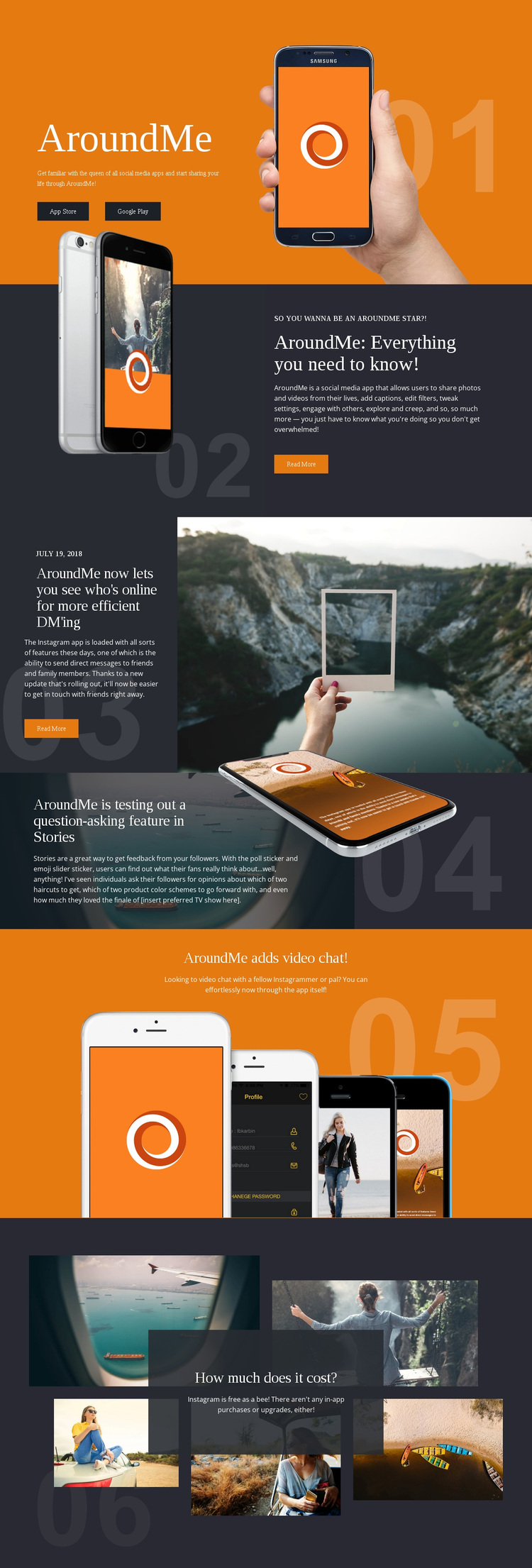
Layered phones and feature stories give the design a clear point of view
Layered smartphone imagery is the strongest reason to choose this design for a social application presentation. It appears beside the opening download prompt, the feature explanation, the Stories section, and the video-chat announcement, so the product remains visible as a mobile experience rather than being described only through text. The repeated device motif gives the page a recognizable center of gravity.
The content coverage is also unusually specific for a promotional starting point. Instead of stopping at a general app introduction, the layout explains sharing and editing tools, direct messaging, Stories, and video chat. The feature sections change between dark explanatory panels, editorial copy beside lifestyle photography, and image-led compositions, allowing several capabilities to be presented without making every block look identical.
The closing six-image collage adds a social atmosphere that complements the product story, while the free-use statement supplies a simple value message. Together, the download actions, concrete feature coverage, phone imagery, and lifestyle photography make this design a useful option for projects that need to show both what an app does and how it fits into everyday communication. It is less suited to a text-heavy corporate presentation than to a visually led product narrative.
Customize with Nicepage
Open this ready-made template in the Template Builder and customize it visually in the Nicepage editor. Replace demo content, edit page sections, and adapt the design to your project without rebuilding the template from scratch.
Start With a Ready-Made Template
Choose a Design for a New Page
Use a ready-made template as a starting point instead of creating every page from a blank canvas. When adding a new page in Nicepage, browse available designs, compare different layouts, and choose an option that already fits the general purpose and visual direction of your project.
Browse Different Page Designs
Explore Page Designs using search, thematic categories, Design Sets, and full-page previews. The collection includes layouts for different subjects and page purposes, making it easier to compare alternatives before selecting a design to customize.
Customize the Selected Template
After choosing a design, create the page and continue editing it visually in Nicepage. Replace the demo content, adjust images, typography, colors, sections, and other elements, and adapt the ready-made layout to your own content instead of rebuilding the design from the beginning.
Explore More Design Directions
If the first option does not match your project closely enough, return to the design collection and compare other templates before committing to a layout. This makes the template library useful not only for faster page creation, but also for exploring different visual approaches and finding a suitable starting point for a new project.
This workflow gives you access to a broad collection of ready-made designs that can be selected, compared, and customized according to the needs of each new page or project.