Digital world of technology Template


Edit Template Offline
2. Create new page and search for id 20573
Edit Template Online
Create Awesome Websites


Free Nicepage Builder
Keywords
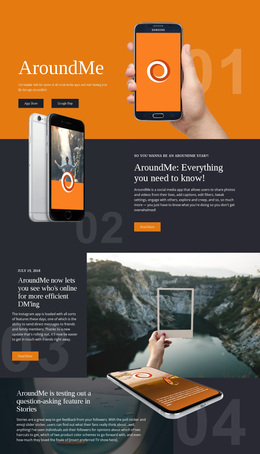
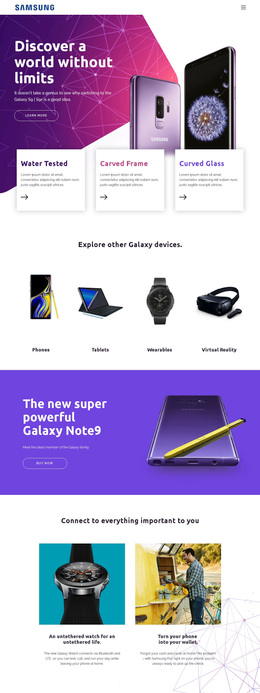
Four Device Categories Connect Multiple Galaxy Product Stories
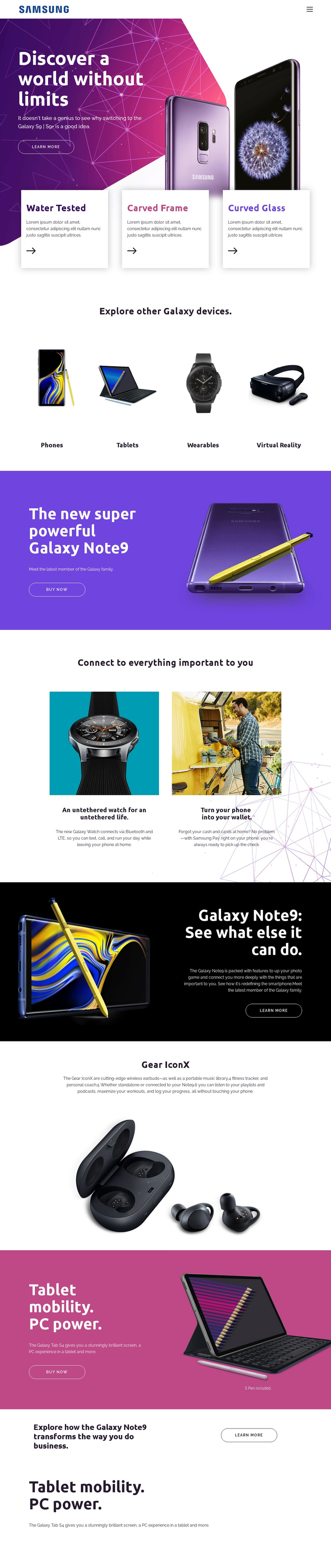
Large Galaxy product imagery carries the page from its first impression, but the design is worth choosing because it covers several related content needs in one coordinated presentation. The opening phone hero gives the layout a clear center, and the three feature cards turn product characteristics into compact points of interest. The following category grid then expands the scope to Phones, Tablets, Wearables, and Virtual Reality, making the design suitable for a project that needs both a featured device and a wider product direction.
The later content adds variety without abandoning that relationship. Galaxy Note9 appears through promotional and capability-focused sections, while Galaxy Watch and Samsung Pay show how the page can connect a handset with adjacent services. Gear IconX wireless earbuds supply an accessory story, and Galaxy Tab S4 introduces a second large-device promotion with a purchase action. The business-use message adds another context for the Note9 without requiring a separate visual system.
This combination separates the design from layouts centered only on service cards or dense technical specifications. Visitors can discover categories, inspect individual products, follow Learn more paths, and encounter Buy now actions within a strong visual sequence. The saturated color bands, bold headings, and generous spacing make the option especially suitable when product imagery and ecosystem breadth should carry as much of the message as explanatory copy.
Customize with Nicepage
Open this ready-made template in the Template Builder and customize it visually in the Nicepage editor. Replace demo content, edit page sections, and adapt the design to your project without rebuilding the template from scratch.
Start With a Ready-Made Template
Choose a Design for a New Page
Use a ready-made template as a starting point instead of creating every page from a blank canvas. When adding a new page in Nicepage, browse available designs, compare different layouts, and choose an option that already fits the general purpose and visual direction of your project.
Browse Different Page Designs
Explore Page Designs using search, thematic categories, Design Sets, and full-page previews. The collection includes layouts for different subjects and page purposes, making it easier to compare alternatives before selecting a design to customize.
Customize the Selected Template
After choosing a design, create the page and continue editing it visually in Nicepage. Replace the demo content, adjust images, typography, colors, sections, and other elements, and adapt the ready-made layout to your own content instead of rebuilding the design from the beginning.
Explore More Design Directions
If the first option does not match your project closely enough, return to the design collection and compare other templates before committing to a layout. This makes the template library useful not only for faster page creation, but also for exploring different visual approaches and finding a suitable starting point for a new project.
This workflow gives you access to a broad collection of ready-made designs that can be selected, compared, and customized according to the needs of each new page or project.