Future technology Template


Edit Template Offline
2. Create new page and search for id 18337
Edit Template Online
Create Awesome Websites


Free Nicepage Builder
Keywords
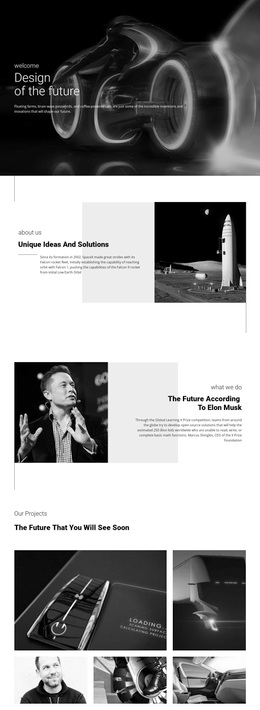
Robotic Automation and Future Vehicles Give the Design a Clear Focus
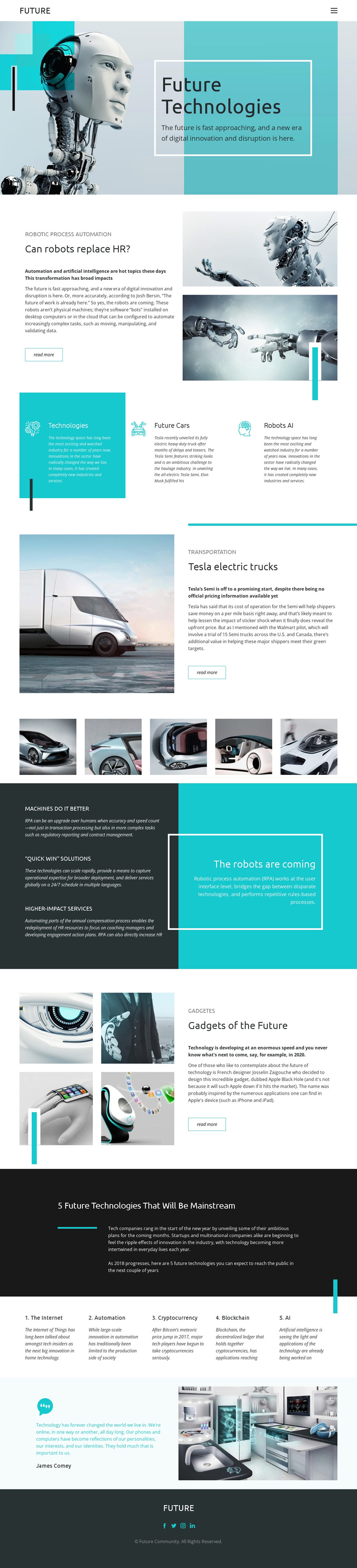
The strongest reason to choose this design is its combination of editorial breadth and recognizable technology subjects. The robotic hero establishes a direct visual connection with future innovation, while the featured article about robotic process automation gives the page a concrete angle on repetitive, rules-based work. The Tesla Semi section then introduces future transportation, and the gadget feature adds a consumer-facing layer without abandoning the central technology theme.
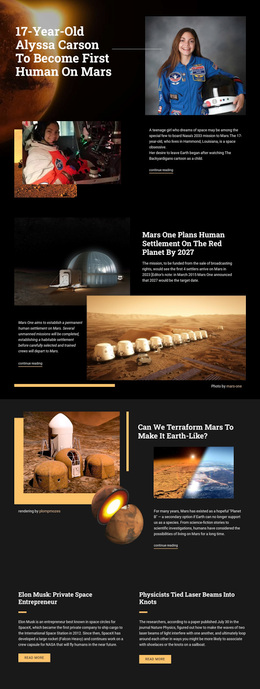
The supporting sections make the page more than a sequence of isolated stories. Three category panels identify Technologies, Future Cars, and Robots AI in a compact format, while five vehicle photographs reinforce the transportation subject through a dedicated visual showcase. The dark automation area adds a stronger conceptual statement through three benefit panels, creating contrast with the image-led editorial sections.
A further distinction is the closing numbered overview of the Internet, automation, cryptocurrency, blockchain, and AI. It gives the design broad topical coverage after the more specific articles, while the quotation and Future Community footer provide a publication-like ending. This makes the template a useful option for projects that need technology commentary, visual storytelling, and several related subjects in one coherent home-page presentation.
Customize with Nicepage
Open this ready-made template in the Template Builder and customize it visually in the Nicepage editor. Replace demo content, edit page sections, and adapt the design to your project without rebuilding the template from scratch.
Start With a Ready-Made Template
Choose a Design for a New Page
Use a ready-made template as a starting point instead of creating every page from a blank canvas. When adding a new page in Nicepage, browse available designs, compare different layouts, and choose an option that already fits the general purpose and visual direction of your project.
Browse Different Page Designs
Explore Page Designs using search, thematic categories, Design Sets, and full-page previews. The collection includes layouts for different subjects and page purposes, making it easier to compare alternatives before selecting a design to customize.
Customize the Selected Template
After choosing a design, create the page and continue editing it visually in Nicepage. Replace the demo content, adjust images, typography, colors, sections, and other elements, and adapt the ready-made layout to your own content instead of rebuilding the design from the beginning.
Explore More Design Directions
If the first option does not match your project closely enough, return to the design collection and compare other templates before committing to a layout. This makes the template library useful not only for faster page creation, but also for exploring different visual approaches and finding a suitable starting point for a new project.
This workflow gives you access to a broad collection of ready-made designs that can be selected, compared, and customized according to the needs of each new page or project.