Observe experts in action Joomla Template



A layered expertise section for structured Joomla content
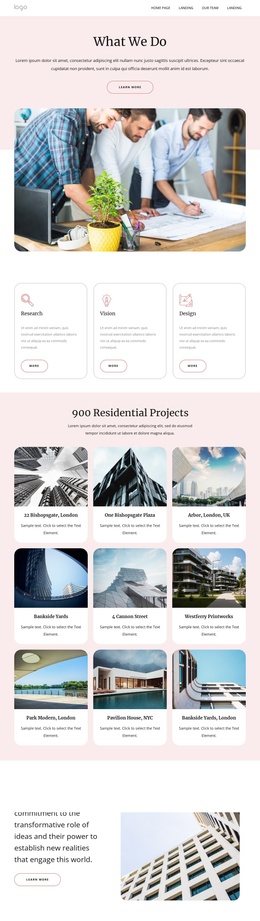
The large group photograph establishes the visual subject on the left, while the white panel carries the “Building Expertise” heading, two supporting text areas, and the “view more” button. Because the panel overlaps the lower-right portion of the image, the section reads as one connected content area rather than a separate photograph followed by an unrelated text column. The red rectangle behind the image adds a second visual layer and helps distinguish the composition from a plain informational block.
In a Joomla-managed project, this arrangement can work as a structured expertise or introductory region within an article-oriented page. The heading identifies the subject, the paragraphs provide explanatory context, and the button can direct visitors toward a related content destination elsewhere in the surrounding site. The block therefore gives a Joomla page a defined visual section while the broader CMS manages other editorial areas, navigation, and related content.
The light lavender background, black heading, white card, and outlined action create a recognizable presentation for this one content region. If the surrounding Joomla project contains related expertise sections, the same visual logic can help separate introductory information from deeper material without turning this block into a complete site template. Its static composition keeps the content relationship clear: image for human context, panel for explanation, and button for continuation.
Customize with Nicepage
Open this ready-made template in the Joomla Page Builder and customize it visually in the Nicepage editor. Replace demo content, edit page sections, and adapt the design to your project without rebuilding the template from scratch.
Edit Template Offline
2. Create a new page or select existing
3. Click Add new block, search for id 1644320 and click enter
Edit Template Online
Create Awesome Websites


Free Nicepage Builder
Keywords
Work With This Template in Joomla
Customize and Install the Joomla Template
Start with this ready-made template instead of building the Joomla design from scratch. Customize its layout, content, typography, images, sections, and other design elements visually in the Nicepage application, then export and install the Joomla Template, Nicepage Extension, and supported content on your Joomla website.
Edit the Template Directly in Joomla
After installation, you can edit the Joomla Template directly in Joomla with the Nicepage Joomla Extension. Customize the Header, Footer, Colors, Fonts, typography, and Page Templates from the Joomla workflow while keeping the site design connected with your CMS content.
Edit Joomla Articles Visually
Use the Nicepage Joomla Extension to open and edit Joomla Articles visually from the Joomla Administrator. Change text, images, sections, layouts, and other page content in the Nicepage editor while continuing to manage the Articles through Joomla.
Joomla Content and Template Integration
Use the customized template together with Joomla Articles, module Positions, menus, forms, Blog Pages, and other supported CMS elements. With the Nicepage Extension used as the Site Style Source, shared design settings can be applied across Joomla Articles while Joomla continues to provide the CMS environment for managing site content.
This workflow combines a ready-made Joomla Template with visual customization, direct template editing in Joomla, and continued content management through the Nicepage Joomla Extension.